Day 19 Tutorial - WordPress Anchors and Additional CSS Classes
Part of the WordPress Block Editor in 60 Days series · All lessons
On this page
← Previous: Day 18, Responsive Behavior and Visibility
Welcome to Day 19 of the 60-Day WordPress Block Editor Tutorial Series. Two small fields in the Advanced panel give you great power: the HTML anchor and Additional CSS class(es). One makes jump links, the other lets you style blocks with your own CSS. Time needed: 10 minutes reading + 30 minutes practice.
What You Will Learn Today
- What an HTML anchor is and how to build a jump link
- How to name anchors well
- How to add custom classes to a block
- Where to put the CSS for those classes
- How to avoid common mistakes with both
Reading: Advanced Panel Basics
Select a block (Heading and Group are common) and open Settings → Advanced. You will see HTML anchor and Additional CSS class(es).
HTML Anchor
An anchor gives a block a unique id. A link to #that-id scrolls the page to it. Use it for a table of contents, a "Contact us" button that jumps to a form, or a "back to top" link.
- Use lowercase words with hyphens:
pricing,contact-form. - No spaces and no duplicates on the same page.
- Link to it with a Button or text link whose URL is
#pricing. - From another page the link is
/services/#pricing.
If a fixed header covers the heading after the jump, add CSS scroll-margin-top to the target (your theme may already do this).
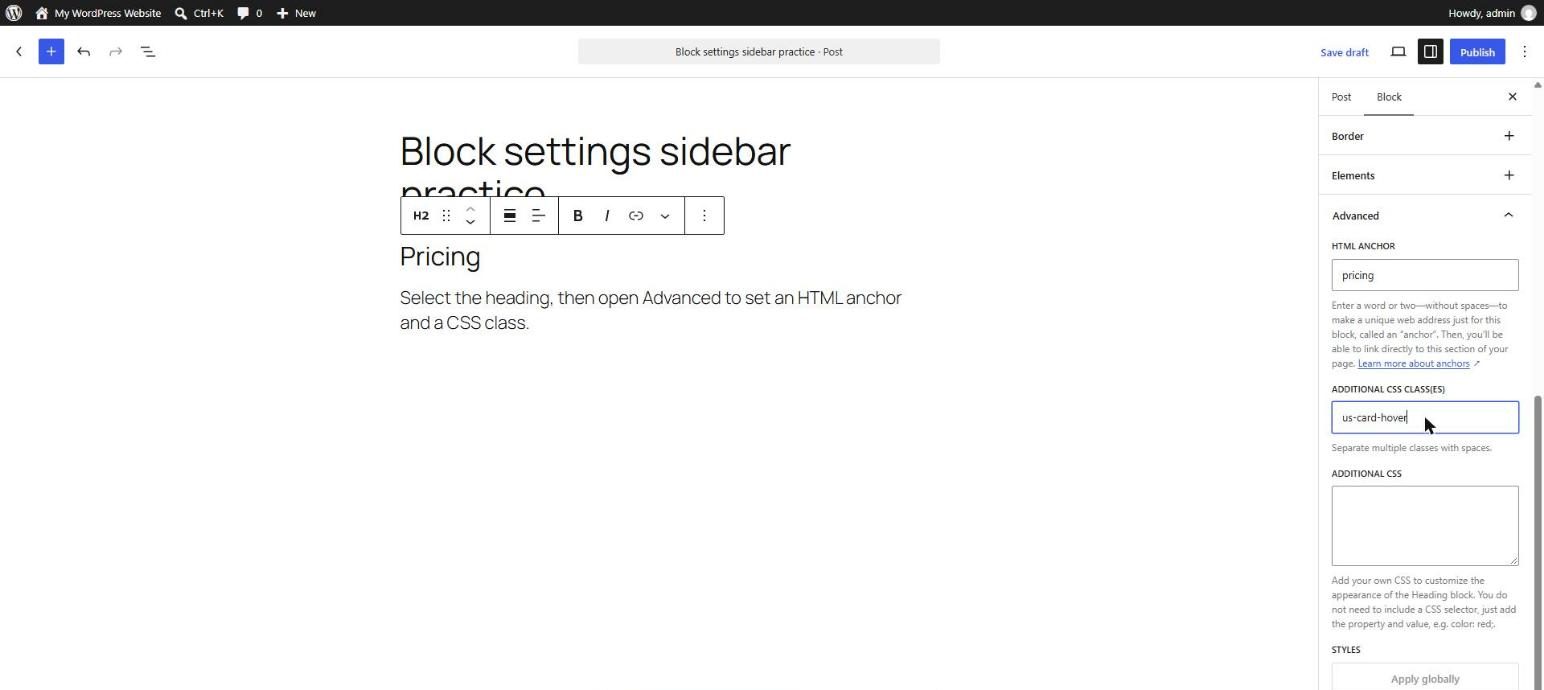
pricing and the additional CSS class us-card-hover. Screenshot taken by Umar Shakar in WordPress Playground (WordPress is GPL-2.0-or-later software).Additional CSS Class(es)
Here you add one or more class names, separated by spaces, to the block's HTML. They do nothing alone. You must write CSS for them. Class names are also used by plugins and themes (for example, a class that makes an image grayscale).
Put your CSS in Appearance → Editor → Styles → Additional CSS (block themes), or in the Customizer’s Additional CSS for classic themes.
.card-hover {
  transition: transform .2s ease, box-shadow .2s ease;
}
.card-hover:hover {
  transform: translateY(-4px);
  box-shadow: 0 10px 24px rgba(0, 0, 0, .12);
}
Good Habits
- Name by purpose, not look:
card-hover, notblue-thing. - Use a prefix such as
us-to avoid clashes with plugins. - Try built-in controls first. Use CSS only for what the editor cannot do (hover effects, special layouts).
- Keep CSS in one place and add comments, so you can find it later.
Key takeaway: anchors make jump links, and classes connect blocks to your own CSS.
5 Examples to Follow Along
Example 1: Create an Anchor
Select a Heading, open Advanced, and set the anchor to pricing. Check the Code editor for id="pricing".
Example 2: Make a Jump Button
Add a Button and set its link to #pricing. Preview the page and click it.
<!-- wp:heading {"anchor":"pricing"} -->
<h2 class="wp-block-heading" id="pricing">Pricing</h2>
<!-- /wp:heading -->
Example 3: Add a Class
Select a Group, open Advanced, and add card-hover to Additional CSS class(es).
Example 4: Write the CSS
Open Additional CSS and paste the hover example above. Preview the page and hover over the card.
Example 5: Use Two Classes
Add two classes separated by a space, for example us-card us-featured, and find them in the Code editor.
Questions
Try to answer each question yourself first, then open the answer.
Question 1: What is an HTML anchor in the block editor?
Show answer
It is the field that sets the block's id. A link ending with #id jumps to that block.
Example: a Heading with anchor faq can be reached with a link to #faq.
Question 2: Can two blocks on a page have the same anchor?
Show answer
No. Ids must be unique. Duplicate ids can break the jump link and are invalid HTML.
Example: use faq-1 and faq-2, not faq twice.
Question 3: Does adding a class change how the block looks by itself?
Show answer
No. A class is only a hook. You need CSS (or a theme or plugin that already styles that class).
Example: card-hover does nothing until you write rules for it.
Question 4: Where should you write custom CSS in a block theme?
Show answer
In the Site Editor under Styles → Additional CSS, or in the theme's stylesheet if you manage the theme.
Example: paste your card hover rule once and every block with that class gets it.
Question 5: Why use a prefix for class names?
Show answer
It reduces the chance that your class clashes with names used by a plugin or the theme.
Example: us-card is safer than card.
MCQs (Multiple Choice Questions)
MCQ 1: The HTML anchor sets the block's:
- A) id
- B) font
- C) language
- D) author
Show answer
A) id. The id is what a #link points to.
MCQ 2: A jump link to an anchor named faq is:
- A) #faq
- B) @faq
- C) ?faq
- D) $faq
Show answer
A) #faq. The hash symbol targets an id.
MCQ 3: Additional CSS classes need:
- A) CSS rules to have an effect
- B) A new theme
- C) A database
- D) SSL
Show answer
A) CSS rules to have an effect. Classes only mark the block.
MCQ 4: Class names are separated by:
- A) A space
- B) A comma only
- C) A slash
- D) Nothing
Show answer
A) A space. HTML classes use spaces.
MCQ 5: Which is a good anchor?
- A) contact-form
- B) Contact Form!
- C) contact form
- D) Contact/Form
Show answer
A) contact-form. Lowercase words with hyphens are safest.
Practice: 10 Tasks from Easy to Hard
Create a new draft page called Practice Day 19 and work through the tasks in order. Where a snippet is given, open Options → Code editor, paste it, then switch back to the Visual editor.
Task 1 (Easy): Add an anchor
Set an anchor on a Heading.
Task 2 (Easy): Link to it
Add a Button that links to the anchor.
Task 3 (Easy): Add a class
Add a class name to a Group.
Task 4 (Easy): Find them in code
Open the Code editor and find the id and class in the markup.
Task 5 (Medium): Mini table of contents
Create three headings with anchors and a list of three links at the top.
Task 6 (Medium): Style by class
Write CSS that changes the background color of every block with your class.
Task 7 (Medium): Back to top
Anchor the top Group as top and add a "Back to top" link at the bottom.
Task 8 (Medium-Hard): Hover card
Add the hover CSS from this lesson to a card and test on desktop and mobile.
Task 9 (Hard): Fix the sticky header problem
Add scroll-margin-top to an anchored heading so a fixed header does not cover it after the jump.
<!-- wp:heading {"anchor":"faq"} -->
<h2 class="wp-block-heading" id="faq">FAQ</h2>
<!-- /wp:heading -->
Task 10 (Hard): Class system
Plan three reusable classes with a prefix (for example card, featured, note) and write the CSS for all three.
Coming Up Next
In Day 20 you will combine everything from Phase 2 in a review project: building a landing section.
I'm Umar, a web developer and SEO specialist in Abu Dhabi. Get in touch.