Day 18 Tutorial - WordPress Responsive Design and Block Visibility
Part of the WordPress Block Editor in 60 Days series · All lessons
On this page
← Previous: Day 17, The Grid Block
Welcome to Day 18 of the 60-Day WordPress Block Editor Tutorial Series. More than half of web visits come from phones, so every page you build must work on small screens. Today you learn how blocks respond and how to control it. Time needed: 10 minutes reading + 30 minutes practice.
What You Will Learn Today
- How to preview desktop, tablet, and mobile
- How Columns, Row, and Grid behave on small screens
- How fluid typography and spacing help
- How block visibility can hide a block on some devices
- A mobile checklist to run before publishing
Reading: Designing for Every Screen
Preview Devices
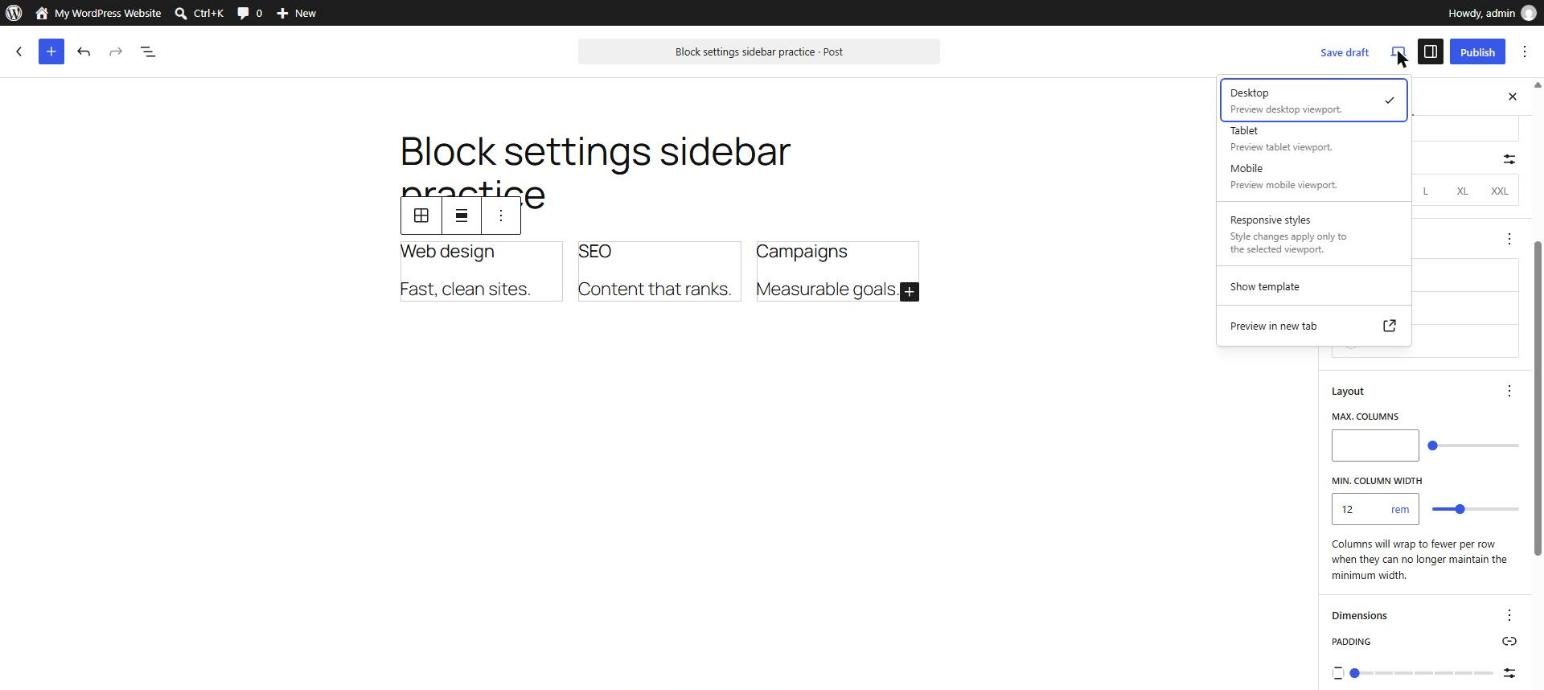
In the editor toolbar, use the Preview menu to switch between Desktop, Tablet, and Mobile. The canvas resizes so you can see how blocks respond. Always finish with a real phone test too, because the preview is an approximation.
What Blocks Do Automatically
- Columns stack vertically on mobile by default. You can turn this off, but it is rarely wise.
- Row items wrap if wrapping is allowed (Day 16).
- Grid with a minimum column width reduces columns by itself (Day 17).
- Images scale down to fit the container.
- Fluid typography (Day 12) and fluid spacing presets shrink on small screens when the theme enables them.
Block Visibility
Recent WordPress versions let you hide a block on selected screen sizes. Select the block, open the options menu (three dots), and choose the visibility option, then pick Desktop, Tablet, or Mobile. If your version does not have it, you can use a custom CSS class instead (Day 19).
Use it with care. Hidden content is still in the page code, so do not hide important text just to shorten mobile pages. Good uses: a large decorative image on desktop only, or a short call button on mobile only.
Mobile Checklist
- Text is at least 16 px and does not need zooming.
- Buttons are easy to tap (about 44 px high, with space between them).
- No horizontal scroll bar appears.
- Padding is not so large that the text column becomes narrow.
- Images are compressed (Day 45) and have alt text.
- Tables and wide code blocks scroll or are rewritten for small screens.
Key takeaway: build mobile first in your head, preview all three sizes, and use visibility sparingly.
5 Examples to Follow Along
Example 1: Switch Preview
Open the Preview menu and switch between Desktop, Tablet, and Mobile on a page with Columns and a Cover. Note what changes.
Example 2: Columns on Mobile
Add a three-column block and check the mobile preview. Columns should stack in order. If the order is wrong, rearrange the blocks.
Example 3: Test Wrapping
Create a Row of buttons with wrapping on and look at it in mobile preview.
Example 4: Find the Visibility Option
Select an Image, open the block options menu, and look for the visibility setting. If it exists, hide the image on mobile and verify in preview.
Example 5: Spot Horizontal Scroll
Add a very wide image or table and check whether a horizontal scroll bar appears in mobile preview. Fix it by setting the image to fit its container.
Questions
Try to answer each question yourself first, then open the answer.
Question 1: What happens to Columns on a phone?
Show answer
They stack vertically in the order they appear, each taking the full width.
Example: text on the left and an image on the right becomes text first and image underneath.
Question 2: Why should you test on a real phone?
Show answer
The editor preview only resizes the canvas. A real device shows real fonts, touch targets, and browser behavior.
Example: a button looks fine in preview but is hard to tap with a thumb on a real phone.
Question 3: When is hiding a block on mobile a good idea?
Show answer
For decorative or secondary content, such as a large background illustration. Do not hide important information.
Example: hide a wide hero illustration on mobile but keep the heading and button.
Question 4: Why does fluid sizing help?
Show answer
The sizes scale between a minimum and a maximum depending on the screen, so you need fewer manual fixes.
Example: a heading is 28 px on a phone and 44 px on a desktop automatically.
Question 5: What causes horizontal scrolling?
Show answer
Something wider than the screen, such as a fixed pixel width, a wide table, a long URL, or an oversized image.
Example: a fixed 900 px wide Group overflows a 390 px wide phone.
MCQs (Multiple Choice Questions)
MCQ 1: Where do you switch device previews?
- A) The Preview menu in the toolbar
- B) The theme folder
- C) The database
- D) Search Console
Show answer
A) The Preview menu in the toolbar. It offers Desktop, Tablet, and Mobile.
MCQ 2: Columns on mobile usually:
- A) Stack vertically
- B) Disappear
- C) Turn red
- D) Become a table
Show answer
A) Stack vertically. This is the default behavior.
MCQ 3: Which unit is risky for widths on mobile?
- A) Large fixed pixels
- B) Percentages
- C) Auto
- D) Min width with clamp
Show answer
A) Large fixed pixels. They can overflow small screens.
MCQ 4: Hidden blocks are:
- A) Still in the page code
- B) Deleted from the database
- C) Invisible to Google by definition
- D) Moved to trash
Show answer
A) Still in the page code. They are only hidden with CSS for some devices.
MCQ 5: A good tap target is about:
- A) 44 px high
- B) 5 px high
- C) 1 px high
- D) Zero
Show answer
A) 44 px high. Small buttons are hard to tap.
Practice: 10 Tasks from Easy to Hard
Create a new draft page called Practice Day 18 and work through the tasks in order.
Task 1 (Easy): Preview all sizes
Open an existing page and view it on Desktop, Tablet, and Mobile.
Task 2 (Easy): Check Columns
Add a Columns block and see how it stacks on mobile.
Task 3 (Easy): Find horizontal scroll
Look for horizontal scrolling on three pages of your site.
Task 4 (Easy): Check button size
Make sure buttons are large enough and have space between them.
Task 5 (Medium): Use wrapping
Fix a Row of items that squeezes on mobile by enabling wrapping.
Task 6 (Medium): Reduce padding on mobile
Find a Group where desktop padding is too large for a phone and reduce it to a preset that suits both.
Task 7 (Medium): Hide a decoration
If your editor supports visibility, hide a decorative image on mobile only.
Task 8 (Medium-Hard): Reorder for mobile
Rearrange a two-column section so the heading and button come before the image on mobile.
Task 9 (Hard): Fix an overflow
Create a Group with a 900px width in the Code editor, see the overflow on mobile, then fix it with a max width and percentages.
Task 10 (Hard): Full mobile audit
Audit one important page using the mobile checklist and write down five fixes in priority order.
Coming Up Next
In Day 19 you will learn anchors and additional CSS classes.
I'm Umar, a web developer and SEO specialist in Abu Dhabi. Get in touch.