Day 20 Tutorial - Phase 2 Review: Build a Landing Section in WordPress Blocks
Part of the WordPress Block Editor in 60 Days series · All lessons
On this page
← Previous: Day 19, Anchors and Additional CSS Classes
Welcome to Day 20 of the 60-Day WordPress Block Editor Tutorial Series. This is the review day for Phase 2 (Days 11 to 20). You will combine settings, typography, color, spacing, borders, layout, grid, responsiveness, and anchors into one real landing section. Time needed: 10 minutes reading + 30 minutes practice.
What You Will Learn Today
- A quick recap of Days 11 to 19
- A step-by-step plan for a landing section
- A finished block markup you can paste and study
- A review checklist for quality
- Ideas to extend the project
Recap of Phase 2
- Day 11: the block settings sidebar (Styles, Settings, Advanced).
- Day 12: typography: size, weight, line height, letter spacing.
- Day 13: colors and gradients.
- Day 14: padding, margin, and block spacing.
- Day 15: borders, radius, and shadows.
- Day 16: layout types: Flow, Constrained, Flex.
- Day 17: the Grid block.
- Day 18: responsive behavior and visibility.
- Day 19: anchors and additional CSS classes.
The Project: A Services Landing Section
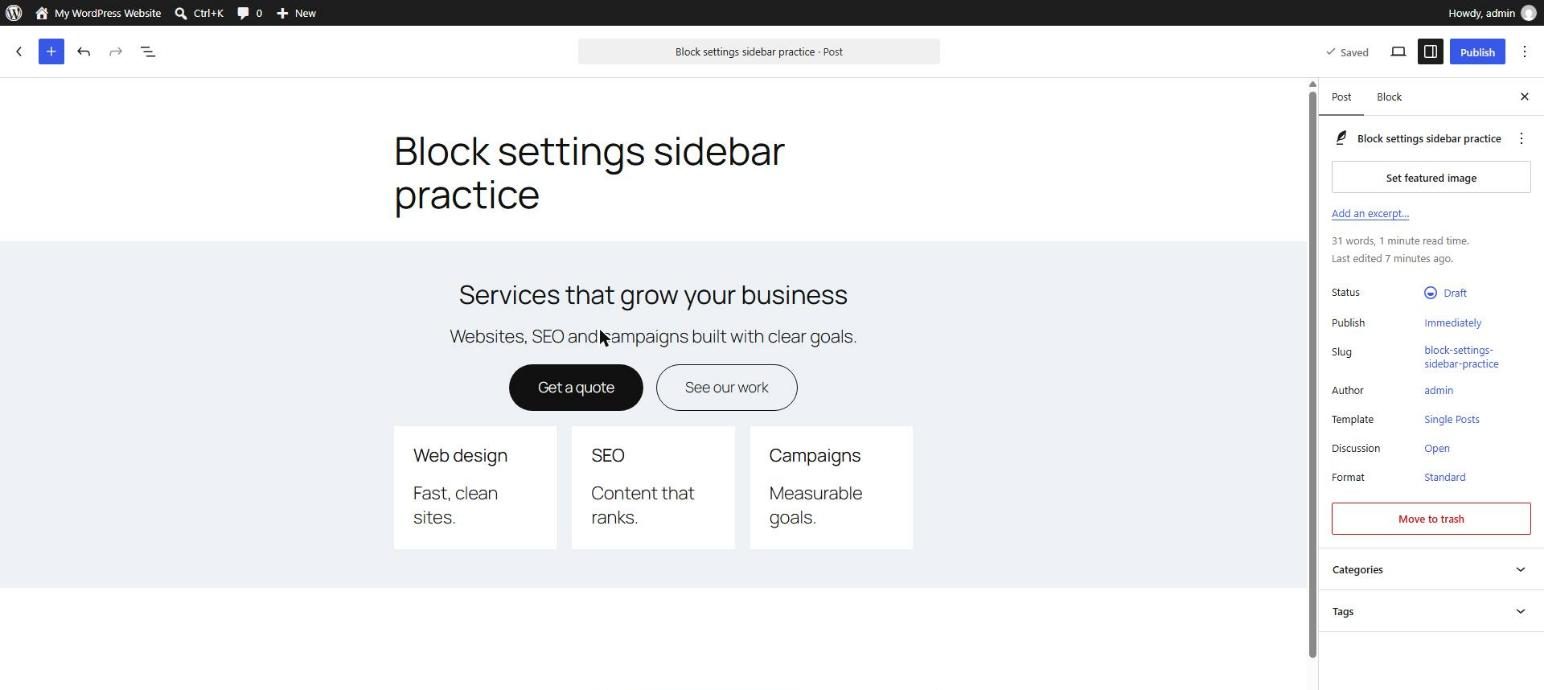
You will build one section with a headline, a short intro, two buttons, and a grid of three service cards. It must look good on desktop and mobile and use no custom CSS except what is stated.
Plan
- Outer Group: Full width, Constrained layout, a soft background, generous padding, anchor
services. - Heading and intro: centered, with a clear size contrast between them.
- Button Row: two buttons, centered, wrapping on.
- Grid: Auto columns with a minimum width, three cards.
- Cards: Group with background, padding, radius, and a soft border.
Finished Markup
Paste this into the Code editor to compare with your own build.
<!-- wp:group {"anchor":"services","align":"full","style":{"color":{"background":"#f4f6f8"},"spacing":{"padding":{"top":"4rem","bottom":"4rem","left":"1.5rem","right":"1.5rem"}}},"layout":{"type":"constrained"}} -->
<div class="wp-block-group alignfull has-background" id="services" style="background-color:#f4f6f8;padding-top:4rem;padding-right:1.5rem;padding-bottom:4rem;padding-left:1.5rem"><!-- wp:heading {"textAlign":"center"} -->
<h2 class="wp-block-heading has-text-align-center">Services that grow your business</h2>
<!-- /wp:heading -->

<!-- wp:paragraph {"align":"center"} -->
<p class="has-text-align-center">Websites, SEO, and campaigns built with clear goals.</p>
<!-- /wp:paragraph -->

<!-- wp:buttons {"layout":{"type":"flex","justifyContent":"center"}} -->
<div class="wp-block-buttons"><!-- wp:button -->
<div class="wp-block-button"><a class="wp-block-button__link wp-element-button" href="#contact">Get a quote</a></div>
<!-- /wp:button -->

<!-- wp:button {"className":"is-style-outline"} -->
<div class="wp-block-button is-style-outline"><a class="wp-block-button__link wp-element-button" href="#work">See our work</a></div>
<!-- /wp:button --></div>
<!-- /wp:buttons -->

<!-- wp:group {"layout":{"type":"grid","minimumColumnWidth":"14rem"}} -->
<div class="wp-block-group"><!-- wp:group {"style":{"color":{"background":"#ffffff"},"border":{"radius":"12px","width":"1px","color":"#d8dee6"},"spacing":{"padding":{"top":"1.5rem","bottom":"1.5rem","left":"1.5rem","right":"1.5rem"}}},"layout":{"type":"constrained"}} -->
<div class="wp-block-group has-border-color has-background" style="border-color:#d8dee6;border-width:1px;border-radius:12px;background-color:#ffffff;padding:1.5rem"><!-- wp:heading {"level":3} -->
<h3 class="wp-block-heading">Web design</h3>
<!-- /wp:heading -->

<!-- wp:paragraph -->
<p>Fast, clean sites that are easy to edit.</p>
<!-- /wp:paragraph --></div>
<!-- /wp:group -->

<!-- wp:group {"style":{"color":{"background":"#ffffff"},"border":{"radius":"12px","width":"1px","color":"#d8dee6"},"spacing":{"padding":{"top":"1.5rem","bottom":"1.5rem","left":"1.5rem","right":"1.5rem"}}},"layout":{"type":"constrained"}} -->
<div class="wp-block-group has-border-color has-background" style="border-color:#d8dee6;border-width:1px;border-radius:12px;background-color:#ffffff;padding:1.5rem"><!-- wp:heading {"level":3} -->
<h3 class="wp-block-heading">SEO</h3>
<!-- /wp:heading -->

<!-- wp:paragraph -->
<p>Technical fixes and content that ranks.</p>
<!-- /wp:paragraph --></div>
<!-- /wp:group -->

<!-- wp:group {"style":{"color":{"background":"#ffffff"},"border":{"radius":"12px","width":"1px","color":"#d8dee6"},"spacing":{"padding":{"top":"1.5rem","bottom":"1.5rem","left":"1.5rem","right":"1.5rem"}}},"layout":{"type":"constrained"}} -->
<div class="wp-block-group has-border-color has-background" style="border-color:#d8dee6;border-width:1px;border-radius:12px;background-color:#ffffff;padding:1.5rem"><!-- wp:heading {"level":3} -->
<h3 class="wp-block-heading">Campaigns</h3>
<!-- /wp:heading -->

<!-- wp:paragraph -->
<p>Landing pages tied to measurable goals.</p>
<!-- /wp:paragraph --></div>
<!-- /wp:group --></div>
<!-- /wp:group --></div>
<!-- /wp:group -->
5 Examples to Follow Along
Example 1: Build the Outer Group
Insert a Group, align it Full, set a soft background and generous padding, and add the anchor services.
Example 2: Add the Text and Buttons
Add a centered Heading, a centered paragraph, and a Buttons block with two buttons, one with the Outline style.
Example 3: Add the Grid
Add a Grid with an Auto minimum column width of 14rem and insert one card Group.
Example 4: Duplicate the Card
Select the card Group and duplicate it twice (Ctrl+Shift+D). Edit the text of each.
Example 5: Test Mobile
Switch to the mobile preview. Check that the cards stack, the buttons wrap, and nothing scrolls sideways.
Questions
Try to answer each question yourself first, then open the answer.
Question 1: Why is the outer Group Full width with a Constrained layout?
Show answer
Full width makes the background span the screen, and Constrained keeps the inner content at a readable width and centered.
Example: the soft gray band reaches both edges while the cards stay in a neat column.
Question 2: Why use a Grid with Auto columns for the cards?
Show answer
The number of columns adapts to the screen without extra mobile settings.
Example: three columns on desktop, one on a phone.
Question 3: What makes the cards look like cards?
Show answer
A background, padding, border, and radius applied to a Group.
Example: a white Group with a 1 px border and 12 px radius on a gray section.
Question 4: Why add an anchor to the section?
Show answer
It lets menus and buttons jump straight to the section.
Example: a header link to #services.
Question 5: What would you check before publishing this section?
Show answer
Heading levels, contrast, mobile preview, button links, spacing consistency, and alt text for any images.
Example: make sure both button links point to real anchors and the heading is an H2 under the page H1.
MCQs (Multiple Choice Questions)
MCQ 1: The outer section should be:
- A) Full width, Constrained layout
- B) A Spacer
- C) A Code block
- D) A Verse
Show answer
A) Full width, Constrained layout. The band spans the screen and the content stays readable.
MCQ 2: The three cards are best placed in:
- A) A Grid
- B) A Table of random numbers
- C) A Separator
- D) A Shortcode only
Show answer
A) A Grid. Grid arranges equal items.
MCQ 3: Which setting makes buttons center?
- A) Justification of the Buttons block
- B) Line height
- C) Revision
- D) Anchor
Show answer
A) Justification of the Buttons block. Buttons use a Flex layout.
MCQ 4: What does the anchor allow?
- A) Jump links
- B) Faster hosting
- C) New fonts
- D) A shadow
Show answer
A) Jump links. It sets the id.
MCQ 5: The best final check is:
- A) Mobile preview
- B) Deleting the page
- C) Changing the domain
- D) Skipping alt text
Show answer
A) Mobile preview. Always test small screens.
Practice: 10 Tasks from Easy to Hard
Create a new draft page called Practice Day 20 and work through the tasks in order. Where a snippet is given, open Options → Code editor, paste it, then switch back to the Visual editor.
Task 1 (Easy): Paste the markup
Paste the finished markup into a new page and view the result.
Task 2 (Easy): Change the text
Replace the headline and intro with your own business message.
Task 3 (Easy): Change the colors
Change the section background and the button colors to your brand colors.
Task 4 (Easy): Check headings
Open List View and check the heading order.
Task 5 (Medium): Add a fourth card
Duplicate a card and see how the grid adapts.
Task 6 (Medium): Add icons or images
Add a small image to each card, with alt text.
Task 7 (Medium): Make the buttons work
Create anchors named contact and work lower on the page and link to them.
Task 8 (Medium-Hard): Rebuild from scratch
Delete the pasted section and rebuild it from memory using the plan.
Task 9 (Hard): Tighten the design
Pick three design flaws (spacing, contrast, alignment, or size) and fix them using only the built-in controls.
Task 10 (Hard): Make it a reusable section
Prepare the section so it could become a pattern (Day 21): remove real client text, use placeholder text, and list which parts will change.
Coming Up Next
In Day 21 you will start Phase 3 and learn synced patterns, which let you reuse a design across many pages.
I'm Umar, a web developer and SEO specialist in Abu Dhabi. Get in touch.