Day 17 Tutorial - WordPress Grid Block and Grid Layout
Part of the WordPress Block Editor in 60 Days series · All lessons
On this page
← Previous: Day 16, Layout Types: Flow, Constrained, Flex
Welcome to Day 17 of the 60-Day WordPress Block Editor Tutorial Series. The Grid block arranges children in rows and columns automatically. It is perfect for feature lists, galleries of cards, and pricing tables. Time needed: 10 minutes reading + 30 minutes practice.
What You Will Learn Today
- What the Grid block is and how it differs from Columns
- Auto (minimum column width) vs manual column count
- How to set spacing between grid items
- How to span an item across several columns or rows
- When to choose Grid, Columns, or Row
Reading: The Grid Block
Grid is a Group variation (like Row and Stack) with a Grid layout. Add it with /grid. Every block you place inside becomes a grid item and is placed in the next free cell.
Two Ways to Set Columns
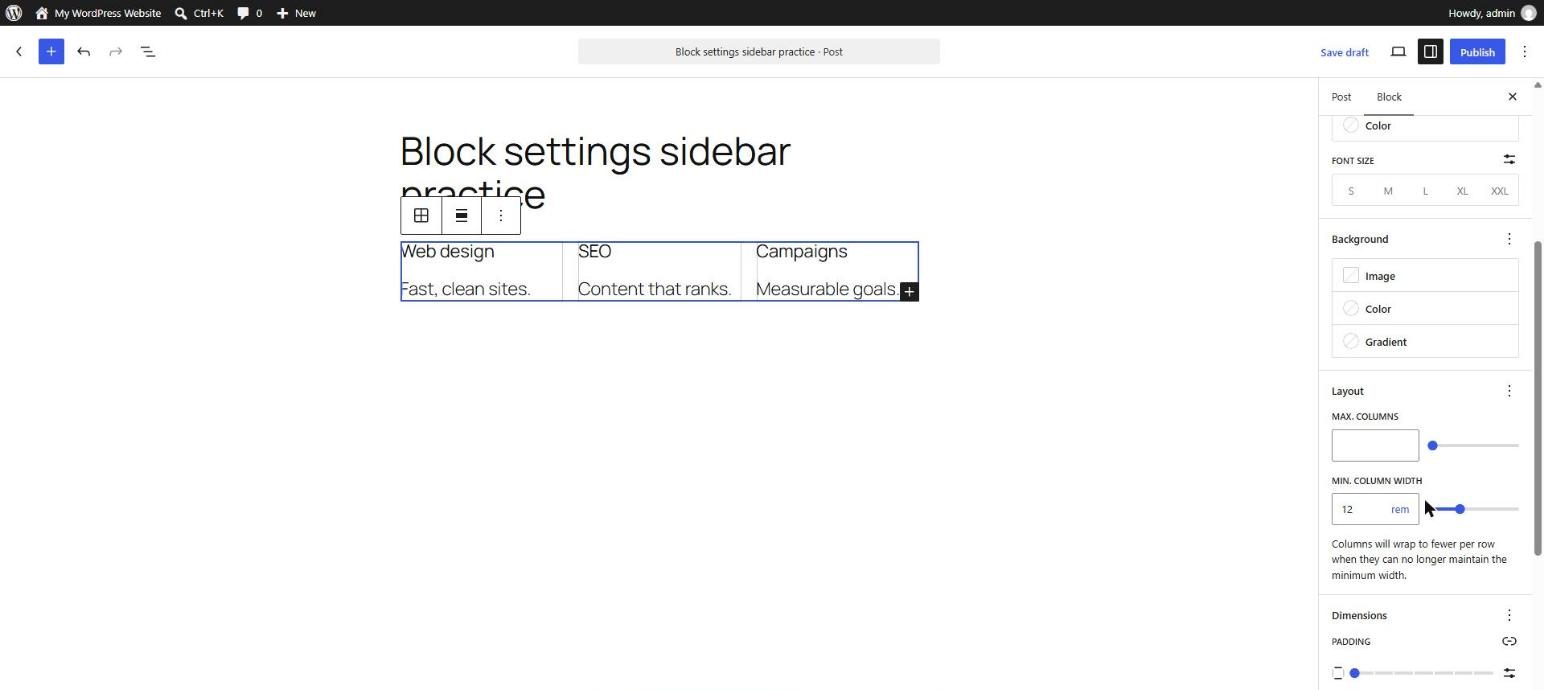
- Auto: you set a minimum column width (for example 250 px). The grid fits as many columns as possible and reduces them on small screens by itself. This is very good for responsive design.
- Manual: you choose an exact number of columns (for example 3). It is predictable, but you should check how it looks on a phone.
Grid vs Columns vs Row
- Columns: a few side by side areas that stack on mobile. Each column is its own container.
- Row: items in one line, optionally wrapping.
- Grid: many equal items in rows and columns, such as cards, logos, and features. All items are direct children.
Spacing and Item Span
Use Block spacing (Day 14) to set the gap between cells. Some versions of the editor let a child block span multiple columns or rows through its own Layout controls. This is useful for a featured card that is larger than the rest.
Tips
- Use Auto grids first. They need no mobile fix.
- Keep grid items similar in height and content length, or add Stack with equal padding to the cards.
- Make each card a Group so it can have a background, border, and padding.
Key takeaway: Grid places many items in rows and columns. Choose Auto for responsive grids and Manual for fixed counts.
What the Markup Looks Like
<!-- wp:group {"layout":{"type":"grid","minimumColumnWidth":"14rem"}} -->
<div class="wp-block-group"><!-- wp:paragraph -->
<p>Card one</p>
<!-- /wp:paragraph -->

<!-- wp:paragraph -->
<p>Card two</p>
<!-- /wp:paragraph -->

<!-- wp:paragraph -->
<p>Card three</p>
<!-- /wp:paragraph --></div>
<!-- /wp:group -->
5 Examples to Follow Along
Example 1: Insert a Grid
Type /grid in an empty paragraph and press Enter. Add three Groups, each with a heading and a short paragraph.
Example 2: Use Auto Columns
In Layout, choose Auto and set a minimum column width of 14rem. Resize the preview and watch the column count change.
Example 3: Use Manual Columns
Switch to Manual and set 3 columns. Compare it with Auto on a phone preview.
Example 4: Set the Gap
Change Block spacing to a larger preset and see the space between cards grow.
Example 5: Make Cards
Select each Group in the grid and add a background, padding, and radius (Days 13 to 15) to turn them into cards.
<!-- wp:group {"style":{"spacing":{"padding":{"top":"1.5rem","bottom":"1.5rem","left":"1.5rem","right":"1.5rem"}},"border":{"radius":"12px"},"color":{"background":"#f4f6f8"}},"layout":{"type":"constrained"}} -->
<div class="wp-block-group has-background" style="border-radius:12px;background-color:#f4f6f8;padding:1.5rem"><!-- wp:heading {"level":3} -->
<h3 class="wp-block-heading">Fast</h3>
<!-- /wp:heading -->

<!-- wp:paragraph -->
<p>Pages load quickly.</p>
<!-- /wp:paragraph --></div>
<!-- /wp:group -->
Questions
Try to answer each question yourself first, then open the answer.
Question 1: What is the Grid block?
Show answer
A Group with a Grid layout, which places its children in equal rows and columns.
Example: six feature cards shown three per row on desktop and one per row on mobile.
Question 2: What is the benefit of a minimum column width?
Show answer
The grid calculates the number of columns that fit, so it adapts to each screen size automatically.
Example: with a 14rem minimum, a wide screen shows four columns and a phone shows one.
Question 3: When would you use Columns instead of Grid?
Show answer
Use Columns for a few areas with different content, such as text beside an image. Use Grid for many similar items.
Example: an About section with text and a photo uses Columns. A list of eight services uses Grid.
Question 4: How do you control the space between grid items?
Show answer
Use Block spacing in the Dimensions panel of the grid.
Example: set it to 1.5rem and every gap changes equally.
Question 5: Why should each grid item usually be a Group?
Show answer
A Group can take a background, padding, border, and its own layout, so the item behaves as one card.
Example: a card Group contains an icon, a heading, and a paragraph.
MCQs (Multiple Choice Questions)
MCQ 1: Grid with minimum column width is:
- A) Auto responsive
- B) Always one column
- C) A plugin
- D) A theme
Show answer
A) Auto responsive. The grid fits as many columns as possible.
MCQ 2: Which block suits eight similar service cards?
- A) Grid
- B) Verse
- C) Spacer
- D) Separator
Show answer
A) Grid. Grid places many equal items.
MCQ 3: The shortcut to insert Grid is:
- A) /grid
- B) /lock
- C) /seo
- D) /php
Show answer
A) /grid. Slash commands insert blocks quickly.
MCQ 4: Block spacing in a Grid controls:
- A) Gaps between cells
- B) Font weight
- C) URL
- D) Alt text
Show answer
A) Gaps between cells. It is the gap property.
MCQ 5: A Grid is based on which block?
- A) Group
- B) Image
- C) Quote
- D) Table
Show answer
A) Group. It is a Group variation with a Grid layout.
Practice: 10 Tasks from Easy to Hard
Create a new draft page called Practice Day 17 and work through the tasks in order. Where a snippet is given, open Options → Code editor, paste it, then switch back to the Visual editor.
Task 1 (Easy): Insert a grid
Add a Grid block and place three paragraphs inside.
Task 2 (Easy): Auto columns
Set a minimum column width and test different preview sizes.
Task 3 (Easy): Manual columns
Switch to 3 manual columns.
Task 4 (Easy): Change the gap
Try three different spacing values.
Task 5 (Medium): Make cards
Turn each item into a Group with background, padding, and radius.
Task 6 (Medium): Add six items
Add six cards and check how they wrap on tablet and mobile.
Task 7 (Medium): Compare with Columns
Build the same three cards using Columns and write one line about which was easier.
Task 8 (Medium-Hard): Features section
Build a "Why choose us" section with a centered heading and a six-card grid.
Task 9 (Hard): Fix the grid
Paste the snippet below. On mobile the three columns are too narrow. Convert it to an Auto grid.
<!-- wp:group {"layout":{"type":"grid","columnCount":3}} -->
<div class="wp-block-group"><!-- wp:paragraph -->
<p>Design</p>
<!-- /wp:paragraph -->

<!-- wp:paragraph -->
<p>Development</p>
<!-- /wp:paragraph -->

<!-- wp:paragraph -->
<p>SEO</p>
<!-- /wp:paragraph --></div>
<!-- /wp:group -->
Task 10 (Hard): Pricing table
Build three pricing cards in a grid, with a featured middle card that has a stronger border color.
Coming Up Next
In Day 18 you will learn how responsive behavior and visibility work.
I'm Umar, a web developer and SEO specialist in Abu Dhabi. Get in touch.