Day 16 Tutorial - WordPress Layout Types: Flow, Constrained and Flex
Part of the WordPress Block Editor in 60 Days series · All lessons
On this page
← Previous: Day 15, Borders, Radius, and Shadows
Welcome to Day 16 of the 60-Day WordPress Block Editor Tutorial Series. Every Group, Row, Stack, and Columns block arranges its children using a layout type. Understanding the three types explains why blocks behave the way they do. Time needed: 10 minutes reading + 30 minutes practice.
What You Will Learn Today
- What Flow, Constrained, and Flex layouts do
- How content width and wide width work
- How to justify and align items in a Flex layout
- When to use Row, Stack, and Group
- How to fix a block that will not align the way you expect
Reading: How a Container Arranges Its Children
Select a Group and look in the Settings tab for Layout. You will see the layout type. Row and Stack are simply Group blocks with a Flex layout already chosen (horizontal and vertical).
Flow (Default)
Blocks stack one under another at the full width of the container, like a normal document. Children can float left or right when aligned. Flow is the simplest, but it gives you no content-width limit.
Constrained
Constrained is Flow plus a content width. Children are centered and limited to a maximum width (for example 650 px), while blocks set to Wide or Full alignment can break out. This is the layout of most block theme pages, and it is why paragraphs are a readable width while a Cover spans the screen.
- Content width: the normal width of children.
- Wide width: used by blocks aligned Wide.
- Both can be overridden for a single Group in its Layout settings.
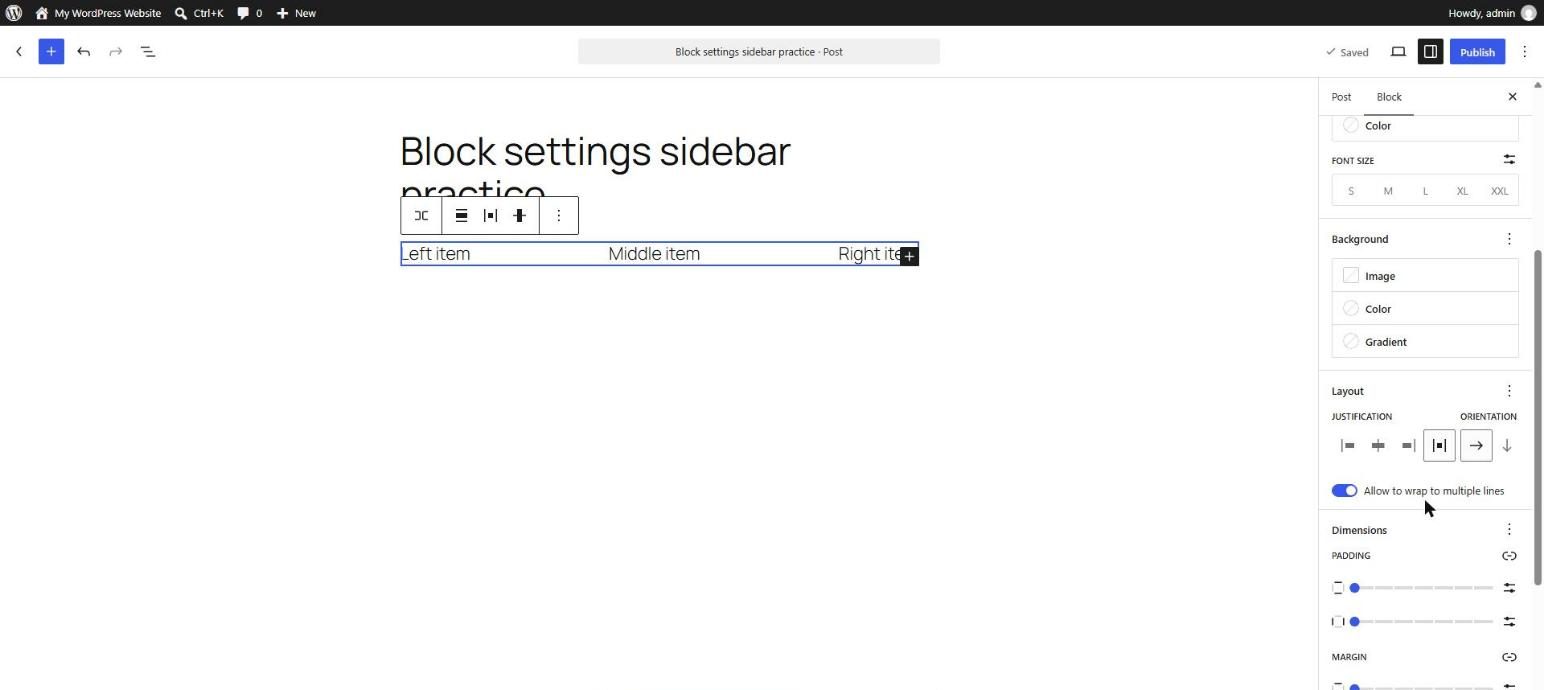
Flex
Flex arranges children in a row (horizontal) or column (vertical) and gives you alignment controls:
- Justification: left, center, right, or space between (along the main direction).
- Orientation: horizontal (Row) or vertical (Stack).
- Allow to wrap: lets items drop to the next line on small screens.
- Items justification in a Stack: the horizontal alignment of children.
Typical Row uses: a logo beside a menu, buttons side by side, an icon beside text. Typical Stack uses: a card whose pieces align neatly in a column.
Choosing the Right One
- Page sections: a Group with Constrained layout and Full alignment (the section spans the screen, the content stays readable).
- Side by side items: Row (Flex horizontal). Turn on wrapping.
- Cards in a column: Stack.
- Equal columns with text: Columns (Day 9) or Grid (Day 17).
Key takeaway: Flow stacks, Constrained centers and limits width, and Flex arranges in a line with alignment controls.
What the Markup Looks Like
<!-- wp:group {"layout":{"type":"flex","flexWrap":"wrap","justifyContent":"space-between"}} -->
<div class="wp-block-group"><!-- wp:paragraph -->
<p>Left item</p>
<!-- /wp:paragraph -->

<!-- wp:paragraph -->
<p>Right item</p>
<!-- /wp:paragraph --></div>
<!-- /wp:group -->
5 Examples to Follow Along
Example 1: Constrained vs Flow
Create a Group with three paragraphs and set its layout to Flow, then Constrained. Notice that in Constrained the text is centered at a readable width.
Example 2: Full Width Section
Align a Group to Full width. Inside it, keep Constrained so the text stays readable while the background spans the screen.
Example 3: Build a Row
Insert a Row with two Buttons. Set justification to space between and see the buttons move to opposite sides.
Example 4: Turn On Wrapping
Add five buttons to a Row. Preview on mobile with wrapping off, then on. Wrapping stops the items from squeezing.
Example 5: A Vertical Stack
Create a Stack with an image, a heading, and a paragraph and center the items. Check the markup for "orientation":"vertical".
<!-- wp:group {"layout":{"type":"flex","orientation":"vertical","justifyContent":"center"}} -->
<div class="wp-block-group"><!-- wp:heading {"level":3} -->
<h3 class="wp-block-heading">Centered card</h3>
<!-- /wp:heading -->

<!-- wp:paragraph -->
<p>Everything is centered in a column.</p>
<!-- /wp:paragraph --></div>
<!-- /wp:group -->
Questions
Try to answer each question yourself first, then open the answer.
Question 1: What is the difference between Flow and Constrained layout?
Show answer
Flow stacks children at the full width of the container. Constrained limits and centers children to a content width, while allowing Wide and Full blocks to break out.
Example: a blog page uses Constrained so paragraphs stay about 650 px wide while an image can be Wide.
Question 2: What are Row and Stack?
Show answer
They are Group blocks with a Flex layout. Row is horizontal and Stack is vertical.
Example: a Row for a button pair, and a Stack for the pieces of a card.
Question 3: What does Allow to wrap do?
Show answer
It lets items move to a new line when they do not fit, which prevents tiny squeezed items on mobile.
Example: six badge icons in a Row wrap into two lines on a phone.
Question 4: How can a section span the screen but keep readable text?
Show answer
Align the outer Group Full width and give it a Constrained layout, so its children stay at the content width.
Example: a blue band across the page with a centered 650 px paragraph.
Question 5: Why does a block not go Wide or Full in a Flow layout?
Show answer
Wide and Full alignment depend on the parent layout and theme support. In Constrained layouts they work as expected, and in other layouts they may be ignored.
Example: an image aligned Full inside a Row will not span the screen, but it does if its parent is a top-level Constrained Group.
MCQs (Multiple Choice Questions)
MCQ 1: Which layout centers children at a max width?
- A) Constrained
- B) Flow
- C) Revision
- D) Grid only
Show answer
A) Constrained. It uses the content width setting.
MCQ 2: A Stack is a Group with:
- A) Vertical Flex layout
- B) Horizontal Flex layout
- C) A database
- D) No layout
Show answer
A) Vertical Flex layout. Row is horizontal and Stack is vertical.
MCQ 3: Allow to wrap is useful for:
- A) Small screens
- B) SEO titles
- C) Passwords
- D) Revisions
Show answer
A) Small screens. Items drop to the next line instead of squeezing.
MCQ 4: Space between justification:
- A) Pushes items to opposite ends
- B) Deletes items
- C) Adds links
- D) Changes fonts
Show answer
A) Pushes items to opposite ends. Free space is distributed between the items.
MCQ 5: Which layout is typical for a full width page section?
- A) Group with Constrained layout, Full alignment
- B) A Spacer
- C) Code block
- D) Verse block
Show answer
A) Group with Constrained layout, Full alignment. The section spans the screen while the text stays readable.
Practice: 10 Tasks from Easy to Hard
Create a new draft page called Practice Day 16 and work through the tasks in order. Where a snippet is given, open Options → Code editor, paste it, then switch back to the Visual editor.
Task 1 (Easy): Find the layout setting
Select a Group and find the Layout panel in the Settings tab.
Task 2 (Easy): Switch types
Switch a Group between Flow and Constrained and describe the change.
Task 3 (Easy): Insert a Row
Add a Row with two buttons.
Task 4 (Easy): Insert a Stack
Add a Stack with a heading and a paragraph.
Task 5 (Medium): Justify
Try left, center, right, and space between in a Row.
Task 6 (Medium): Wrapping test
Add six buttons to a Row and compare wrapping on and off in mobile preview.
Task 7 (Medium): Change content width
Set a custom content width for one Group and compare it with the theme default.
Task 8 (Medium-Hard): Build a header-like bar
Create a Row with a site title on the left and three links on the right, using space between.
Task 9 (Hard): Fix the layout
Paste the snippet below. The buttons are squeezed on mobile. Fix it using one layout setting.
<!-- wp:group {"layout":{"type":"flex","flexWrap":"nowrap"}} -->
<div class="wp-block-group"><!-- wp:paragraph -->
<p>Service one</p>
<!-- /wp:paragraph -->

<!-- wp:paragraph -->
<p>Service two</p>
<!-- /wp:paragraph -->

<!-- wp:paragraph -->
<p>Service three</p>
<!-- /wp:paragraph -->

<!-- wp:paragraph -->
<p>Service four</p>
<!-- /wp:paragraph --></div>
<!-- /wp:group -->
Task 10 (Hard): Design a landing band
Create a Full width section with a background and a Constrained inner layout containing a heading, text, and a Row of two buttons.
Coming Up Next
In Day 17 you will learn the Grid block and layout.
I'm Umar, a web developer and SEO specialist in Abu Dhabi. Get in touch.