Day 15 Tutorial - WordPress Borders, Radius and Shadows
Part of the WordPress Block Editor in 60 Days series · All lessons
On this page
← Previous: Day 14, Padding, Margin, and Block Gap
Welcome to Day 15 of the 60-Day WordPress Block Editor Tutorial Series. Borders, rounded corners, and shadows turn flat boxes into cards, buttons, and callouts. Today you learn to use them with taste. Time needed: 10 minutes reading + 30 minutes practice.
What You Will Learn Today
- How to add a border and control its color, width, and style
- How to round corners with radius, and set each corner separately
- How shadows work and how to apply a preset shadow
- Which blocks support these controls
- How to build a clean card without any extra CSS
Reading: Borders, Radius, and Shadows
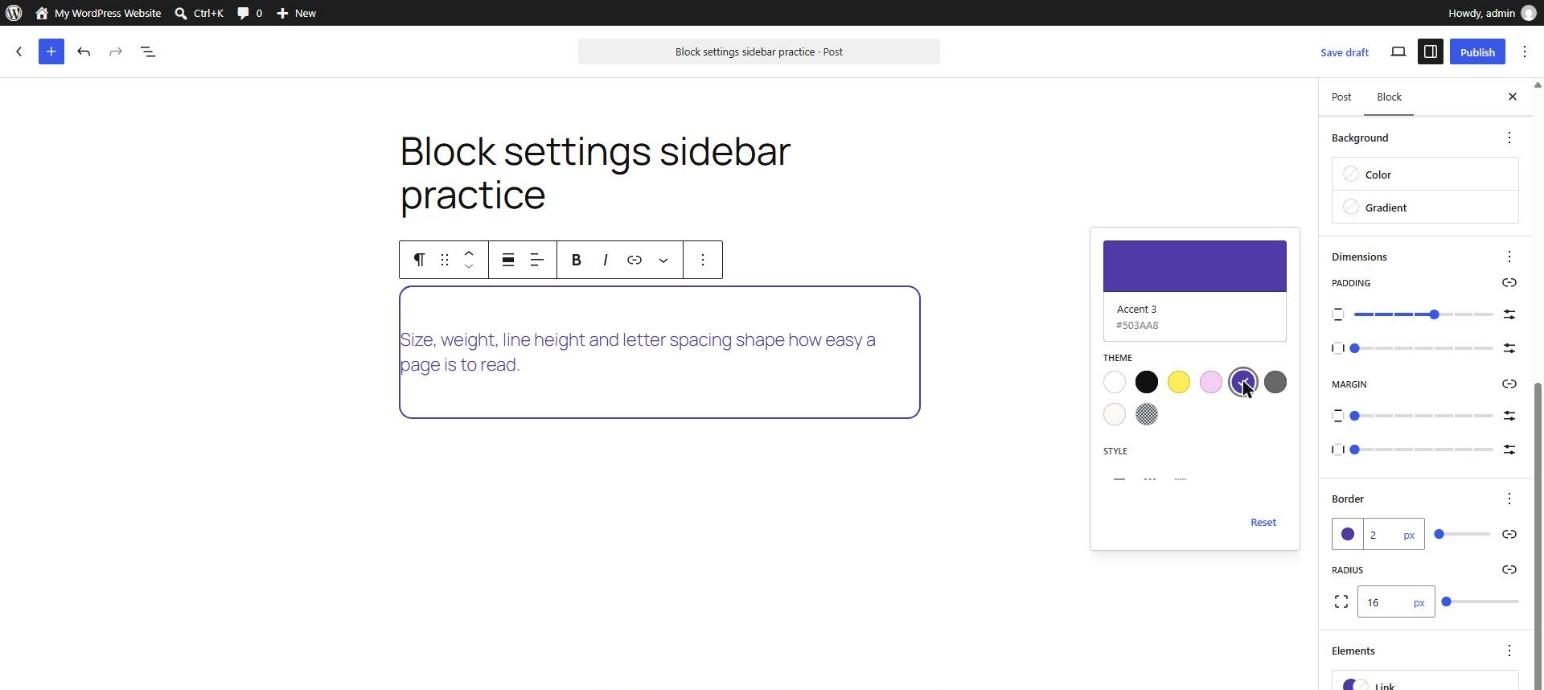
These controls live in the Styles tab, under Border and Shadow. If you do not see a panel, the block (or your theme) does not support it. Group, Image, Button, Cover, Columns, Search, and Separator are good candidates.
Border
A border has three parts: color, width, and style (solid, dashed, dotted). You can link all four sides or unlink to set each side separately. A single bottom border is a popular way to make a divider or an underline effect.
Radius
Radius rounds the corners. A small radius (4 to 8 px) looks modern and subtle. A large radius (24 px or more) looks soft and friendly. A very large radius on a square image makes a circle. You can unlink the corners to round only some of them, for example only the top.
Shadow
A shadow lifts a block off the page. Block themes usually provide a few shadow presets (natural, soft, deep, crisp). Pick a preset rather than designing a shadow from scratch, so every card on the site has the same depth. Keep it subtle: a heavy shadow looks dated.
Design Tips
- One edge style per site. If cards have 12 px radius, buttons and images should match.
- Use either a border or a shadow on a card, not both heavy. One is enough.
- Remember padding. A bordered or shaded box needs padding (Day 14) so the text does not touch the edge.
- Check contrast. A light gray border on white may be invisible on some screens.
- Round images too. A radius on the Image block softens photos and matches the cards.
Key takeaway: borders define, radius softens, shadows lift. Combine them lightly and consistently.
What the Markup Looks Like
<!-- wp:group {"style":{"border":{"width":"1px","color":"#d8dee6","radius":"12px"},"spacing":{"padding":{"top":"1.5rem","bottom":"1.5rem","left":"1.5rem","right":"1.5rem"}}},"layout":{"type":"constrained"}} -->
<div class="wp-block-group has-border-color" style="border-color:#d8dee6;border-width:1px;border-radius:12px;padding:1.5rem"><!-- wp:paragraph -->
<p>A simple bordered card.</p>
<!-- /wp:paragraph --></div>
<!-- /wp:group -->
5 Examples to Follow Along
Example 1: Add a Border
Select a Group and open Border. Set a 1 px border and choose a light gray color. Add padding so the text has room.
Example 2: Round the Corners
Increase the radius to 12 px, then 24 px. Compare the look. Then unlink the corners and round only the top two.
Example 3: Apply a Shadow
Open Shadow and choose a preset. Compare the presets on the same card and keep the subtlest one that is still visible.
Example 4: A Circle Image
Insert a square Image, then set its radius to 999px or 50%. The image becomes a circle, good for avatars.
Example 5: A Bottom Border Only
Unlink the sides of a Group border and set only the bottom side. This creates an underline-style divider.
<!-- wp:group {"style":{"border":{"bottom":{"color":"#2f6fed","width":"3px"}},"spacing":{"padding":{"bottom":"0.5rem"}}},"layout":{"type":"constrained"}} -->
<div class="wp-block-group" style="border-bottom-color:#2f6fed;border-bottom-width:3px;padding-bottom:0.5rem"><!-- wp:heading {"level":3} -->
<h3 class="wp-block-heading">Section title</h3>
<!-- /wp:heading --></div>
<!-- /wp:group -->
Questions
Try to answer each question yourself first, then open the answer.
Question 1: What are the three parts of a border?
Show answer
Color, width, and style. Style can be solid, dashed, or dotted.
Example: a 2 px dashed blue border for a notice box, or a 1 px solid gray border for a card.
Question 2: How do you make an image a circle?
Show answer
Use a square image and set the border radius high enough (50% or a large value). A rectangular image becomes an oval.
Example: a team photo 300 by 300 px with a 50% radius becomes a round avatar.
Question 3: Why use shadow presets instead of custom shadows?
Show answer
Presets keep every shadow on the site consistent and belong to the theme, so they can be changed in one place.
Example: all product cards use the same soft preset, so the grid looks uniform.
Question 4: Why does a bordered Group need padding?
Show answer
Without padding the content touches the border and looks cramped and unfinished.
Example: a callout with a 1 px border and 1.5 rem padding is readable. Without padding the text sits against the line.
Question 5: Why might the Border or Shadow panel be missing?
Show answer
The block may not support it, or the theme may have turned the feature off in theme.json.
Example: a Paragraph may not offer shadows, but wrapping it in a Group gives you a shadow control.
MCQs (Multiple Choice Questions)
MCQ 1: Which control rounds corners?
- A) Radius
- B) Gap
- C) Min height
- D) Anchor
Show answer
A) Radius. Border radius rounds the corners.
MCQ 2: A shadow is best used to:
- A) Lift a block off the page
- B) Change the font
- C) Add a link
- D) Hide a block
Show answer
A) Lift a block off the page. It gives a sense of depth.
MCQ 3: To get only a bottom border you:
- A) Unlink the sides
- B) Delete the block
- C) Use a Spacer
- D) Change the theme
Show answer
A) Unlink the sides. Then set the bottom side only.
MCQ 4: Which is the best practice for shadows?
- A) Use a theme preset
- B) Use a different one on every card
- C) Make them as dark as possible
- D) Never check contrast
Show answer
A) Use a theme preset. Presets keep the design consistent.
MCQ 5: A bordered card should also have:
- A) Padding
- B) A revision
- C) A redirect
- D) A plugin
Show answer
A) Padding. Padding keeps the content off the edge.
Practice: 10 Tasks from Easy to Hard
Create a new draft page called Practice Day 15 and work through the tasks in order. Where a snippet is given, open Options → Code editor, paste it, then switch back to the Visual editor.
Task 1 (Easy): Add a border
Give a Group a 1 px border in a light color.
Task 2 (Easy): Round it
Set the radius to 8 px, then to 20 px, and compare.
Task 3 (Easy): Try a shadow
Apply the softest shadow preset to a Group.
Task 4 (Easy): Round an image
Set a radius on an Image block.
Task 5 (Medium): Make a circle avatar
Use a square image to make a perfect circle.
Task 6 (Medium): Underline heading
Create a heading with only a bottom border.
Task 7 (Medium): Round the top only
Unlink the corners and round only the top corners of a Group.
Task 8 (Medium-Hard): Build a card
Build a card with an image, heading, text, and button. Use border or shadow (not both heavy), radius, and padding.
Task 9 (Hard): Fix the callout
Paste the snippet below. The border is too heavy and the text touches it. Make it subtle and comfortable.
<!-- wp:group {"style":{"border":{"width":"8px","color":"#000000"}}} -->
<div class="wp-block-group has-border-color" style="border-color:#000000;border-width:8px"><!-- wp:paragraph -->
<p>Important notice for visitors.</p>
<!-- /wp:paragraph --></div>
<!-- /wp:group -->
Task 10 (Hard): Consistency check
Take a page with five cards or images. Make the radius, border, and shadow identical on all of them and write down the values you chose.
Coming Up Next
In Day 16 you will learn layout types: Flow, Constrained, and Flex.
I'm Umar, a web developer and SEO specialist in Abu Dhabi. Get in touch.