Day 14 Tutorial - WordPress Padding, Margin and Block Gap
Part of the WordPress Block Editor in 60 Days series · All lessons
On this page
← Previous: Day 13, Colors and Gradients
Welcome to Day 14 of the 60-Day WordPress Block Editor Tutorial Series. Spacing is what makes a page feel clean or cramped. Today you learn the three spacing tools in the Dimensions panel and the right moment to use each one. Time needed: 10 minutes reading + 30 minutes practice.
What You Will Learn Today
- The difference between padding, margin, and block spacing (gap)
- How to use spacing presets and custom values, and how to link or unlink the sides
- Where the Dimensions panel offers width, height, and minimum height
- How to replace empty paragraphs and Spacer blocks with real spacing
- How to keep spacing consistent across a whole site
Reading: The Space Around and Inside Blocks
Select a Group (or Paragraph, Columns, Cover, Image, and many other blocks) and open Dimensions in the Styles tab. You will see some or all of Padding, Margin, Block spacing, and Size controls. They look similar but do different jobs.
Padding: Space Inside
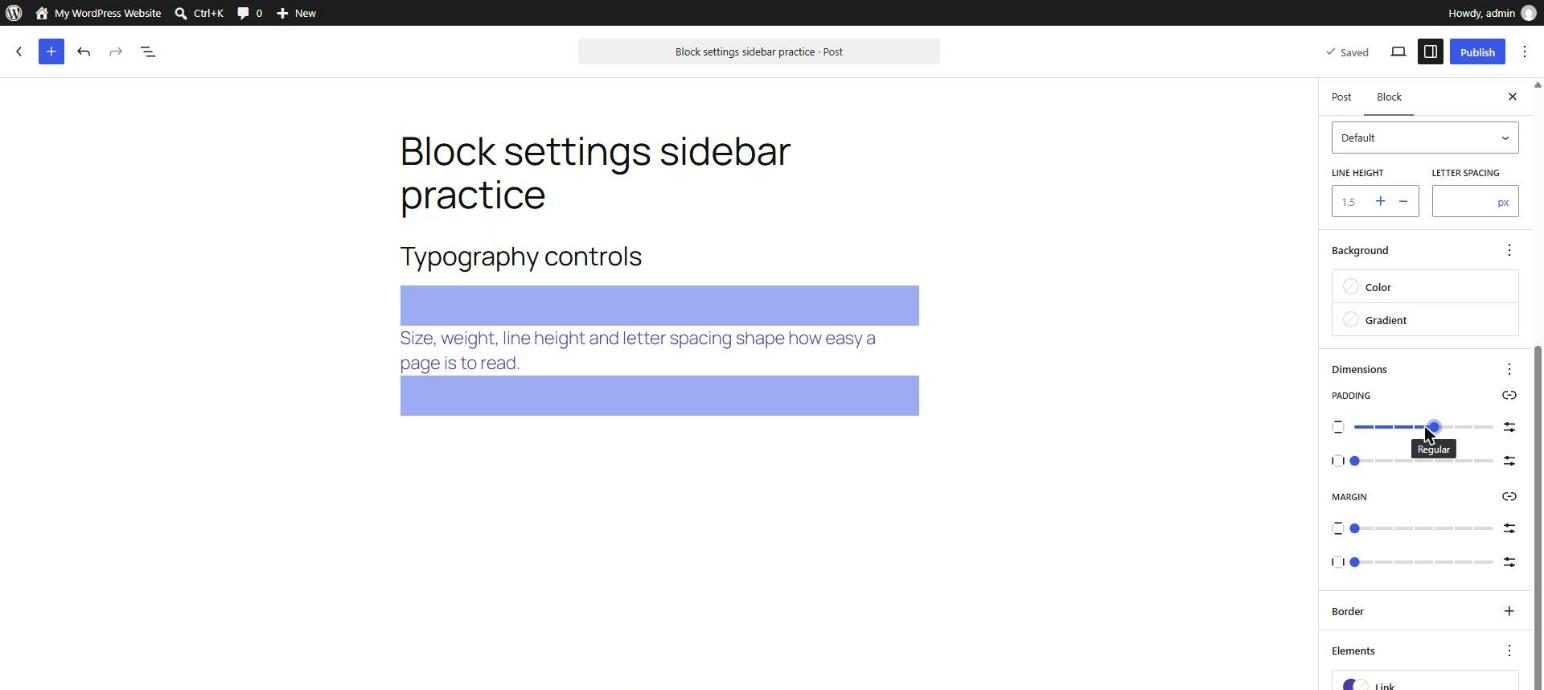
Padding is the space between the edge of a block and its content. If a block has a background color or border, the padding is the colored cushion around the text. Without padding, text touches the edge of the colored area.
Use it for: Groups with a background, cards, buttons, banners.
Margin: Space Outside
Margin is the space between a block and the blocks around it. It is outside the background and border. Many themes set the vertical rhythm between blocks automatically, so you rarely need margin on ordinary paragraphs.
Use it for: moving a block away from its neighbors when the default spacing is not enough, or for negative margins in advanced designs (some themes allow them).
Block Spacing (Gap): Space Between Inner Blocks
Block spacing (also called gap) sets the distance between the children of a container such as Group, Columns, Row, Stack, or Query Loop. One setting controls them all, so the spacing between items is always equal. In a Columns block it also controls the gap between columns.
Use it for: evenly spacing the items inside a container instead of adding a margin to each child.
Presets, Custom Values, and Linked Sides
- Presets: many block themes define a spacing scale (for example 20, 30, 40, 50, 60, 70, 80). A slider offers these steps. Presets keep the whole site on the same rhythm, and the sizes may scale fluidly with the screen.
- Custom: click the settings icon next to the control to type exact values with units (px, rem, em, %, vh, vw).
- Linked sides: the link icon next to Padding or Margin ties all four sides together. Unlink to set top, right, bottom, and left separately, or just horizontal and vertical.
The Size Controls
Some blocks also offer Width, Height, Min height, and Aspect ratio in the Dimensions panel. Use Min height (not a fixed height) for banners so longer text can grow the block without being cut off. Percentages and viewport units (vh) are useful for responsive designs.
Spacing Habits That Scale
- Prefer container spacing over empty blocks. Do not use empty paragraphs. Use Block spacing in the parent, or padding and margin.
- Use a Spacer only for a deliberate one-off gap (Day 10).
- Pick a few steps from the spacing scale and reuse them, rather than inventing a new number each time.
- Check small screens. 80 px padding on desktop may squeeze text on a phone. Presets that scale help here.
- Look for the root cause. If everything on your site is cramped, change the theme's or Global Styles' spacing, not each block.
Key takeaway: padding is inside, margin is outside, and block spacing is between the children. Use presets and containers so spacing stays consistent.
What the Markup Looks Like
<!-- wp:group {"style":{"spacing":{"padding":{"top":"2rem","bottom":"2rem","left":"2rem","right":"2rem"},"blockGap":"1rem","margin":{"top":"2rem"}},"color":{"background":"#f4f6f8"}},"layout":{"type":"constrained"}} -->
<div class="wp-block-group has-background" style="background-color:#f4f6f8;margin-top:2rem;padding:2rem"><!-- wp:heading {"level":3} -->
<h3 class="wp-block-heading">Card title</h3>
<!-- /wp:heading -->

<!-- wp:paragraph -->
<p>Card text with comfortable spacing.</p>
<!-- /wp:paragraph --></div>
<!-- /wp:group -->
5 Examples to Follow Along
Example 1: Add Padding to a Card
Select a Group with a background color. Open Dimensions and set Padding to a mid preset on all sides. Notice how the text moves away from the edge of the colored area.
Example 2: Unlink the Sides
Click the link icon next to Padding, then set the top and bottom to 48 px and the left and right to 16 px. Watch how the shape of the cushion changes.
Example 3: Use Block Spacing
Put a Heading, a Paragraph, and a Button in a Group. Increase Block spacing and see all three move apart evenly. Compare this with adding margins to each block.
Example 4: Set a Margin
Select a Group and add a top margin so that it is further from the block above. In the Code editor find margin-top.
Example 5: Use a Minimum Height
Select a Cover or Group and set Min height to 50vh (half the screen height). Type extra text inside and see the block grow instead of cutting the text.
<!-- wp:group {"style":{"dimensions":{"minHeight":"50vh"}},"layout":{"type":"constrained"}} -->
<div class="wp-block-group" style="min-height:50vh"><!-- wp:paragraph -->
<p>This block is at least half the screen high.</p>
<!-- /wp:paragraph --></div>
<!-- /wp:group -->
Questions
Try to answer each question yourself first, then open the answer.
Question 1: What is the difference between padding and margin?
Show answer
Padding is space inside a block, between its edge and its content, and it sits inside the background. Margin is space outside a block, between it and its neighbors.
Example: a card with a gray background needs padding so the text does not touch the edge. If you want more distance between two cards, add margin or increase the block spacing of their container.
Question 2: What does Block spacing control?
Show answer
It controls the distance between the inner blocks of a container, such as the items in a Group, the columns in a Columns block, or the cards in a Row.
Example: set Block spacing to 24 px in a Stack of three paragraphs and all gaps are 24 px. Change it once to change them all.
Question 3: Why use spacing presets instead of custom pixel values?
Show answer
Presets belong to the theme's spacing scale, so the whole site uses the same rhythm. They can also scale with screen size and be updated centrally.
Example: choosing the 50 step everywhere for section padding gives every section the same space. If you later want more air, change that step in the theme.
Question 4: Why use Min height instead of a fixed height?
Show answer
Content can grow with a minimum height, such as longer text or larger fonts on mobile. A fixed height can cut the content or create overflow.
Example: a hero set to min-height 60vh grows when a translator adds a longer heading. A hero fixed at 400px would clip the text.
Question 5: Why are empty paragraphs a bad way to create space?
Show answer
They add useless blocks, the space is not tied to the design system, and it varies with line height. Spacing controls are consistent and easy to change.
Example: replace three empty paragraphs above a section with top padding on that section's Group.
MCQs (Multiple Choice Questions)
MCQ 1: Which spacing is inside the block's background?
- A) Padding
- B) Margin
- C) Gap between pages
- D) Revision
Show answer
A) Padding. Padding is between the edge of the block and its content.
MCQ 2: Block spacing sets the distance between:
- A) The inner blocks of a container
- B) The browser and the screen
- C) Two posts
- D) Two websites
Show answer
A) The inner blocks of a container. It is the gap property of the container.
MCQ 3: What does the link icon next to Padding do?
- A) Ties the four sides together
- B) Adds a hyperlink
- C) Opens a page
- D) Deletes padding
Show answer
A) Ties the four sides together. Unlink to set sides separately.
MCQ 4: Which unit is relative to screen height?
- A) vh
- B) px
- C) pt
- D) mm
Show answer
A) vh. vh stands for viewport height.
MCQ 5: A hero should use:
- A) Min height
- B) A fixed height only
- C) No size
- D) Letter spacing
Show answer
A) Min height. It lets the content grow without being clipped.
Practice: 10 Tasks from Easy to Hard
Create a new draft page called Practice Day 14 and work through the tasks in order. Where a snippet is given, open Options → Code editor, paste it, then switch back to the Visual editor.
Task 1 (Easy): Add padding
Give a Group a background and add padding on all sides.
Task 2 (Easy): Increase the gap
Put three paragraphs in a Group and change Block spacing from small to large.
Task 3 (Easy): Link and unlink
Practice linking and unlinking the sides of padding.
Task 4 (Easy): Find the scale
Open the spacing slider and note the names of the presets your theme offers.
Task 5 (Medium): Margin vs padding
Create two identical colored groups, one with padding 40 and one with margin 40. Describe the difference.
Task 6 (Medium): Remove empty paragraphs
Find any empty paragraphs on your practice pages and replace them with spacing controls.
Task 7 (Medium): Use viewport units
Make a Group at least 60vh high and preview it on a narrow window.
Task 8 (Medium-Hard): Build a card row
Build a Row of three Stack cards, each with padding and a background. Control the space between cards using Block spacing of the Row.
Task 9 (Hard): Fix cramped spacing
Paste the snippet below. It has uneven spacing. Fix it using Block spacing on the Group and padding, with no margin on the paragraphs.
<!-- wp:group {"style":{"color":{"background":"#eef2f7"}}} -->
<div class="wp-block-group has-background" style="background-color:#eef2f7"><!-- wp:heading {"level":3,"style":{"spacing":{"margin":{"bottom":"4px"}}}} -->
<h3 class="wp-block-heading" style="margin-bottom:4px">Title</h3>
<!-- /wp:heading -->

<!-- wp:paragraph {"style":{"spacing":{"margin":{"top":"60px"}}}} -->
<p style="margin-top:60px">Text</p>
<!-- /wp:paragraph --></div>
<!-- /wp:group -->
Task 10 (Hard): Spacing audit
Choose a page and check every section on a phone-width window. Note where the spacing is too tight or too loose, then list which of the three tools (padding, margin, gap) you would use to fix each problem.
Coming Up Next
In Day 15 you will style edges: borders, rounded corners (radius), and shadows.
I'm Umar, a web developer and SEO specialist in Abu Dhabi. Get in touch.