Day 13 Tutorial - WordPress Colors and Gradients
Part of the WordPress Block Editor in 60 Days series · All lessons
On this page
← Previous: Day 12, Typography Controls
Welcome to Day 13 of the 60-Day WordPress Block Editor Tutorial Series. Color gives a site its personality, but it is also where many accessibility problems start. Today you learn the color controls and how to check that your text stays readable. Time needed: 10 minutes reading + 30 minutes practice.
What You Will Learn Today
- Where color controls live: text, background, link, and gradient
- How theme palette colors differ from custom colors
- How to create and edit a gradient
- How the contrast warning works and what contrast ratios to aim for
- How to keep colors consistent across a site
Reading: Choosing and Applying Color
The Color Panel
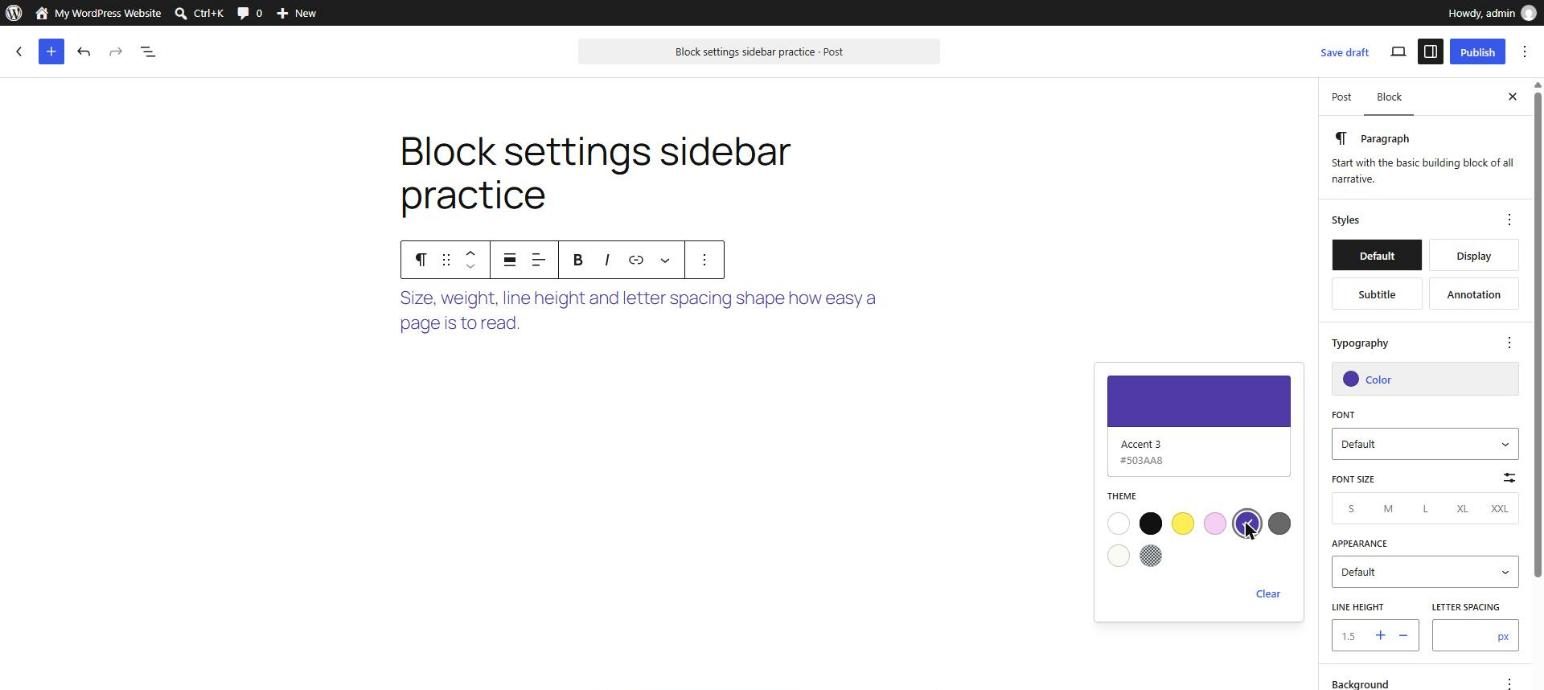
Select a block that supports color (Paragraph, Heading, Group, Button, Columns, Cover, and many more) and open the Color panel in the Styles tab. Depending on the block you see some of these controls:
- Text: the color of the text.
- Background: a solid color behind the block, or a gradient.
- Link: the color of links inside the block. In some versions this sits in a separate Elements panel along with heading and button colors.
- Overlay: for Cover blocks, the layer above the background image.
Click a control and a palette opens. The Theme section shows the colors defined by your theme, and a Default section may show WordPress's own colors. Below the swatches you can pick a custom color with the color picker or type a value: hex (#1e3a8a), RGB, or HSL.
Palette Colors vs Custom Colors
A palette color is saved as a name (a slug), for example backgroundColor":"accent". If the theme changes the accent color, every block that uses it changes too. A custom color is saved as a fixed value such as #1e3a8a. It never changes by itself.
Use palette colors whenever you can. They keep the site consistent, they work with style variations (Day 40), and they let you redesign the site from one place. Use custom colors only for rare exceptions.
Gradients
In the Background control, switch from the Color tab to the Gradient tab. You can choose a preset or create your own:
- Linear: colors blend along a line. Set the angle (for example 135 degrees).
- Radial: colors blend outward from a center point.
- Color stops: each stop is a color at a position. Click the gradient bar to add a stop, drag to move it, and click a stop to change its color.
Keep gradients subtle. Two similar colors look professional, while rainbow gradients rarely do. Check that the text on top of a gradient stays readable at both ends.
Duotone for Images
Select an Image block and open the Filters (Duotone) control. It recolors the picture with two colors, a dark one for the shadows and a light one for the highlights. It is a quick way to make photos from different sources look like one set. It does not change the original file.
Contrast and Accessibility
Contrast is the difference in brightness between text and its background. People with low vision, in bright sunlight, or on low-quality screens need strong contrast. The Web Content Accessibility Guidelines (WCAG) set minimums:
- 4.5 to 1 for normal text.
- 3 to 1 for large text (about 24 px, or 19 px bold) and for important parts of interface elements.
The block editor helps: when your text and background colors are too close, the sidebar shows a warning, such as This color combination may be hard for people to read. Treat it as a stop sign. Also remember that color should never be the only way to show meaning. A red error message should also say "Error" in words.
A Simple Color Strategy
- Choose one main brand color, one accent color, and neutral light and dark colors.
- Use the dark neutral for text on light backgrounds and the light neutral for text on dark backgrounds.
- Use the accent color sparingly, for buttons and key links.
- Define the palette in the theme or Global Styles (Day 38) so editors pick from it.
Key takeaway: prefer palette colors, use gradients with care, and check contrast every time you put text on a colored background.
What the Markup Looks Like
<!-- wp:group {"style":{"color":{"gradient":"linear-gradient(135deg,#1e3a8a 0%,#3b82f6 100%)","text":"#ffffff"},"spacing":{"padding":{"top":"40px","bottom":"40px","left":"40px","right":"40px"}}}} -->
<div class="wp-block-group has-text-color has-background" style="color:#ffffff;background:linear-gradient(135deg,#1e3a8a 0%,#3b82f6 100%);padding:40px"><!-- wp:paragraph -->
<p>White text on a blue gradient.</p>
<!-- /wp:paragraph --></div>
<!-- /wp:group -->
5 Examples to Follow Along
Example 1: Change the Text Color
Select a paragraph, open Color → Text, and choose a palette color. In the Code editor find the class that contains the color slug, such as has-primary-color.
Example 2: Use a Custom Color
Open Color → Background, click the color picker, and type the hex value #fff3cd. Compare the saved markup with a palette color: it is an inline style now.
Example 3: Create a Gradient
Select a Group, open Background, choose the Gradient tab, and set a linear gradient at 135 degrees from #1e3a8a to #3b82f6. Add white text inside and test it.
Example 4: Trigger the Contrast Warning
Set a paragraph's text color to light gray and its background to white. Read the warning in the sidebar, then change the text to a darker color until it disappears.
Example 5: Apply a Duotone Filter
Select an Image block, open the Filters (Duotone) control, and choose a preset. Compare the result with the original. Remove the filter again if it makes the image hard to understand.
Questions
Try to answer each question yourself first, then open the answer.
Question 1: Why should you use palette colors instead of custom colors?
Show answer
Palette colors are saved by name, so a change in the theme updates every block that uses them. They also keep the design consistent and work with style variations.
Example: if your brand blue changes, updating the "primary" palette color changes all buttons and headings at once. With a hex value on each block, you would edit them one by one.
Question 2: What contrast ratio does WCAG require for normal text?
Show answer
At least 4.5 to 1 between text and background. Large text needs at least 3 to 1.
Example: black on white is 21 to 1, which is excellent. Light gray (#aaaaaa) on white is about 2.3 to 1, which fails.
Question 3: Why should color not be the only way to show information?
Show answer
Some people cannot tell certain colors apart (color blindness), and others use screen readers. Information needs a second signal such as text, an icon, or a pattern.
Example: a form error shown only by a red border is missed by some users. Add a message such as "Email is required" as well.
Question 4: What are color stops in a gradient?
Show answer
A color stop is a color at a position along the gradient. A gradient needs at least two stops, and adding more gives more control over how colors blend.
Example: a sunrise gradient could use three stops: deep blue at 0 percent, orange at 60 percent, and yellow at 100 percent.
Question 5: What does the Duotone filter do to an image?
Show answer
It recolors the image with two colors, one for dark tones and one for light tones. The original file is not changed.
Example: applying the same blue and white duotone to team photos taken in different places makes them look like one set.
MCQs (Multiple Choice Questions)
MCQ 1: Which type of color follows a theme change automatically?
- A) Palette color
- B) Custom hex color on every block
- C) A screenshot
- D) An image
Show answer
A) Palette color. It is saved by slug and resolved from the theme.
MCQ 2: What is the minimum contrast ratio for normal text under WCAG?
- A) 1.5 to 1
- B) 3 to 1
- C) 4.5 to 1
- D) 21 to 1
Show answer
C) 4.5 to 1. Large text needs 3 to 1.
MCQ 3: Which gradient type blends colors along a line?
- A) Linear
- B) Radial
- C) Table
- D) Conic only
Show answer
A) Linear. You set an angle for it.
MCQ 4: The Duotone control is available for:
- A) Image blocks
- B) Only Tables
- C) Only Lists
- D) Only Footers
Show answer
A) Image blocks. It recolors the picture with two colors.
MCQ 5: What should you do when the editor shows a contrast warning?
- A) Change the colors until the warning goes away
- B) Ignore it
- C) Make the text smaller
- D) Delete the block
Show answer
A) Change the colors until the warning goes away. The warning means some readers will struggle.
Practice: 10 Tasks from Easy to Hard
Create a new draft post called Practice Day 13 and work through the tasks in order. Where a snippet is given, open Options → Code editor, paste it, then switch back to the Visual editor.
Task 1 (Easy): Color a heading
Change the text color of a heading using a palette color.
Task 2 (Easy): Add a background
Give a paragraph a light background color from the palette.
Task 3 (Easy): Change a link color
Add a link to a paragraph and change the link color in the Color or Elements panel.
Task 4 (Easy): Look at the palette
List the names of all theme palette colors. Which ones would you use for text and which for backgrounds?
Task 5 (Medium): Custom color
Set a custom hex background on a paragraph and compare the markup with a palette color.
Task 6 (Medium): Build a gradient
Create a linear gradient with three color stops on a Group block, and adjust the angle.
Task 7 (Medium): Fix a contrast problem
Paste the snippet below, read the contrast warning, and fix the colors so the warning disappears.
<!-- wp:paragraph {"style":{"color":{"background":"#ffffff","text":"#bbbbbb"}}} -->
<p class="has-text-color has-background" style="color:#bbbbbb;background-color:#ffffff">Hard to read text.</p>
<!-- /wp:paragraph -->
Task 8 (Medium-Hard): Duotone set
Add three images and apply the same duotone to each. Does the set look more consistent?
Task 9 (Hard): Colored section
Build a Group with a dark background, light text, a heading, and an Outline button. Check that the button text and border are readable.
Task 10 (Hard): Color audit
On one of your own pages, list every color used. Replace custom hex values with palette colors where possible and fix any contrast warnings.
Coming Up Next
In Day 14 you will learn spacing: padding, margin, and block gap, and how they differ.
I'm Umar, a web developer and SEO specialist in Abu Dhabi. Get in touch.