Day 12 Tutorial - WordPress Typography Controls
Part of the WordPress Block Editor in 60 Days series · All lessons
On this page
← Previous: Day 11, The Block Settings Sidebar
Welcome to Day 12 of the 60-Day WordPress Block Editor Tutorial Series. Yesterday you learned how the sidebar is organized. Today you open the Typography panel and learn what each control does and when to leave it alone. Time needed: 10 minutes reading + 30 minutes practice.
What You Will Learn Today
- What every control in the Typography panel does
- The difference between preset sizes and custom sizes
- How font family, weight, and style work, and where fonts come from
- How line height, letter spacing, and text case change readability
- Simple rules for readable text on every screen
Reading: Typography Without Guesswork
Typography is how text looks. Good typography is almost invisible: readers just find the page easy to read. Bad typography makes visitors leave. The Typography panel gives you the controls, and this lesson tells you how to use them with restraint.
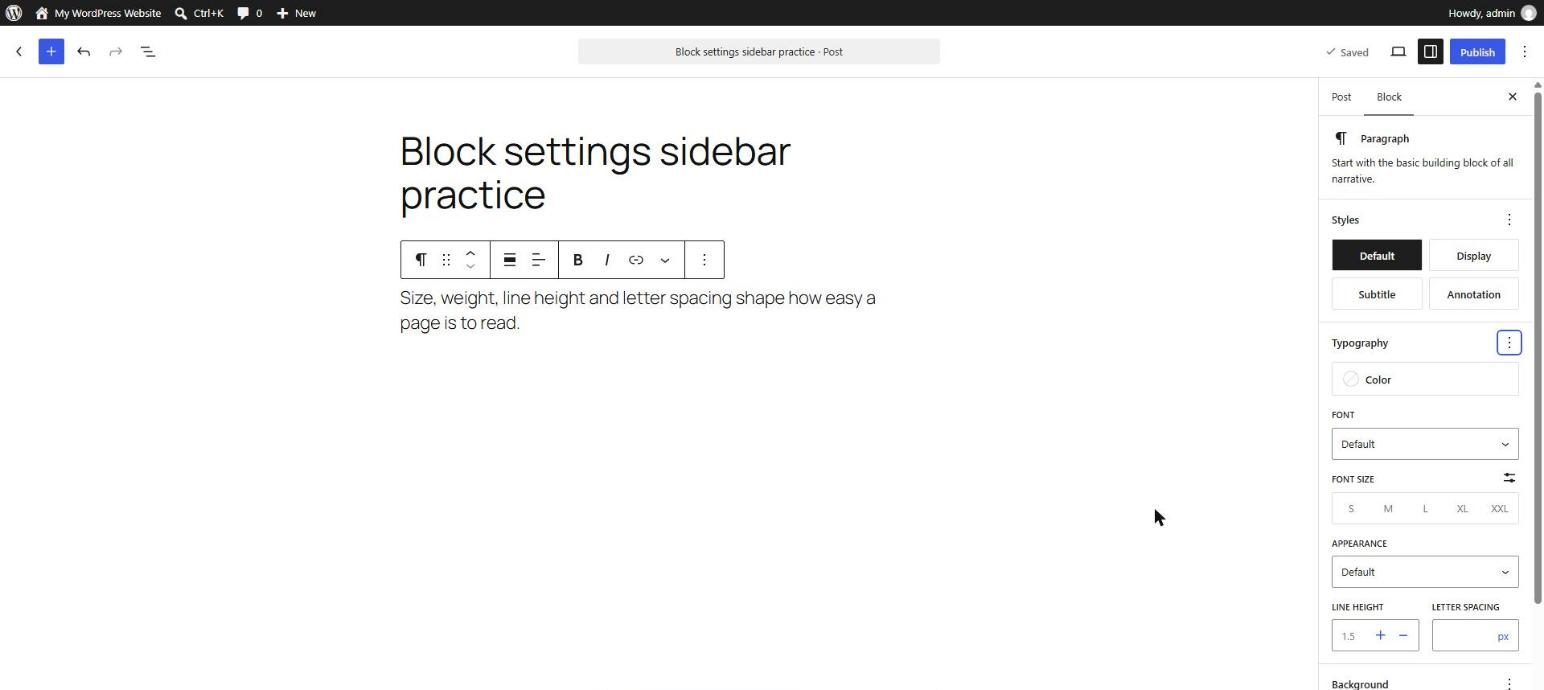
Font Size
Font size has two modes. Presets are named sizes such as S, M, L, XL, and XXL that the theme defines. Click one and the text changes. Custom lets you type a value with a unit (px, em, rem, %, vw, and so on). Presets are better because they keep the whole site consistent, and if the theme changes its sizes, your text follows. Many modern themes also use fluid font sizes that scale smoothly between phones and desktops, so a large heading is not oversized on a small screen.
Rule of thumb: body text should be at least 16 px (1 rem) on all devices. Smaller text is hard to read on phones.
Font Family
The font family menu lists the fonts that the theme provides, and in newer WordPress versions the fonts that you installed with the Font Library. The Font Library is in the Site Editor under Styles → Typography (you will visit it on Day 38) and lets you upload font files or install fonts from a library such as Google Fonts. Installed fonts are stored on your own server, which also avoids sending visitors' data to other sites.
Use at most two font families on a site: one for headings and one for body text. A fancy font on a single paragraph usually looks out of place.
Appearance: Weight and Style
The Appearance control combines font weight (thin, regular, medium, semi-bold, bold, black) and style (normal or italic). You only see the weights that the font actually includes. If the font has no italic, the italic option is missing, and a browser would otherwise invent a fake italic.
Line Height
Line height is the vertical space between lines. For body text, a value of about 1.5 to 1.7 is comfortable. Headings look better with tighter spacing, such as 1.1 to 1.3. Enter a number without a unit (1.6) so it scales with the font size. Too tight and lines collide, too loose and the paragraph falls apart.
Letter Spacing
Letter spacing changes the gap between characters. Small positive values (for example 0.05em) can make uppercase labels easier to read. For normal lowercase text, leave it alone.
Text Decoration and Case
- Decoration: underline or strikethrough. Underline normally means a link, so avoid underlining text that is not a link.
- Letter case: uppercase, lowercase, or capitalize. Use uppercase for short labels only. Long uppercase paragraphs are hard to read.
- Writing mode: horizontal or vertical. Vertical text is useful for special designs or some languages.
Readability Rules
- Line length: 45 to 75 characters per line. The content width of the theme usually handles this.
- Contrast: text must stand out from its background. Day 13 and Day 46 cover contrast checks.
- Hierarchy: headings should be clearly bigger or bolder than body text, and the sizes should follow the heading levels.
- Consistency: do not change the size of one paragraph just because it looks small. If many paragraphs need a different size, change the theme setting or Global Styles.
Key takeaway: use presets, keep fonts to two, use a comfortable line height, and avoid decoration. When in doubt, leave the theme's defaults alone.
What the Markup Looks Like
<!-- wp:paragraph {"style":{"typography":{"lineHeight":"1.7","letterSpacing":"0.5px"}},"fontSize":"large"} -->
<p class="has-large-font-size" style="letter-spacing:0.5px;line-height:1.7">A comfortable, larger paragraph.</p>
<!-- /wp:paragraph -->

<!-- wp:heading {"textAlign":"center","style":{"typography":{"textTransform":"uppercase","letterSpacing":"0.1em"}}} -->
<h2 class="wp-block-heading has-text-align-center" style="letter-spacing:0.1em;text-transform:uppercase">Our Services</h2>
<!-- /wp:heading -->
5 Examples to Follow Along
Example 1: Use a Preset Size
Select a paragraph, open Typography, and click L. In the Code editor you will see fontSize":"large" and the class has-large-font-size.
Example 2: Enter a Custom Size
Click the settings icon next to Font size to switch to custom mode and type 1.25rem. Compare it with the L preset. Then switch back to presets.
Example 3: Change Line Height
Set the line height of a three-line paragraph to 1.2, then 1.6, then 2.2. Decide which value reads best and why.
Example 4: Style a Label with Uppercase
Add a short heading such as "Our Services", set the letter case to uppercase and the letter spacing to 0.1em. Compare it with the default.
<!-- wp:heading {"level":3,"style":{"typography":{"textTransform":"uppercase","letterSpacing":"0.1em"}}} -->
<h3 class="wp-block-heading" style="letter-spacing:0.1em;text-transform:uppercase">Our Services</h3>
<!-- /wp:heading -->
Example 5: Check the Font Family Menu
Open the Font family menu and look at the fonts offered. Note which are used by your theme for headings and for body text. Do not change them yet.
Questions
Try to answer each question yourself first, then open the answer.
Question 1: Why are preset font sizes better than custom sizes?
Show answer
Presets are defined by the theme, so they stay consistent across the site and update everywhere when the theme changes them. They may also be fluid, scaling smoothly between screen sizes.
Example: if every intro paragraph uses the Large preset and later you decide Large should be a bit bigger, you change it once in the theme and all paragraphs update. With custom values you would edit each paragraph.
Question 2: What is a good line height for body text, and why enter it without a unit?
Show answer
About 1.5 to 1.7. A unitless value is multiplied by the font size, so the spacing scales correctly if the font size changes.
Example: a line height of 1.6 on 20 px text gives 32 px lines, and on 16 px text gives 25.6 px lines. A fixed 24px would be too tight for the larger text.
Question 3: Why do you only see some font weights?
Show answer
The font file provides only certain weights and styles. The panel shows what the font includes, so you do not get synthetic weights that look poor.
Example: a font installed with only Regular and Bold will not offer Semi-bold. Install another weight in the Font Library if you need it.
Question 4: When is uppercase text a good idea?
Show answer
For short labels or small headings. Long uppercase text is harder to read because the shapes of the words look similar.
Example: a small label "NEW" or a section tag "OUR SERVICES" works. A whole paragraph in capitals does not.
Question 5: How many font families should a website use?
Show answer
Usually two: one for headings and one for body text. More fonts make the site look inconsistent and slow it down because each font file must be downloaded.
Example: a serif font for headings and a clean sans-serif for body text, installed once in the Font Library and used everywhere.
MCQs (Multiple Choice Questions)
MCQ 1: What minimum size is recommended for body text?
- A) 8 px
- B) 12 px
- C) 16 px (1 rem)
- D) 6 px
Show answer
C) 16 px (1 rem). Smaller text is hard to read on phones.
MCQ 2: Which line height is comfortable for body text?
- A) 0.5
- B) 1.5 to 1.7
- C) 5
- D) 10
Show answer
B) 1.5 to 1.7. Too tight or too loose reduces readability.
MCQ 3: Where can you install extra fonts in current WordPress?
- A) The Font Library
- B) The Media Library only
- C) The Comments screen
- D) The Permalinks screen
Show answer
A) The Font Library. It is in the Site Editor under Styles → Typography.
MCQ 4: What does underline normally signal to readers?
- A) A link
- B) A heading
- C) A caption
- D) A new page
Show answer
A) A link. Avoid underlining text that is not a link.
MCQ 5: Which text-transform value gives ALL CAPITALS?
- A) uppercase
- B) lowercase
- C) capitalize
- D) none
Show answer
A) uppercase. Use it for short labels only.
Practice: 10 Tasks from Easy to Hard
Create a new draft post called Practice Day 12 and work through the tasks in order. Where a snippet is given, open Options → Code editor, paste it, then switch back to the Visual editor.
Task 1 (Easy): Try every preset
Write one paragraph and apply each preset size from S to XXL. Which one is closest to your theme's default?
Task 2 (Easy): Change the weight
Select a heading and change its Appearance (weight). Which weights does your font offer?
Task 3 (Easy): Italic text
Apply italic with the Appearance menu to one paragraph and then with the toolbar italic button to a single word. What is the difference in the markup?
Task 4 (Easy): Underline test
Underline one word with the Decoration control, and link another. Which one looks like a link? What does this teach you?
Task 5 (Medium): Compare line heights
Create three identical paragraphs with line heights of 1.2, 1.6, and 2.0 and compare readability.
Task 6 (Medium): Letter spacing
Apply 0.1em letter spacing to an uppercase label and to a lowercase paragraph. Which looks better and why?
Task 7 (Medium): Custom unit
Set a custom size using rem and then using px. Change your browser zoom. Which one scales better for visitors?
Task 8 (Medium-Hard): Check the hierarchy
Create an H2, an H3, and a paragraph. Make sure the sizes clearly follow the hierarchy, using the theme presets.
Task 9 (Hard): Style a hero heading
Paste the snippet below and then modify it: change the font weight, line height, and text case to create a strong but readable hero heading. Check it on a narrow window.
<!-- wp:heading {"textAlign":"center","level":2,"style":{"typography":{"lineHeight":"1.1"}},"fontSize":"xx-large"} -->
<h2 class="wp-block-heading has-text-align-center has-xx-large-font-size" style="line-height:1.1">Handmade Furniture</h2>
<!-- /wp:heading -->
Task 10 (Hard): Typography audit
Pick any page of your site. List every font family, size, and weight used. Remove custom values that duplicate a preset, and note anything that should become a theme or Global Styles setting.
Coming Up Next
In Day 13 you will style color: text, background, links, gradients, and contrast.
I'm Umar, a web developer and SEO specialist in Abu Dhabi. Get in touch.