Day 11 Tutorial - WordPress Block Settings Sidebar Explained
Part of the WordPress Block Editor in 60 Days series · All lessons
On this page
← Previous: Day 10, Spacer, Separator, More, and Phase 1 Review
Welcome to Day 11 of the 60-Day WordPress Block Editor Tutorial Series. Phase 2 is about layout and styling. It starts with the place where almost all styling happens: the Block tab of the settings sidebar. Time needed: 10 minutes reading + 30 minutes practice.
What You Will Learn Today
- How the Block tab is organized: tabs, panels, and the controls inside them
- Why the same sidebar shows different controls for different blocks
- How to show hidden controls and how to reset a single setting or a whole panel
- How block styles (such as Fill and Outline) differ from custom styles
- Where the Advanced panel fits in, and how settings end up in the saved markup
Reading: One Sidebar, Every Block
On Day 2 you saw that the sidebar has a Post tab (settings for the whole document) and a Block tab (settings for the selected block). Today you open the Block tab and look inside. Select any block and the sidebar changes to match it, so it is the first place to look when you want to change how a block looks.
Tabs Inside the Block Tab
Depending on the block and your WordPress version, the Block tab has up to three small tabs at the top:
- Settings (gear icon): options that change what the block does, such as the number of columns, a link, or the image size.
- Styles (half-filled circle icon): options that change how the block looks, such as color, typography, and borders.
- List View (for blocks with inner blocks, such as Group or Columns): shows the blocks inside the selected block.
Simple blocks, like a Paragraph, show all their panels in one list without tabs. If you cannot find an option, check the other tab before you decide that it does not exist.
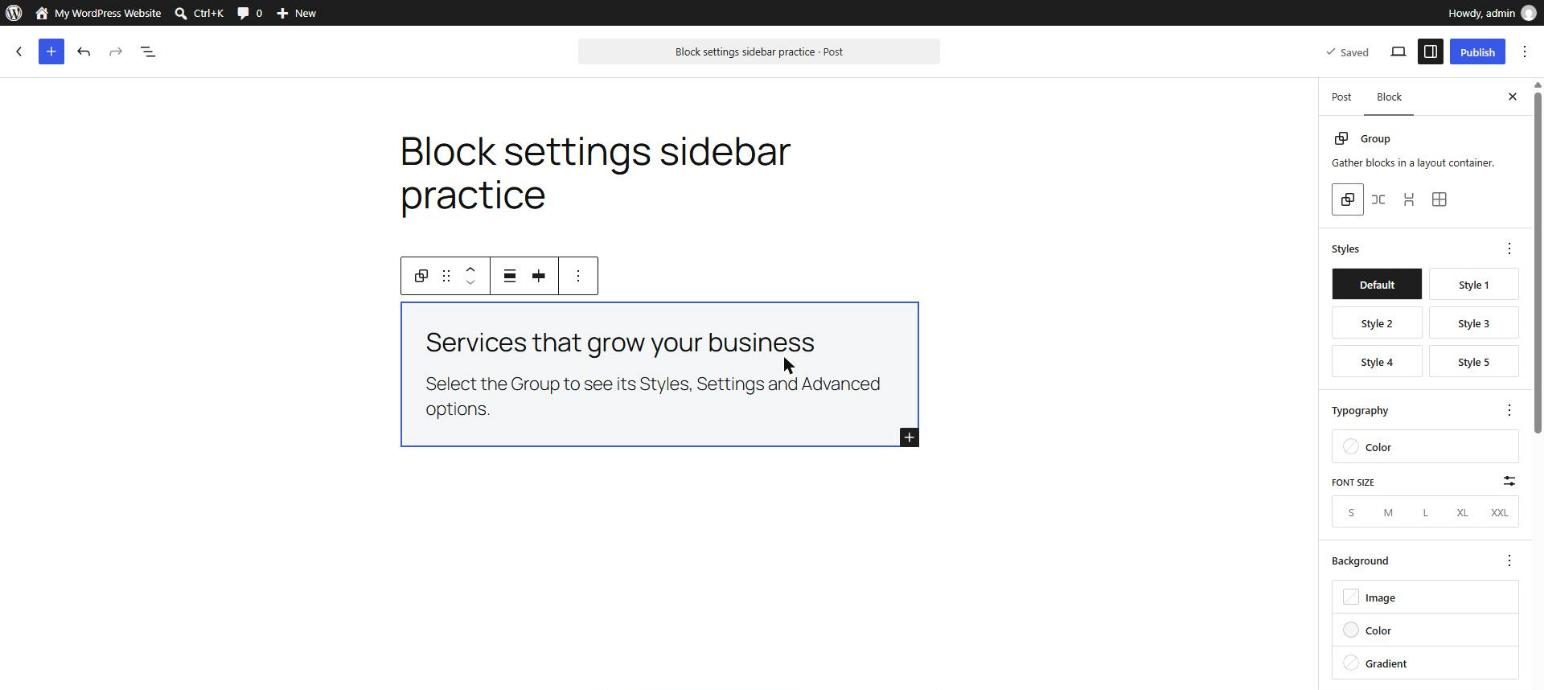
Panels
Controls are grouped in collapsible panels. The most common are:
- Styles (block styles): ready-made looks such as Default and Outline for Button, or Default and Plain for Quote.
- Typography: font size, line height, letter spacing, and more (Day 12).
- Color: text, background, link colors, and gradients (Day 13).
- Dimensions: padding, margin, block spacing, and sometimes width and height (Day 14).
- Border and Shadow: border, radius, and shadow (Day 15).
- Layout: how the inner blocks are arranged (Day 16).
- Advanced: HTML anchor and Additional CSS class(es) (Day 19).
A block only shows the panels that it supports. This is called block supports. A Spacer has almost no panels because there is almost nothing to style, while a Group has many.
Show and Hide Controls
Many panels have a three-dot menu in the panel header. Click it and you see a checklist of controls that the panel can show. Switch controls on to reveal them, and off to hide them again. WordPress only shows the controls that are most common by default, to keep the sidebar tidy. If you are looking for line height or letter spacing and do not see it, open the panel's three-dot menu first.
The same menu has a Reset all option, which removes every custom value in that panel and returns the block to the theme's defaults. Individual controls also show a small reset option when you hover over them or when a value has been changed. A blue dot next to a control label shows that you changed it.
Block Styles vs Custom Styles
Block styles are named variations that a block or theme provides, such as Outline on a Button or Rounded on an Image. They are applied as a CSS class, such as is-style-outline, and a theme can restyle them. Custom styles are values you set yourself, such as a specific background color. They are saved on the block. Use block styles when you want a consistent look across the site, and custom styles for a one-off exception. Day 59 shows how developers register new block styles.
How Settings Become Markup
Every setting you change is stored in the block comment as JSON, and many also add classes or inline styles. For example, a paragraph with a custom background color and padding is saved like this:
<!-- wp:paragraph {"style":{"color":{"background":"#fff3cd"},"spacing":{"padding":{"top":"16px","bottom":"16px","left":"16px","right":"16px"}}}} -->
<p class="has-background" style="background-color:#fff3cd;padding-top:16px;padding-right:16px;padding-bottom:16px;padding-left:16px">A highlighted note.</p>
<!-- /wp:paragraph -->
Knowing this helps in two ways. You can read the Code editor to see exactly what a setting did, and you can see why too many one-off custom styles make a site hard to maintain. Global Styles (Day 38) are the better home for sitewide choices.
A Workflow That Saves Time
- Select the block first, then look at the sidebar.
- Use the Styles tab for looks and the Settings tab for behavior.
- Use the three-dot menu of a panel to reveal controls you do not see.
- Use Reset all when a block looks wrong and you do not know why.
- If you style the same thing again and again, stop. Use a block style, a pattern, or Global Styles instead.
Key takeaway: the Block tab is a set of panels that adapts to the selected block. Learn the panels once and you know where to look for every block.
5 Examples to Follow Along
Example 1: Compare Two Blocks
Select a Paragraph and note which panels the Block tab shows. Then select a Group and compare. The Group has a Layout panel and the Paragraph does not, because only some blocks support layout.
Example 2: Find the Settings and Styles Tabs
Select a Table or an Image. Click the gear icon (Settings) and then the half-filled circle icon (Styles). Notice that the options differ between the two tabs.
Example 3: Reveal a Hidden Control
Select a Paragraph and open the Typography panel. Click its three-dot menu and switch on Line height if it is hidden. The control now appears in the panel.
Example 4: Change and Reset a Value
Set a paragraph's background color to light yellow. A blue dot appears next to the control. Click the three-dot menu of the Color panel and choose Reset all. The background returns to the theme default.
Example 5: Read the Result in the Code Editor
Style a paragraph with a background color and padding, then open Options → Code editor. Find the JSON in the block comment and the inline style attribute.
<!-- wp:paragraph {"style":{"color":{"background":"#fff3cd"}}} -->
<p class="has-background" style="background-color:#fff3cd">A highlighted note.</p>
<!-- /wp:paragraph -->
Questions
Try to answer each question yourself first, then open the answer.
Question 1: Why does the sidebar show different panels for different blocks?
Show answer
Each block declares which features it supports (typography, color, spacing, border, layout, and so on). The sidebar only shows panels for supported features.
Example: a Group supports layout and spacing, so it has Layout and Dimensions panels. A Separator supports color but has no typography, so it shows no Typography panel.
Question 2: What is the difference between the Settings tab and the Styles tab?
Show answer
Settings change how a block behaves or what it contains. Styles change how it looks.
Example: for an Image, the aspect ratio and link options are settings. Border radius and shadow are styles.
Question 3: How do you find a control that is not visible in a panel?
Show answer
Open the three-dot menu in the panel header and switch the control on. Controls are hidden by default when they are less common.
Example: if you want letter spacing for a heading, open the Typography panel menu and enable Letter spacing. It then appears in the panel.
Question 4: What is the difference between a block style and a custom style?
Show answer
A block style is a named variation provided by the block or the theme and is saved as a CSS class. A custom style is a value that you set by hand and is saved on that block.
Example: choosing the Outline style on a Button uses a block style. Setting a specific hex color on one Button is a custom style. If your brand changes, the theme can update the block style for the whole site, while the custom color must be changed button by button.
Question 5: What does the Reset all option do?
Show answer
It removes every custom value in the panel and returns the block to its default look. It is a quick way to undo experiments.
Example: after trying many font sizes, open the Typography panel menu and choose Reset all. The text returns to the theme's typography.
MCQs (Multiple Choice Questions)
MCQ 1: Which tab holds options that change how a block looks?
- A) Styles
- B) Post
- C) Revisions
- D) Preview
Show answer
A) Styles. The Styles tab (half-filled circle) holds color, typography, and border options.
MCQ 2: What does a three-dot menu in a panel header let you do?
- A) Show or hide controls and reset the panel
- B) Delete the block
- C) Publish the post
- D) Change the URL
Show answer
A) Show or hide controls and reset the panel. It also has Reset all for that panel.
MCQ 3: Why does a Spacer have so few panels?
- A) It supports few features
- B) It is broken
- C) It is hidden
- D) It is a plugin block
Show answer
A) It supports few features. The sidebar shows only the panels that a block supports.
MCQ 4: Where are the settings you choose stored?
- A) In the block comment JSON and the markup
- B) In a separate file on your computer
- C) Only in the browser
- D) In the Media Library
Show answer
A) In the block comment JSON and the markup. You can see them in the Code editor.
MCQ 5: A custom style is best for:
- A) A one-off exception
- B) Every page on the site
- C) Nothing
- D) Only images
Show answer
A) A one-off exception. For sitewide choices use block styles, patterns, or Global Styles.
Practice: 10 Tasks from Easy to Hard
Create a new draft post called Practice Day 11 and work through the tasks in order.
Task 1 (Easy): Compare panels
Add a Paragraph, a Heading, an Image, and a Group. Select each and list the panels in the sidebar.
Task 2 (Easy): Switch tabs
Select an Image and open both the Settings and Styles tabs. Write down one option from each.
Task 3 (Easy): Apply a block style
Add a Button and switch between Fill and Outline. Look at the class in the Code editor.
Task 4 (Easy): Find the blue dot
Change one value in the Typography panel and look for the blue dot. Then reset it.
Task 5 (Medium): Reveal hidden controls
Open the three-dot menu of the Typography panel and switch on every extra control. Which ones did you not know about?
Task 6 (Medium): Use Reset all
Style a paragraph with three different options, then use Reset all in each panel you changed.
Task 7 (Medium): Read the JSON
Set a background color and padding on a paragraph. In the Code editor identify which values are in the JSON and which are inline styles.
Task 8 (Medium-Hard): Block style or custom style?
Look at five blocks on a page you built. For each, decide whether a block style, a custom style, or Global Styles would be the right tool.
Task 9 (Hard): Fix a messy block
Paste the snippet below. It has several custom values. Remove all of them using only the sidebar (no Code editor) so the block looks like a normal paragraph again.
<!-- wp:paragraph {"style":{"color":{"background":"#ffe4e1","text":"#8b0000"},"typography":{"fontSize":"28px","letterSpacing":"3px"},"spacing":{"padding":{"top":"30px","bottom":"30px"}}}} -->
<p class="has-text-color has-background" style="color:#8b0000;background-color:#ffe4e1;padding-top:30px;padding-bottom:30px;font-size:28px;letter-spacing:3px">Messy paragraph</p>
<!-- /wp:paragraph -->
Task 10 (Hard): Make a style guide page
Create a page that lists one of each: Paragraph, Heading (H2 and H3), Button (Fill and Outline), Quote, and Table. Style them only with block styles and the theme defaults. Keep a short note of every custom value you were tempted to set.
Coming Up Next
In Day 12 you will go deep into the Typography panel: font size, font family, weight, line height, letter spacing, and how to keep text readable.
← Previous: Day 10, Spacer, Separator, More, and Phase 1 Review
I'm Umar, a web developer and SEO specialist in Abu Dhabi. Get in touch.