Day 10 Tutorial - Spacer, Separator, More Block and Phase 1 Review
Part of the WordPress Block Editor in 60 Days series · All lessons
On this page
← Previous: Day 9, Group, Row, and Stack
Welcome to Day 10 of the 60-Day WordPress Block Editor Tutorial Series. This is the last day of Phase 1. First you learn three small but useful blocks, then you review everything from the first nine days. Time needed: 10 minutes reading + 30 minutes practice.
What You Will Learn Today
- How to use the Spacer block, and when to use spacing controls instead
- How to use the Separator block and its styles
- How the More block controls the excerpt on blog list pages
- A quick review of every block from Days 1 to 9
- A mini project that uses the whole of Phase 1
Reading: Three Small Blocks That Finish a Page
The Spacer Block
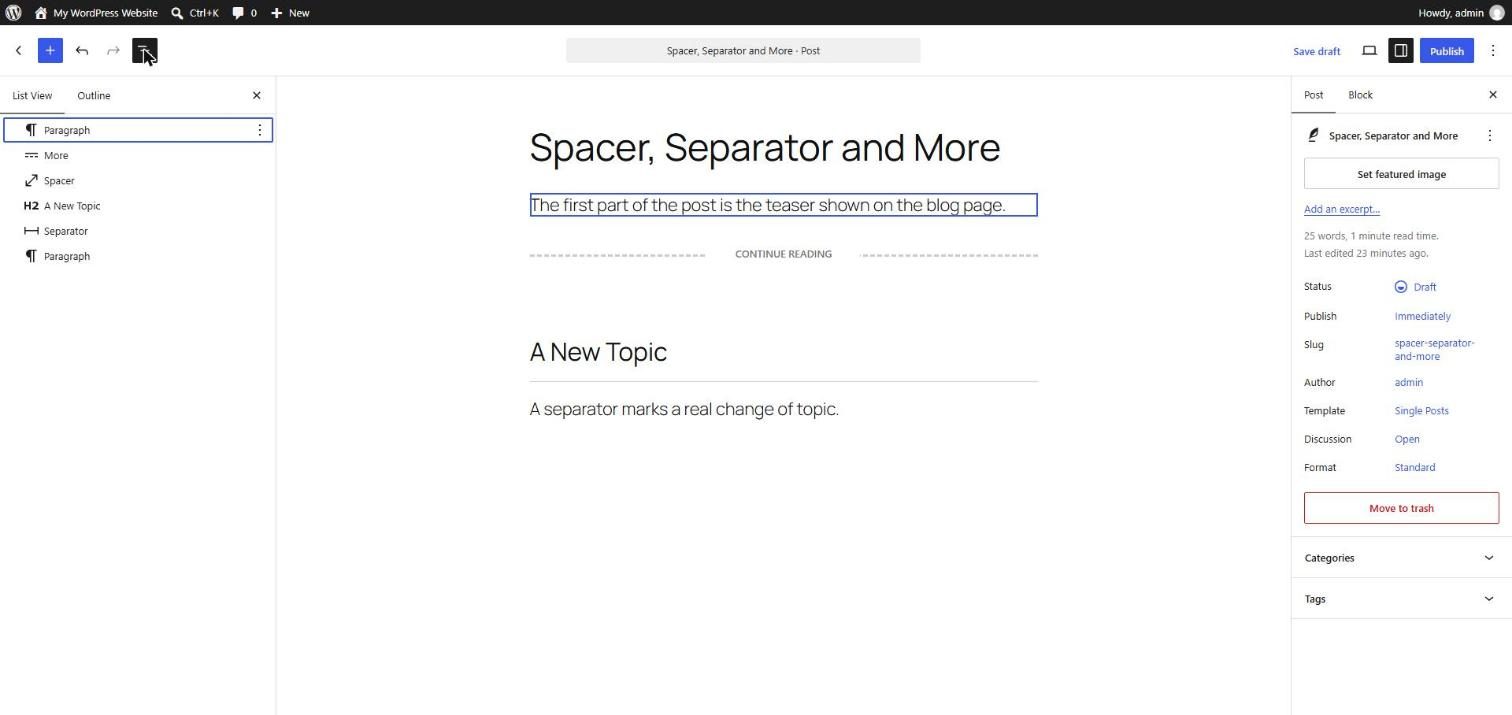
The Spacer adds empty vertical space. Add it with /spacer and drag the handle at the bottom, or type a height in the Block tab (in pixels or other units). Use it for one-off gaps, such as extra room above a section.
- Do not use empty paragraphs to create space. Pressing Enter repeatedly leaves junk blocks behind, and the space is not controlled.
- Prefer spacing controls (padding, margin, and block gap, covered on Day 14) for consistent spacing across the whole site.
- Spacer height is the same on every screen unless your theme scales it. Check it on a phone-width window.
The Separator Block
The Separator draws a horizontal line, rendered as an <hr> element. Add it with /separator or type --- on an empty line and press Enter. Styles available in many themes are Default, Wide Line, and Dots. You can change its color in the Block tab.
Use a Separator to mark a real change of topic, not as decoration between every paragraph. Search engines and screen readers treat <hr> as a thematic break.
The More Block
The More block (/more) inserts a "Read more" break. On a blog page that lists posts in full-content mode, text before the More block is the teaser, and a Read more link points to the full post. In many modern block themes the post list uses an excerpt instead, so the More block matters less, but it is still part of WordPress and useful on classic and hybrid themes.
- Click the label in the block and type your own text, such as "Continue reading".
- Switch on Hide the "Read more" on the full content page in the Block tab if you do not want the break to show inside the post itself.
- The related Page Break block splits a long post into several pages. Use it rarely, because many readers dislike clicking through pages.
Tip: the post excerpt in the Post tab (Day 2) can also set the teaser text, and it is the better choice when your theme shows excerpts.
Phase 1 Review: Blocks You Know Now
- Day 1: everything in the editor is a block, and the Code editor shows the real markup.
- Day 2: the five zones of the screen, List View, Outline, Select mode, and breadcrumbs.
- Day 3: Paragraph and Heading. Use headings by outline order.
- Day 4: List, Quote, and Table. Use tables for data only.
- Day 5: Image. Write alt text, pick the size, and compress.
- Day 6: Gallery and Cover. Use overlays and the focal point.
- Day 7: Media & Text, Video, Audio, and File. Keep media small and accessible.
- Day 8: Buttons and Columns. Specific button text, and stack columns on mobile.
- Day 9: Group, Row, and Stack. Wrap, name, and style groups.
- Day 10: Spacer, Separator, and More.
Phase 1 Checklist
Tick each item to check that you are ready for Phase 2:
- I can find the sidebar tabs, List View, and the Outline without searching.
- I use the slash command and keyboard shortcuts for adding blocks.
- I choose heading levels by structure and check the outline.
- I write alt text for every image.
- I know how to select a parent block with the breadcrumbs.
- I group and name sections, and I do not use empty paragraphs for spacing.
- I preview every page on a narrow window before publishing.
Key takeaway: small spacing and divider blocks finish a page, but the real skill from Phase 1 is choosing the right block for each job.
What the Markup Looks Like
<!-- wp:spacer {"height":"40px"} -->
<div style="height:40px" aria-hidden="true" class="wp-block-spacer"></div>
<!-- /wp:spacer -->

<!-- wp:separator -->
<hr class="wp-block-separator has-alpha-channel-opacity"/>
<!-- /wp:separator -->

<!-- wp:more -->
<!--more-->
<!-- /wp:more -->
5 Examples to Follow Along
Example 1: Add a Spacer
Type /spacer and press Enter. Drag the handle until it is about 60 px high, or type 60 in the Block tab. Open the Code editor to see the height:60px style.
Example 2: Add a Separator with the Keyboard
On an empty line type --- and press Enter. Open the Block tab and try the Wide Line and Dots styles. Check the color options.
Example 3: Add a More Break
Write three paragraphs. Place the cursor after the first one, type /more, and press Enter. Change the label text to "Continue reading".
<!-- wp:more {"customText":"Continue reading"} -->
<!--more Continue reading-->
<!-- /wp:more -->
Example 4: Replace Empty Paragraphs
Find a draft where you pressed Enter several times for space. Delete the empty paragraphs and replace them with one Spacer. Check List View: you have fewer blocks.
Example 5: Review with List View
Open a page you built this week. Open List View, rename each major section, and look for blocks that could be simplified, such as an extra empty Group or paragraph.
Questions
Try to answer each question yourself first, then open the answer.
Question 1: Why is an empty paragraph a bad way to create space?
Show answer
Every empty paragraph is a real block with real markup. It adds clutter, the space is not controlled, and screen readers may announce empty blocks.
Example: use one Spacer with a defined height, or better, adjust padding and margin in the block's Dimensions settings so the spacing is consistent on every page.
Question 2: When is a Separator appropriate?
Show answer
When there is a real change of topic or section. It should not be decoration between every paragraph.
Example: between the main article and a "Related reading" section, or before an author note.
Question 3: What does the More block do?
Show answer
It marks where the teaser ends. On lists that show full content, visitors see the text before the More block and a Read more link to the full post.
Example: put the More block after the first two paragraphs of a long post so the home page shows only a short teaser.
Question 4: What are the five most important habits from Phase 1?
Show answer
Use the right block for each job, set heading levels by structure, write alt text, name your groups, and preview on a narrow screen.
Example: before publishing a new page, open the Outline tab, check the headings, test the page at phone width, and confirm every image has alt text.
Question 5: Which settings should you check on every post before publishing?
Show answer
The URL slug, the featured image, the excerpt, the category, the heading outline, and the alt text of images.
Example: a post called "My First Post" with the slug practice-day-2-2 should be fixed to a short descriptive slug such as block-editor-basics.
MCQs (Multiple Choice Questions)
MCQ 1: Which HTML element does the Separator block produce?
- A) hr
- B) br
- C) table
- D) cite
Show answer
A) hr. The hr element is a thematic break.
MCQ 2: Which block marks where a post teaser ends?
- A) More
- B) Spacer
- C) Gallery
- D) Cover
Show answer
A) More. The More block adds a Read more break.
MCQ 3: What is the best way to add consistent spacing across a whole site?
- A) Spacing controls and theme settings
- B) Empty paragraphs
- C) More blocks
- D) Bold text
Show answer
A) Spacing controls and theme settings. They apply the same rules everywhere.
MCQ 4: Which shortcut creates a Separator on an empty line?
- A) ---
- B) ###
- C) >>>
- D) ***bold***
Show answer
A) ---. Three hyphens and Enter creates a Separator.
MCQ 5: The Page Break block is used to:
- A) Split a long post into multiple pages
- B) Add a footer
- C) Embed video
- D) Add a button
Show answer
A) Split a long post into multiple pages. Use it sparingly.
Practice: 10 Tasks from Easy to Hard
Create a new draft page called Practice Day 10: About Me and work through the tasks in order. The last three tasks form a mini project that uses most of Phase 1.
Task 1 (Easy): Add a Spacer
Add a Spacer of 40 px between two paragraphs.
Task 2 (Easy): Add a Separator
Add a Separator with --- and try each style.
Task 3 (Easy): Add a More break
Add a More block after the first paragraph and change its text.
Task 4 (Easy): Check your outline
Open the Outline tab on any earlier practice page. List every heading in order.
Task 5 (Medium): Replace empty paragraphs
Find any empty paragraphs on your practice pages and replace them with Spacers or spacing settings.
Task 6 (Medium): Recolor the Separator
Change the color of a Separator and compare the default and Wide Line styles on your theme.
Task 7 (Medium-Hard): Review checklist
Go through the Phase 1 checklist above and mark each item honestly. Pick the two you are weakest at and repeat the matching day's tasks.
Task 8 (Hard): Mini project, part 1: header section
Create a section for an "About Me" page. Use a Cover with your name as H2 and a short tagline, then a Row with two Buttons ("Contact me" as Fill and "See my work" as Outline). Give the section a name in List View.
Task 9 (Hard): Mini project, part 2: content sections
Add a Media & Text block with your photo and a short bio, then a Columns block with three skills, each with an H3 and a sentence. Add a Quote with a testimonial and a Table of your services. Use Separators and Spacers where there is a real change of topic.
Task 10 (Hard): Mini project, part 3: polish and check
Add alt text to every image, set the URL slug, featured image, and excerpt, and check the Outline tab. Preview on a phone-width window, fix anything that looks cramped, and publish the page. You have now finished Phase 1.
Coming Up Next
In Day 11 (Phase 2: Layout and Styling) you will study the block settings sidebar in depth, so you can control how every block looks.
I'm Umar, a web developer and SEO specialist in Abu Dhabi. Get in touch.