Day 9 Tutorial - Group, Row and Stack Blocks in WordPress
Part of the WordPress Block Editor in 60 Days series · All lessons
On this page
← Previous: Day 8, Buttons and Columns
Welcome to Day 9 of the 60-Day WordPress Block Editor Tutorial Series. The Group block is the most useful layout block in WordPress, and Row and Stack are two of its variations. Once you understand them, you can build almost any section. Time needed: 10 minutes reading + 30 minutes practice.
What You Will Learn Today
- What a Group block does and why it is the building block of layouts
- How Row and Stack set the direction of the items inside
- How to select blocks and wrap them in a Group (and ungroup them)
- How to give a Group a background, padding, and a semantic HTML tag
- The difference between content width and full width layouts
Reading: Wrapping Blocks to Build Sections
What Is a Group?
A Group is a container. It holds other blocks and lets you treat them as one unit: give them a background, add space inside, move them together, or save them as a pattern. Think of it as a box around your content.
To wrap existing blocks, select them (click the first, hold Shift, and click the last, or drag across them in List View), then click the Group button in the toolbar. Click it again, or choose Ungroup in the options menu, to unwrap them.
Group, Row, and Stack
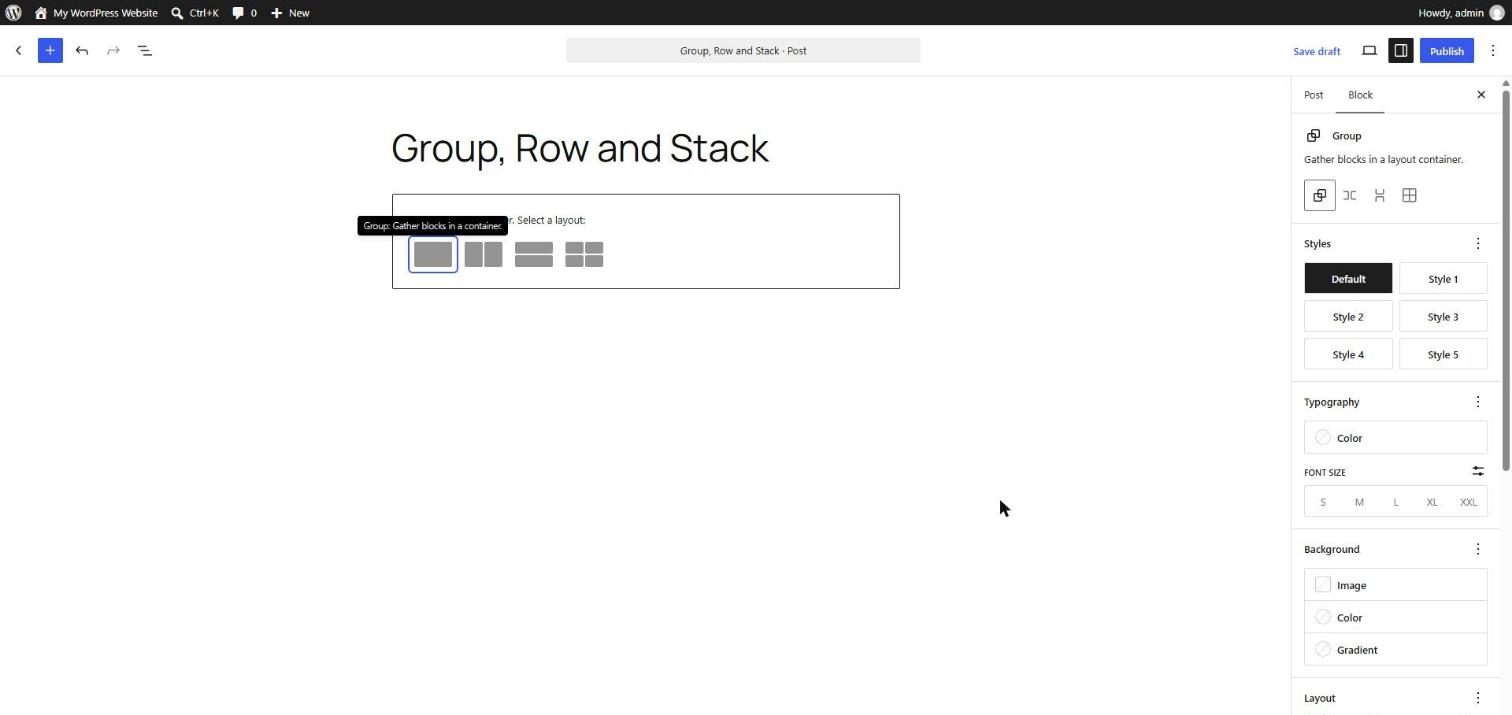
When you insert a Group, WordPress offers variations. They are the same block with different layout settings:
- Group: the default. Items stack one under another and follow your theme's layout rules.
- Row: items sit side by side in one horizontal line, and wrap to the next line if there is not enough room. It is great for a logo with a menu, an icon with a label, or a row of buttons.
- Stack: items are placed one below the other, with the same spacing between each. It is great for cards and form-like layouts.
- Grid: items sit in a grid. You will learn this one on Day 17.
Row and Stack use a layout system called flex. In the Block tab, under Layout, you can adjust the justification (left, center, right, or space between), the orientation (horizontal or vertical), and whether items wrap onto a new line. You can turn a Row into a Stack, and back, at any time.
Content Width vs Full Width
Most modern themes set a content width, for example 650 or 800 pixels, so lines of text are comfortable to read. In a Group, Inner blocks use content width keeps the items inside at that readable width, while the Group itself can be wide or full width. A typical full-width colored band uses this: the background spans the screen, and the text inside stays centered and neat.
Styling a Group
- Background: choose a color, gradient, or image for the whole Group.
- Padding: in Dimensions, add space inside so text does not touch the edges of the background. Day 14 covers spacing in depth.
- Border and radius: turn a Group into a card with a border and rounded corners.
- Text color: inner blocks inherit it, so you do not have to set it on each paragraph.
- HTML element: in the Advanced panel, you can change the wrapper from
<div>to<header>,<main>,<section>,<article>,<aside>, or<footer>. Semantic tags help accessibility and give search engines more clues.
Name Your Groups
On a long page, List View shows a pile of blocks called "Group". Rename each one in the options menu, for example "Hero", "Features", or "Testimonials". The names are only for you, and they make the page easy to edit later.
Key takeaway: Group wraps blocks into a styled unit, Row places items horizontally, Stack places them vertically, and the Advanced panel lets you pick the right HTML tag.
What the Markup Looks Like
A Row group with a heading and a button, and a Stack group with two paragraphs:
<!-- wp:group {"layout":{"type":"flex","flexWrap":"nowrap","justifyContent":"space-between"}} -->
<div class="wp-block-group"><!-- wp:heading {"level":3} -->
<h3 class="wp-block-heading">Ready to start?</h3>
<!-- /wp:heading -->

<!-- wp:buttons -->
<div class="wp-block-buttons"><!-- wp:button -->
<div class="wp-block-button"><a class="wp-block-button__link wp-element-button">Contact us</a></div>
<!-- /wp:button --></div>
<!-- /wp:buttons --></div>
<!-- /wp:group -->

<!-- wp:group {"layout":{"type":"flex","orientation":"vertical"}} -->
<div class="wp-block-group"><!-- wp:paragraph -->
<p>First item</p>
<!-- /wp:paragraph -->

<!-- wp:paragraph -->
<p>Second item</p>
<!-- /wp:paragraph --></div>
<!-- /wp:group -->
5 Examples to Follow Along
Example 1: Wrap Blocks in a Group
Add a Heading and two Paragraphs. Click the heading, hold Shift, click the last paragraph, and press the Group button in the toolbar. Open List View and see all three blocks inside one Group.
Example 2: Give the Group a Background and Padding
Select the Group (with the breadcrumbs). In the Block tab set a light background color and open Dimensions to add padding of about 24 px on all sides. The text no longer touches the edge.
Example 3: Turn a Group into a Row
Insert a Row with /row. Add an image (or icon) and a short paragraph. They sit side by side. Set the justification to space between and look at how the items move.
Example 4: Make a Stack Card
Insert a /stack with a Heading, a Paragraph, and a Button. Add a border and a border radius in the Block tab so it looks like a card.
Example 5: Change the HTML Element
Select a Group, open Advanced, and set HTML element to section. In the Code editor you will see a <section> tag instead of a <div>.
<!-- wp:group {"tagName":"section","style":{"spacing":{"padding":{"top":"24px","bottom":"24px","left":"24px","right":"24px"}}},"backgroundColor":"contrast-2"} -->
<section class="wp-block-group has-contrast-2-background-color has-background" style="padding:24px"><!-- wp:paragraph -->
<p>This text is inside a section.</p>
<!-- /wp:paragraph --></section>
<!-- /wp:group -->
Questions
Try to answer each question yourself first, then open the answer.
Question 1: What is the main purpose of the Group block?
Show answer
It wraps other blocks so they can be styled, moved, or reused as one unit.
Example: a testimonial has a quote, a name, and a photo. Wrap them in a Group, give it a background and a border, and you can duplicate the whole card or move it as one piece.
Question 2: What is the difference between a Row and a Stack?
Show answer
A Row places its items side by side horizontally. A Stack places them one under another vertically. Both are Group blocks using the flex layout.
Example: a logo next to a navigation menu is a Row. A card with an image above a title above a paragraph is a Stack.
Question 3: How do you group blocks you have already written?
Show answer
Select all the blocks (click the first, Shift+click the last, or drag in List View) and click the Group button in the toolbar. To undo, use Ungroup.
Example: select a heading and its two paragraphs, group them, and give the Group a background color in one step.
Question 4: Why would you change a Group's HTML element to section or header?
Show answer
Semantic tags describe the purpose of a part of the page. They help screen reader users navigate and give search engines a clearer page structure.
Example: use section for a features area, header for the top part of a page, and footer for the bottom part in a custom layout.
Question 5: Why should you give padding to a Group that has a background color?
Show answer
Without padding the text touches the edge of the colored area and looks cramped and hard to read.
Example: a blue banner with white text looks better with 24 to 40 px of padding around its content.
MCQs (Multiple Choice Questions)
MCQ 1: Which variation places items side by side?
- A) Row
- B) Stack
- C) Table
- D) Quote
Show answer
A) Row. Row is a horizontal flex group.
MCQ 2: Which variation places items vertically with equal spacing?
- A) Stack
- B) Row
- C) Gallery
- D) Cover
Show answer
A) Stack. Stack is a vertical flex group.
MCQ 3: How do you wrap several selected blocks together?
- A) Click Group in the toolbar
- B) Press Esc twice
- C) Use the URL slug
- D) Open Media Library
Show answer
A) Click Group in the toolbar. Ungroup reverses it.
MCQ 4: Where do you change a Group from div to section?
- A) Block tab, Advanced panel, HTML element
- B) Post tab, Excerpt
- C) Settings → General
- D) The Preview button
Show answer
A) Block tab, Advanced panel, HTML element. The HTML element setting is in Advanced.
MCQ 5: What does Inner blocks use content width mean?
- A) Items inside stay at the theme's readable width
- B) Items become full width
- C) Items are hidden
- D) The group is deleted
Show answer
A) Items inside stay at the theme's readable width. It lets the background be wide while text stays readable.
Practice: 10 Tasks from Easy to Hard
Create a new draft page called Practice Day 9 and work through the tasks in order. Where a snippet is given, open Options → Code editor, paste it, then switch back to the Visual editor.
Task 1 (Easy): Group three blocks
Write a heading and two paragraphs, select them all, and group them.
Task 2 (Easy): Ungroup them
Use Ungroup, then group them again. Check List View each time.
Task 3 (Easy): Insert a Row
Insert a Row with two Paragraph blocks and see them sit side by side.
Task 4 (Easy): Insert a Stack
Insert a Stack with three Paragraph blocks and compare it to a normal Group.
Task 5 (Medium): Add a background and padding
Give a Group a light background color and 32 px padding.
Task 6 (Medium): Space between
In a Row, set the justification to space between, and then to center. Describe the difference.
Task 7 (Medium): Rename your groups
Rename three Groups in List View as "Intro", "Features", and "Contact".
Task 8 (Medium-Hard): Make a card
Create a Stack card with an image, a heading, a paragraph, and a button. Add a border and a radius.
Task 9 (Hard): Change the HTML element
Paste the snippet below, change the HTML element to header, and check the result in the Code editor.
<!-- wp:group {"layout":{"type":"constrained"}} -->
<div class="wp-block-group"><!-- wp:heading -->
<h2 class="wp-block-heading">My Website</h2>
<!-- /wp:heading -->

<!-- wp:paragraph -->
<p>A short tagline.</p>
<!-- /wp:paragraph --></div>
<!-- /wp:group -->
Task 10 (Hard): Build a three-card section
Build a section from a full-width Group with a background color. Inside, put a Heading, then a Row (or Columns) with three Stack cards, each with a heading, text, and button. Name every group in List View and test the layout on a narrow window.
Coming Up Next
In Day 10 you finish Phase 1 with the Spacer, Separator, and More blocks, then review everything from Days 1 to 10 with a mini project.
I'm Umar, a web developer and SEO specialist in Abu Dhabi. Get in touch.