Day 8 Tutorial - WordPress Buttons and Columns Blocks
Part of the WordPress Block Editor in 60 Days series · All lessons
On this page
← Previous: Day 7, Media & Text, Video, Audio, and File Blocks
Welcome to Day 8 of the 60-Day WordPress Block Editor Tutorial Series. Today you add two blocks that turn a plain article into a real web page: Buttons for calls to action and Columns for side-by-side layouts. Time needed: 10 minutes reading + 30 minutes practice.
What You Will Learn Today
- How the Buttons block works and how it differs from a single Button
- How to set button style, width, link, and link attributes
- How to create Columns, change widths, and align content vertically
- How Columns behave on phones (stack on mobile)
- Good habits for calls to action and layouts
Reading: Calls to Action and Side-by-Side Layouts
The Buttons Block
The Buttons block is a container, and each Button inside it is a block too. Add it with /buttons. Type the button text, then link it. To add another button next to the first one, press Enter inside the button or click the + at the end of the row.
- Link: click the link icon in the toolbar and paste a URL, or search for a page on your site. Switch on Open in new tab only for outside links.
- Styles: Fill (a solid button) and Outline (only a border). Use Fill for the main action and Outline for the secondary one.
- Width: 25, 50, 75, or 100 percent of the row, set in the Block tab.
- Color and typography: text and background color, font size, and border radius for rounded corners.
- Link rel (Advanced): add
nofolloworsponsoredfor paid or untrusted links.
On the Buttons container (select it with the breadcrumbs or List View), you can set justification (left, center, right, space between) and orientation (horizontal or vertical).
Button text matters. Make it specific: "Get a free quote" is better than "Click here". Use only one main button per section so visitors know what to do next.
A Button Is a Link, Not a Form Button
The Button block creates an ordinary link that looks like a button. It does not submit a form. For forms you will use a form plugin or the form blocks you meet later in the series (Day 42).
The Columns Block
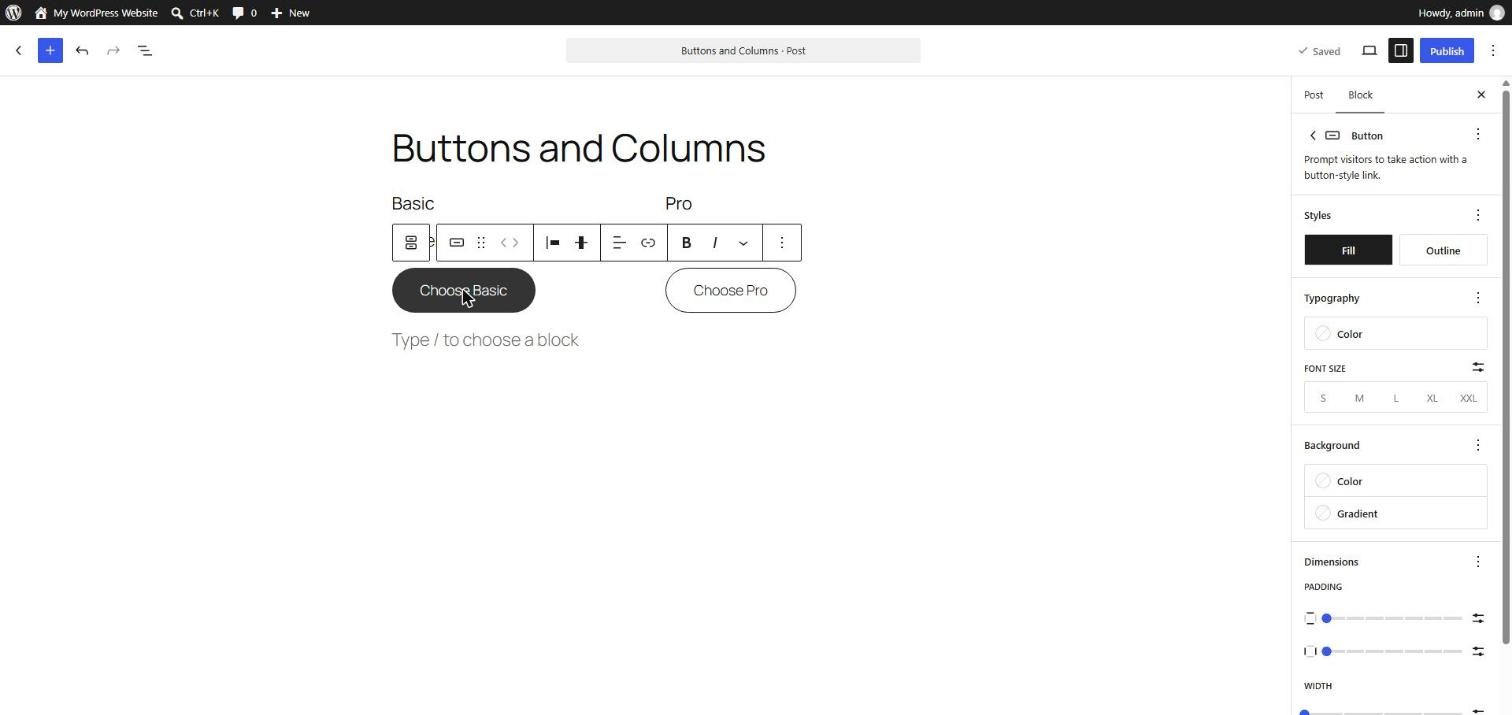
The Columns block places blocks side by side. Add it with /columns and WordPress shows layout choices, such as 50/50, 33/33/33, 25/75, or 100. Each column is a Column block inside, and every column can hold any blocks you like: headings, paragraphs, images, and buttons.
- Add a column: select the Columns block and increase Columns in the Block tab.
- Width: select a single Column (use the breadcrumbs) and set its width in percent. All widths should add up to about 100 percent.
- Vertical alignment: top, center, or bottom, for the whole row or a single column.
- Stack on mobile: on by default. On phones the columns stack into one vertical column. Leave it on unless you have a good reason.
- Block spacing: the Dimensions panel controls padding and the gap between columns. You will study this on Day 14.
Select the right layer. A common problem is to click a paragraph inside a column when you want to change the whole row. Use the breadcrumbs (Day 2) to select the Column or the Columns block.
When Not to Use Columns
- For tabular data such as prices or schedules. Use a Table (Day 4).
- For one image beside text. Media & Text (Day 7) is simpler.
- For many tiny columns. Four or more columns are too narrow on tablets and phones.
Key takeaway: Buttons give visitors a clear next step, and Columns give your page structure. Keep both simple and check them on a phone-width window.
What the Markup Looks Like
Two columns, each with a heading, a paragraph, and a button:
<!-- wp:columns -->
<div class="wp-block-columns"><!-- wp:column -->
<div class="wp-block-column"><!-- wp:heading {"level":3} -->
<h3 class="wp-block-heading">Basic</h3>
<!-- /wp:heading -->

<!-- wp:buttons -->
<div class="wp-block-buttons"><!-- wp:button -->
<div class="wp-block-button"><a class="wp-block-button__link wp-element-button">Choose Basic</a></div>
<!-- /wp:button --></div>
<!-- /wp:buttons --></div>
<!-- /wp:column -->

<!-- wp:column -->
<div class="wp-block-column"><!-- wp:heading {"level":3} -->
<h3 class="wp-block-heading">Pro</h3>
<!-- /wp:heading -->

<!-- wp:buttons -->
<div class="wp-block-buttons"><!-- wp:button -->
<div class="wp-block-button"><a class="wp-block-button__link wp-element-button">Choose Pro</a></div>
<!-- /wp:button --></div>
<!-- /wp:buttons --></div>
<!-- /wp:column --></div>
<!-- /wp:columns -->
5 Examples to Follow Along
Example 1: Add a Button
Type /buttons and press Enter. Type "Get a free quote" and click the link icon to link it to your contact page. Use View to test it.
Example 2: Create a Primary and a Secondary Button
Click the + at the end of the Buttons block to add a second button. Give the first button the Fill style and the second one the Outline style. Label them "Get started" and "Learn more".
Example 3: Set Button Width and Alignment
Select the Buttons container with the breadcrumbs. Set Justification to center. Select one button and set its width to 50 percent.
Example 4: Build Three Columns
Type /columns, choose the 33/33/33 layout, and add a Heading and a Paragraph to each column. Use the breadcrumbs to select the whole Columns block and look at its settings.
Example 5: Change Column Widths
Select the first Column and set its width to 25 percent. Select the second Column and set it to 75 percent. Check how the layout changes, then use a narrow browser window to see the stacking on mobile.
<!-- wp:columns -->
<div class="wp-block-columns"><!-- wp:column {"width":"25%"} -->
<div class="wp-block-column" style="flex-basis:25%"><!-- wp:paragraph -->
<p>Sidebar</p>
<!-- /wp:paragraph --></div>
<!-- /wp:column -->

<!-- wp:column {"width":"75%"} -->
<div class="wp-block-column" style="flex-basis:75%"><!-- wp:paragraph -->
<p>Main content</p>
<!-- /wp:paragraph --></div>
<!-- /wp:column --></div>
<!-- /wp:columns -->
Questions
Try to answer each question yourself first, then open the answer.
Question 1: What is the difference between the Buttons block and the Button block?
Show answer
Buttons is the container that holds one or more Button blocks. The container controls alignment and layout of the group, and each Button has its own text, link, and style.
Example: a row with "Get started" and "Learn more" is one Buttons block with two Button blocks. Centering both is done on the container.
Question 2: When should you use the Outline style instead of Fill?
Show answer
Use Fill for the main action you want visitors to take. Use Outline for secondary actions so the main button stands out.
Example: "Buy now" is a Fill button. "Read details" next to it is Outline.
Question 3: Why is "Click here" a poor button label?
Show answer
It does not tell visitors or screen reader users what will happen. Specific labels increase clicks and are more accessible.
Example: use "Download the checklist" or "Book a free call" instead of "Click here".
Question 4: How do you select the whole Columns block when you keep selecting a single column?
Show answer
Use the breadcrumbs at the bottom of the editor and click Columns, or choose it in List View, or select a column and click the parent block icon in the toolbar.
Example: with a paragraph selected, the breadcrumbs show Document › Columns › Column › Paragraph. Click Columns to change the number of columns or the mobile behavior.
Question 5: What does Stack on mobile do, and should you turn it off?
Show answer
On narrow screens it puts the columns one below another. Leave it on in almost all cases, because side-by-side columns become tiny and hard to read on a phone.
Example: a three-column feature row becomes three stacked sections on a phone, each full width.
MCQs (Multiple Choice Questions)
MCQ 1: Which style shows only a border and no fill?
- A) Fill
- B) Outline
- C) Plain
- D) Stripes
Show answer
B) Outline. Fill and Outline are the two built-in Button styles.
MCQ 2: A Columns block contains which inner blocks?
- A) Column blocks
- B) Cover blocks
- C) Table blocks
- D) Audio blocks
Show answer
A) Column blocks. Each column is a separate Column block that can hold any blocks.
MCQ 3: Where do you set the justification of a row of buttons?
- A) On the Buttons container
- B) In the URL slug
- C) In the Media Library
- D) In Settings → Reading
Show answer
A) On the Buttons container. The container controls alignment of all buttons inside it.
MCQ 4: How do you mark a paid link on a Button?
- A) Add sponsored to Link rel
- B) Make it bold
- C) Use the Outline style
- D) Add an image
Show answer
A) Add sponsored to Link rel. The Advanced panel has a Link rel field.
MCQ 5: What does the Button block create?
- A) A link that looks like a button
- B) A form submit button
- C) A database
- D) A new page
Show answer
A) A link that looks like a button. It does not submit a form.
Practice: 10 Tasks from Easy to Hard
Create a new draft page called Practice Day 8 and work through the tasks in order. Where a snippet is given, open Options → Code editor, paste it, then switch back to the Visual editor.
Task 1 (Easy): Make a button
Add a Button with the text "Contact us" and link it to any page.
Task 2 (Easy): Add a second button
Add another button beside the first and give it the Outline style.
Task 3 (Easy): Make two columns
Insert a Columns block with two columns and add a paragraph to each.
Task 4 (Easy): Make three columns
Switch the layout to three columns by increasing the number of columns in the Block tab.
Task 5 (Medium): Center the buttons
Select the Buttons container and center the buttons. Set one button to 50 percent width.
Task 6 (Medium): Change widths
Set column widths of 30 percent and 70 percent. Why should widths add up to 100 percent?
Task 7 (Medium): Round the corners
Open the Block tab for a button and change the border radius. Compare square and pill-shaped buttons.
Task 8 (Medium-Hard): Vertical alignment
Put an image in the first column and a short heading and paragraph in the second. Try the three vertical alignment options.
Task 9 (Hard): Build a pricing section
Paste the snippet below, add a third column named "Business" with its own button, and make the middle button Fill and the others Outline. Test the section on a narrow browser window.
<!-- wp:columns -->
<div class="wp-block-columns"><!-- wp:column -->
<div class="wp-block-column"><!-- wp:heading {"level":3} -->
<h3 class="wp-block-heading">Basic</h3>
<!-- /wp:heading -->

<!-- wp:paragraph -->
<p>$5 per month</p>
<!-- /wp:paragraph --></div>
<!-- /wp:column -->

<!-- wp:column -->
<div class="wp-block-column"><!-- wp:heading {"level":3} -->
<h3 class="wp-block-heading">Pro</h3>
<!-- /wp:heading -->

<!-- wp:paragraph -->
<p>$15 per month</p>
<!-- /wp:paragraph --></div>
<!-- /wp:column --></div>
<!-- /wp:columns -->
Task 10 (Hard): Build a landing section
Build a mini landing section: a Cover block with a heading and a Fill button, below it three Columns with a heading and short text in each, and under that a centered Outline button. Check List View for sensible structure and preview it on a phone-width window.
Coming Up Next
In Day 9 you will learn how to wrap blocks in a Group, and how Row and Stack control the direction of the items inside.
← Previous: Day 7, Media & Text, Video, Audio, and File Blocks
I'm Umar, a web developer and SEO specialist in Abu Dhabi. Get in touch.