Day 7 Tutorial - Media and Text, Video, Audio and File Blocks
Part of the WordPress Block Editor in 60 Days series · All lessons
On this page
← Previous: Day 6, Gallery and Cover Blocks
Welcome to Day 7 of the 60-Day WordPress Block Editor Tutorial Series. You can already show images and hero sections. Today you add four more media blocks: Media & Text, Video, Audio, and File. Time needed: 10 minutes reading + 30 minutes practice.
What You Will Learn Today
- How to place an image or video beside text with the Media & Text block
- How to add a video and control autoplay, loop, muted, and playback controls
- How to add an audio player, and when to use it
- How to offer a downloadable file with the File block
- Which settings protect speed and accessibility: captions, subtitles, and file size
Reading: More Ways to Show Media
The Media & Text Block
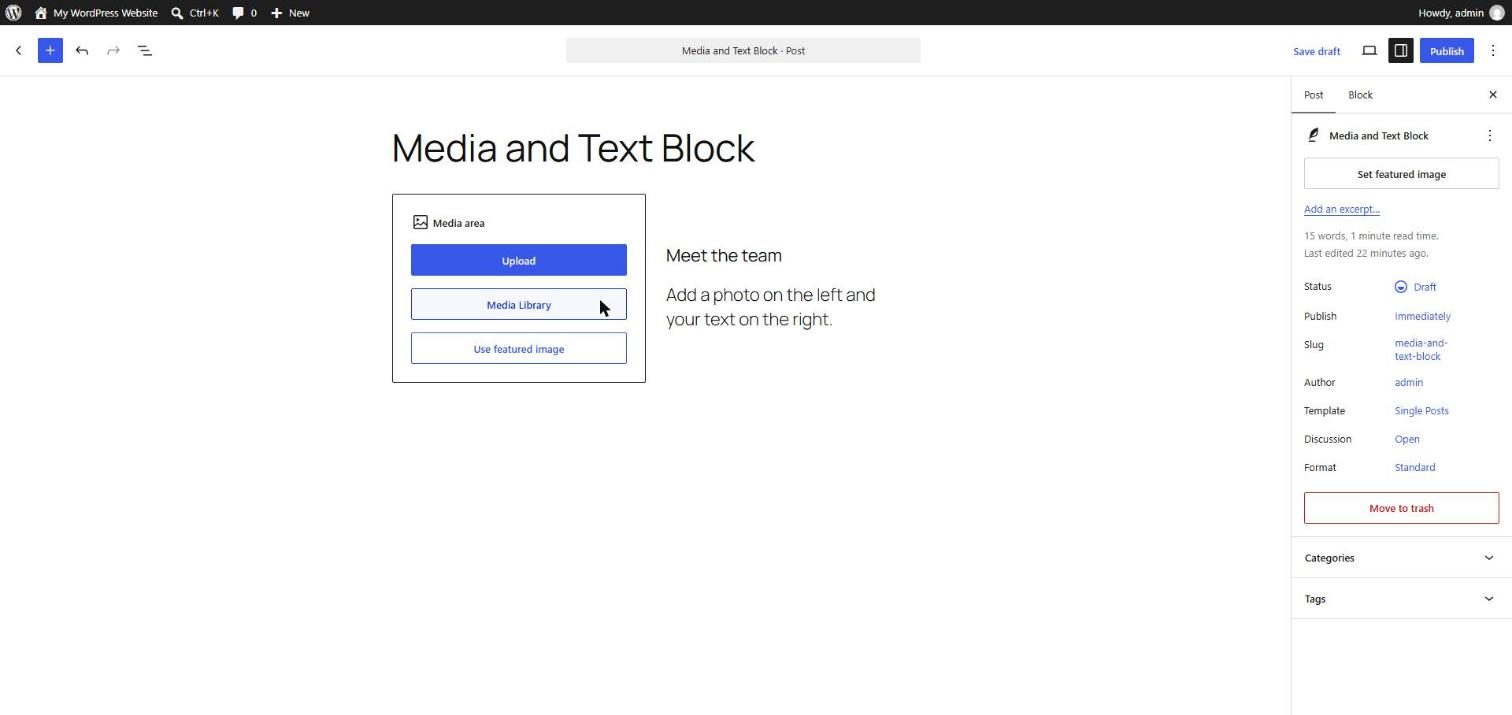
Media & Text puts media on one side and text on the other, in a single block. It is perfect for feature rows, team members, or "about" sections. Add it with /media. Choose an image or a video for the media side, then type or add blocks on the text side.
- Media position: use the toolbar to show the media on the left or the right.
- Media width: a slider in the Block tab sets how much of the row the media takes (for example 40 percent).
- Stack on mobile: switched on by default. On phones the media and text stack in one column. Leave it on for readability.
- Crop image to fill: makes the image fill its half completely, with no empty space.
- Vertical alignment: top, center, or bottom for the text.
- Alt text and image size: the same controls as the Image block, so do not skip alt text.
The text side is a normal inner-block area. You can put a Heading, Paragraph, List, and Buttons there. It saves you from building the same layout with Columns each time.
The Video Block
Add /video, then upload a file, choose one from the Media Library, or insert from a URL. Options in the Block tab:
- Autoplay: starts the video on load. Browsers often only allow autoplay when the video is muted.
- Loop: repeats the video.
- Muted: starts without sound.
- Playback controls: shows the play, volume, and fullscreen controls. Keep this on for normal videos.
- Play inline: on iPhones, plays inside the page instead of forcing fullscreen.
- Preload: Auto, Metadata, or None. Metadata or None saves data until the visitor presses play.
- Poster image: the picture shown before the video starts.
- Text tracks: upload a subtitle or caption file (WebVTT,
.vtt) so deaf and hard-of-hearing visitors, and people who watch without sound, can follow along.
Hosting tip: large videos use a lot of bandwidth and server resources. For long or high-quality videos, host on YouTube or Vimeo and use an Embed block (Day 41) instead of uploading the file to your own site. Use the Video block for short clips, such as a 15-second product demo.
The Audio Block
The Audio block adds a simple audio player for MP3, WAV, or similar files. Options are Autoplay, Loop, and Preload. Add a caption to say what the audio is, such as "Interview with the founder, 12 minutes". Do not autoplay audio. It annoys visitors and browsers often block it. For people who cannot hear, offer a written transcript.
The File Block
Use the File block to offer a download such as a PDF brochure, a price list, or a template. Add it with /file and upload the file.
- Link text: click the file name and rename it to something clear, like "Download the 2026 price list (PDF)".
- Show download button: adds a button next to the file name. You can edit its text.
- Show inline embed: for PDFs, shows a viewer on the page.
- Link to: the media file or the attachment page.
Tell visitors what they are downloading and how large it is. Check your server's maximum upload size in Media → Add New (it is shown under the uploader). If your file is bigger than that limit, you will need to ask your host to raise it.
Quick Chooser
- Text next to a picture: Media & Text.
- A short clip hosted on your site: Video.
- A podcast clip or voice note: Audio.
- A PDF or document to download: File.
Key takeaway: pick the block that matches the job, keep media files small, and always give people captions, alt text, or transcripts.
5 Examples to Follow Along
Example 1: Build a Feature Row
Type /media and choose Media & Text. Add an image on the left and type a heading and a paragraph on the right. Set the media width to 40 percent.
Example 2: Flip the Layout
Select your Media & Text block and click Show media on right in the toolbar. Switch on Crop image to fill and compare the result.
Example 3: Add a Video with a Poster Image
Add a Video block and upload a short clip. In the Block tab set a poster image and choose Preload: Metadata. Preview the page and see how the poster appears before you press play.
Example 4: Add an Audio Player with a Caption
Add an Audio block with an MP3 file. Write the caption "Welcome message, 1 minute". Leave Autoplay off.
<!-- wp:audio -->
<figure class="wp-block-audio"><audio controls src="welcome-message.mp3"></audio><figcaption class="wp-element-caption">Welcome message, 1 minute</figcaption></figure>
<!-- /wp:audio -->
Example 5: Offer a PDF Download
Add a File block, upload a PDF, rename the link to "Download the guide (PDF)", and turn on the download button. Test the page and see that the file downloads.
<!-- wp:file {"href":"guide.pdf"} -->
<div class="wp-block-file"><a href="guide.pdf">Download the guide (PDF)</a><a href="guide.pdf" class="wp-block-file__button wp-element-button" download>Download</a></div>
<!-- /wp:file -->
Questions
Try to answer each question yourself first, then open the answer.
Question 1: When should you use Media & Text instead of Columns?
Show answer
Use Media & Text when you want exactly one picture or video beside text. It is one block with built-in controls for media side, width, and mobile stacking. Use Columns when you need more complex layouts with several different blocks.
Example: a team member card with a photo on the left and a name and bio on the right is a perfect Media & Text block. A three-column pricing section is better built with Columns.
Question 2: Why do browsers often block autoplay with sound?
Show answer
Autoplaying audio is annoying and can use data without permission. Browsers usually only allow autoplay for muted videos, and often block it when sound is on.
Example: a muted background clip in a hero can autoplay and loop. A video with voice-over should start only when the visitor presses play.
Question 3: Why would you host a long video on YouTube instead of uploading it?
Show answer
Video files are large. Hosting them on your own server uses bandwidth and can slow the site. Services such as YouTube and Vimeo stream video efficiently on their own servers.
Example: a 20-minute course lesson belongs on YouTube, embedded into your page. A 10-second logo animation can use the Video block.
Question 4: How do you make a video accessible?
Show answer
Add captions or subtitles using Text tracks (a .vtt file), provide a transcript for important content, and avoid autoplay with sound.
Example: a tutorial video has a transcript under it and a captions file added through Text tracks, so people who cannot hear it, or who watch on mute, can follow.
Question 5: What should you check before uploading a large PDF through the File block?
Show answer
Check that the file is under your server's maximum upload size (Media → Add New shows it), compress the PDF, and use a clear link text that says what the file is.
Example: a 40 MB brochure may fail to upload. Compress it to about 4 MB and name the link "Download the product brochure (PDF, 4 MB)".
MCQs (Multiple Choice Questions)
MCQ 1: Which block puts an image beside text in one block?
- A) Media & Text
- B) Audio
- C) File
- D) Table
Show answer
A) Media & Text. It combines a media side and a text side.
MCQ 2: Which file type is used for video subtitles in the Video block?
- A) .vtt
- B) .exe
- C) .zip
- D) .php
Show answer
A) .vtt. WebVTT files are added through Text tracks.
MCQ 3: Which video setting saves data until the visitor presses play?
- A) Preload: None or Metadata
- B) Loop
- C) Autoplay
- D) Play inline
Show answer
A) Preload: None or Metadata. These prevent the whole video from downloading in advance.
MCQ 4: The File block is best for:
- A) Downloads such as PDFs
- B) Page layout
- C) Headings
- D) Quotes
Show answer
A) Downloads such as PDFs. It adds a link and an optional download button.
MCQ 5: What does Stack on mobile do in Media & Text?
- A) Puts media and text in one column on small screens
- B) Removes the media
- C) Turns the text into a list
- D) Locks the block
Show answer
A) Puts media and text in one column on small screens. It keeps the layout readable on phones.
Practice: 10 Tasks from Easy to Hard
Create a new draft post called Practice Day 7 and work through the tasks in order. Use small files for testing.
Task 1 (Easy): Add Media & Text
Insert a Media & Text block with an image and two sentences.
Task 2 (Easy): Add a video
Upload a short video clip (or choose one from the Media Library) in a Video block.
Task 3 (Easy): Add audio
Add an Audio block with any short MP3 file and a caption.
Task 4 (Easy): Add a file
Add a File block with a PDF and rename its link text.
Task 5 (Medium): Switch media side and width
Move the media to the right and set the width to 30 percent. Does the text look balanced?
Task 6 (Medium): Poster and preload
Give your video a poster image and set Preload to Metadata.
Task 7 (Medium): Muted background loop
Make a second short video with Autoplay, Loop, and Muted switched on and Playback controls off. Check how it behaves in View.
Task 8 (Medium-Hard): Check the upload limit
Open Media → Add New and note the maximum upload file size. Why does this limit matter for video and PDFs?
Task 9 (Hard): Add subtitles
Create a small WebVTT file with two lines of subtitles and add it to your video through Text tracks. Use the sample below as a starting point.
WEBVTT

00:00.000 --> 00:03.000
Welcome to my website.

00:03.000 --> 00:06.000
Here is how to get started.
Task 10 (Hard): Build a downloads page
Create a page with a heading, a Media & Text intro, and three File blocks for different PDFs. Write clear link texts with the file type and size. Compress the files and test the downloads on your phone.
Coming Up Next
In Day 8 you will make your pages interactive with Buttons and organize content in Columns.
I'm Umar, a web developer and SEO specialist in Abu Dhabi. Get in touch.