Day 6 Tutorial - WordPress Gallery and Cover Blocks
Part of the WordPress Block Editor in 60 Days series · All lessons
On this page
← Previous: Day 5, The Image Block
Welcome to Day 6 of the 60-Day WordPress Block Editor Tutorial Series. Yesterday you added single images. Today you add many images at once with the Gallery block and create bold banner sections with the Cover block. Time needed: 10 minutes reading + 30 minutes practice.
What You Will Learn Today
- How to build a Gallery, choose columns, and crop images to equal size
- How each gallery image keeps its own alt text, caption, and link
- How the Cover block puts text on top of an image or a color
- How overlay color, opacity, and focal point keep text readable
- When a Cover block is better than a normal heading with a background
Reading: Showing Many Images and Hero Sections
The Gallery Block
A Gallery shows several images in a grid. Add it with /gallery, then upload or choose multiple images from the Media Library at once. Since WordPress 5.9 a gallery is made of inner Image blocks, so every picture is a normal Image block you can select and edit.
- Columns: the number of images per row. On small screens the theme reduces it automatically.
- Crop images: makes every image fill its cell with the same shape, so the grid looks tidy even when your photos have different proportions.
- Randomize order: shows the images in a random order each time the page loads.
- Link to: none, the media file, or the attachment page, for all images at once. You can still change the link on a single image.
- Image size: the same choice as the Image block. Use Medium or Large for thumbnails, not Full.
- Add media: adds more images later. Drag images in the canvas or List View to reorder them.
Select one image in the gallery and you get the normal Image controls: alt text, caption, and link. Write alt text for each image. A gallery of ten photos with empty alt text is a common accessibility problem.
Limit the size. Ten full-size photos can easily weigh 20 MB. Compress them first and keep galleries to a reasonable number of images per page.
The Cover Block
The Cover block is a section with a background image, video, or solid color and other blocks laid on top. It is the classic hero or banner. Add it with /cover and choose an image, a video, or a color.
- Inner content: by default it contains a Paragraph, and you can add a Heading, Buttons, or any other block inside it.
- Overlay: a layer of color above the image. Change the color and the opacity (how strongly it shows) so white text is readable on a bright photo. A dark overlay at about 40 to 60 percent often works well.
- Focal point picker: click the part of the image that must stay visible when the section is cropped on different screens.
- Fixed background: the image stays still while the page scrolls over it (a parallax effect).
- Repeated background: tiles a small image instead of stretching it.
- Minimum height: set the height of the section in pixels, viewport height, or other units.
- Content position: place the text top, center, or bottom, and left, center, or right.
- Alt text: if the background image is meaningful, add alt text. If it is only decoration, leave it empty.
- Use featured image: pulls the background from the post's featured image automatically.
The Cover block can also use a video background. Keep it short, muted, and small in file size, because autoplaying video hurts speed and can be distracting.
Contrast and Readability
Text on an image must be easy to read. Check three things: the overlay is dark (or light) enough, the text color contrasts with the overlay, and the text does not sit on a busy part of the photo. The block sidebar shows a contrast warning when your text and overlay colors are too close.
Key takeaway: use Gallery for groups of pictures with a crop and the right image size, and use Cover for a hero section with an overlay that keeps text readable.
What the Cover Markup Looks Like
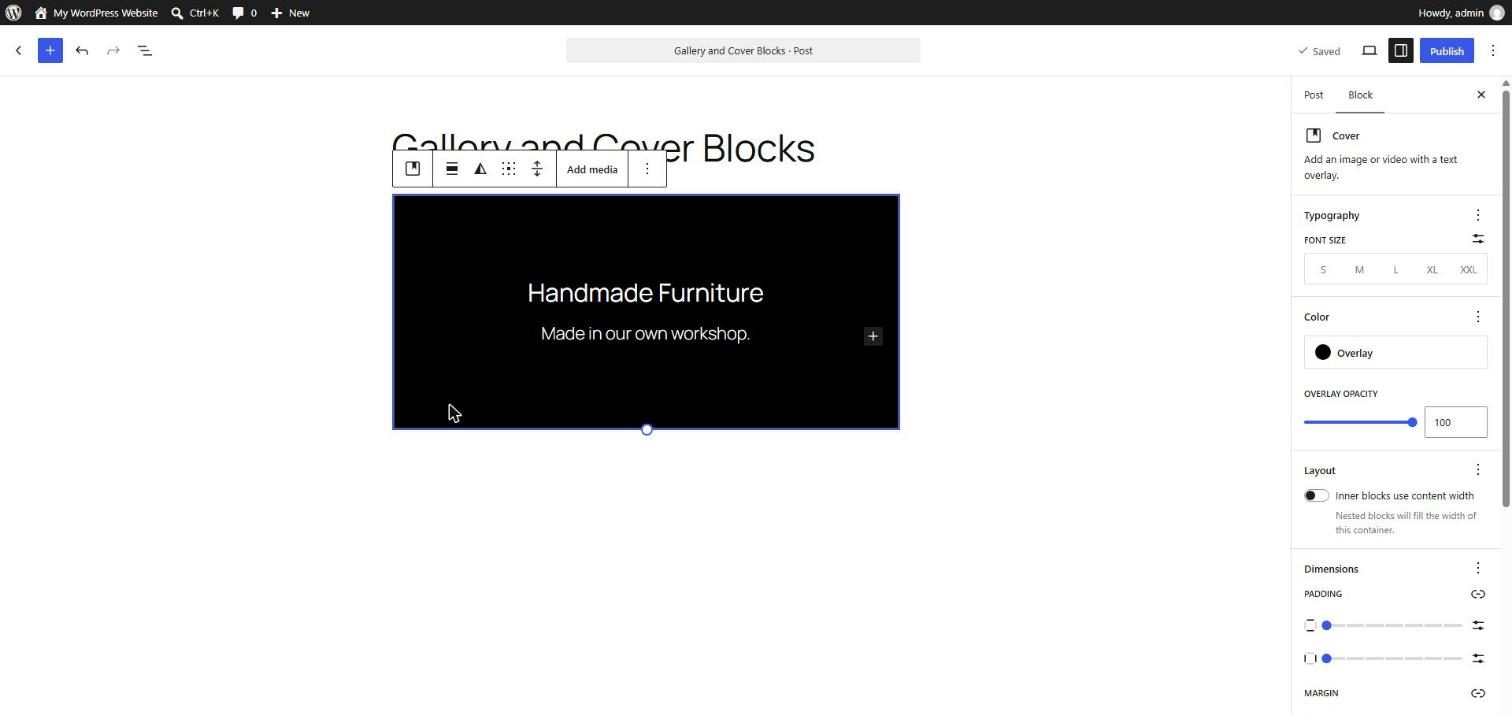
A Cover without an image, using a solid dark overlay, a heading, and a paragraph:
<!-- wp:cover {"overlayColor":"black","minHeight":320,"isDark":true} -->
<div class="wp-block-cover" style="min-height:320px"><span aria-hidden="true" class="wp-block-cover__background has-black-background-color has-background-dim-100 has-background-dim"></span><div class="wp-block-cover__inner-container"><!-- wp:heading {"textAlign":"center","level":2} -->
<h2 class="wp-block-heading has-text-align-center">Welcome</h2>
<!-- /wp:heading -->

<!-- wp:paragraph {"align":"center"} -->
<p class="has-text-align-center">Build pages with blocks.</p>
<!-- /wp:paragraph --></div></div>
<!-- /wp:cover -->
Your own editor may add a few extra classes. That is normal, because WordPress regenerates the markup when you edit visually.
5 Examples to Follow Along
Example 1: Build a Gallery
Type /gallery, press Enter, and select four or more images in the Media Library. Set Columns to 2 and switch on Crop images. Notice how all the images become the same shape.
Example 2: Add Alt Text to One Gallery Image
Click one picture in the gallery. In the Block tab write alt text, then add a caption. Open List View and see the Image blocks inside the Gallery block.
Example 3: Create a Cover with a Color
Type /cover and press Enter. Choose a dark color instead of an image. Type a heading and a sentence inside it. Set the minimum height to 300 px.
Example 4: Add an Image and Set the Overlay
On another Cover, click Upload and choose a bright photo. In the Block tab open Overlay and set the opacity to about 50 percent. Switch the text color to white and check that you can read it. Use the focal point picker to keep the main subject visible.
Example 5: Put a Button Inside a Cover
Click the + inside the Cover and add a Buttons block with the text "Contact us". You will style buttons on Day 8. Preview the Cover on a narrow window to see how it behaves on mobile.
<!-- wp:buttons -->
<div class="wp-block-buttons"><!-- wp:button -->
<div class="wp-block-button"><a class="wp-block-button__link wp-element-button">Contact us</a></div>
<!-- /wp:button --></div>
<!-- /wp:buttons -->
Questions
Try to answer each question yourself first, then open the answer.
Question 1: What does the Crop images option do in a Gallery?
Show answer
It makes every image fill its grid cell with the same shape by cropping the edges, so the gallery looks even.
Example: a gallery contains one tall portrait photo and three wide landscape photos. Without cropping, the rows are uneven. With Crop images on, all four fill equal tiles.
Question 2: Why is it important to write alt text for each image in a gallery?
Show answer
Every image in the gallery is read separately by screen readers and search engines. Empty or missing alt text means that visitors who cannot see the image get nothing.
Example: in a wedding photo gallery, write short descriptions such as "Bride and groom cutting the cake" rather than leaving the alt text empty.
Question 3: What is the purpose of the overlay in a Cover block?
Show answer
The overlay is a color layer between the background image and the text. It darkens or tints the image so text stays readable.
Example: a bright beach photo with white text is hard to read. Adding a black overlay at 50 percent opacity makes the text clear while the photo is still visible.
Question 4: What does the focal point picker do?
Show answer
It lets you choose the most important part of the background image. When the Cover is cropped for different screen sizes, WordPress keeps that part in view.
Example: in a photo of a person on the right side, set the focal point on the face. On a narrow phone screen the person stays visible instead of being cut off.
Question 5: When would you use a Cover block rather than an Image block?
Show answer
Use Cover when you want text or buttons placed on top of an image or color, such as a hero banner or call to action. Use Image when the picture stands alone.
Example: the top of a home page with the heading "Handmade Furniture" over a workshop photo is a Cover. A photo of a finished chair inside an article is an Image.
MCQs (Multiple Choice Questions)
MCQ 1: A Gallery block is built from which kind of inner blocks?
- A) Image blocks
- B) Cover blocks
- C) Table blocks
- D) List blocks
Show answer
A) Image blocks. Since WordPress 5.9 every picture in a gallery is its own Image block.
MCQ 2: Which Cover block setting keeps text readable on a bright image?
- A) Overlay color and opacity
- B) The URL slug
- C) Randomize order
- D) Add caption
Show answer
A) Overlay color and opacity. A dark overlay increases contrast between the image and the text.
MCQ 3: The focal point picker is used to:
- A) Choose which part of the image stays visible
- B) Pick a font
- C) Add a link
- D) Set the page title
Show answer
A) Choose which part of the image stays visible. It prevents the main subject being cropped out on small screens.
MCQ 4: Which block should you use for a hero section with text over a photo?
- A) Cover
- B) Table
- C) List
- D) Quote
Show answer
A) Cover. Cover has a background and inner blocks.
MCQ 5: What does Crop images do in a Gallery?
- A) Gives every image the same shape
- B) Deletes unused images
- C) Adds captions
- D) Changes the theme
Show answer
A) Gives every image the same shape. The image is cropped to fill the cell evenly.
Practice: 10 Tasks from Easy to Hard
Create a new draft post called Practice Day 6 and work through the tasks in order. You need at least six photos on your computer.
Task 1 (Easy): Create a gallery
Add a Gallery block with four photos.
Task 2 (Easy): Change the columns
Switch the gallery between 1, 2, 3, and 4 columns. Which looks best?
Task 3 (Easy): Add a solid-color Cover
Insert a Cover with a solid color and type a heading inside it.
Task 4 (Easy): Set the minimum height
Set a minimum height of 400 px for your Cover and check the result in View.
Task 5 (Medium): Crop and reorder
Turn on Crop images and drag the images in List View to change their order. Then turn on Randomize order, preview twice, and describe what happens.
Task 6 (Medium): Alt text and captions in a gallery
Add a different alt text and caption to every image in your gallery.
Task 7 (Medium): Image Cover with overlay
Create a Cover with a photo. Adjust the overlay color and opacity until white text is easy to read.
Task 8 (Medium-Hard): Use the focal point
Use a photo with the main subject off center. Move the focal point and compare the result on a narrow browser window.
Task 9 (Hard): Fixed background section
Make a Cover with a Fixed background and add three Paragraph blocks below it. Scroll in View and describe the effect. Is it good for mobile visitors?
Task 10 (Hard): Build a hero section
Paste the snippet below. Then add an image background, a button, and an overlay with enough contrast. Test it on a narrow window and fix anything that looks cramped.
<!-- wp:cover {"overlayColor":"black","minHeight":360,"isDark":true} -->
<div class="wp-block-cover" style="min-height:360px"><span aria-hidden="true" class="wp-block-cover__background has-black-background-color has-background-dim-100 has-background-dim"></span><div class="wp-block-cover__inner-container"><!-- wp:heading {"textAlign":"center","level":2} -->
<h2 class="wp-block-heading has-text-align-center">Handmade Furniture</h2>
<!-- /wp:heading -->

<!-- wp:paragraph {"align":"center"} -->
<p class="has-text-align-center">Made in our own workshop.</p>
<!-- /wp:paragraph --></div></div>
<!-- /wp:cover -->
Coming Up Next
In Day 7 you will add other media: the Media & Text, Video, Audio, and File blocks.
I'm Umar, a web developer and SEO specialist in Abu Dhabi. Get in touch.