Day 5 Tutorial - WordPress Image Block Guide
Part of the WordPress Block Editor in 60 Days series · All lessons
On this page
← Previous: Day 4, List, Quote, and Table Blocks
Welcome to Day 5 of the 60-Day WordPress Block Editor Tutorial Series. Today is all about the Image block. Images make pages attractive, but they also affect speed, accessibility, and SEO, so it pays to do them right from the start. Time needed: 10 minutes reading + 30 minutes practice.
What You Will Learn Today
- Four ways to add an image: upload, Media Library, drag and drop, and insert from URL
- How to write good alt text, and when to mark an image as decorative
- How to choose image size, alignment, and aspect ratio
- How to add a caption and a link to an image
- Simple image SEO and speed habits: file names, format, and size
Reading: Everything You Need to Know About the Image Block
The Image block shows a single picture. Add it with /image, with the + inserter, or by dragging a file straight from your computer onto the canvas. You can even paste an image from the clipboard.
Four Ways to Add an Image
- Upload: choose a file from your computer. It is saved to your Media Library.
- Media Library: pick a file you uploaded before, so you do not store duplicates.
- Insert from URL: link to an image hosted elsewhere. Avoid this for your own content, because if the other site removes the file, your image breaks.
- Drag and drop or paste: the quickest way for a single image.
Once an image is in the block, use Replace in the toolbar to swap it for another one without losing your caption or settings.
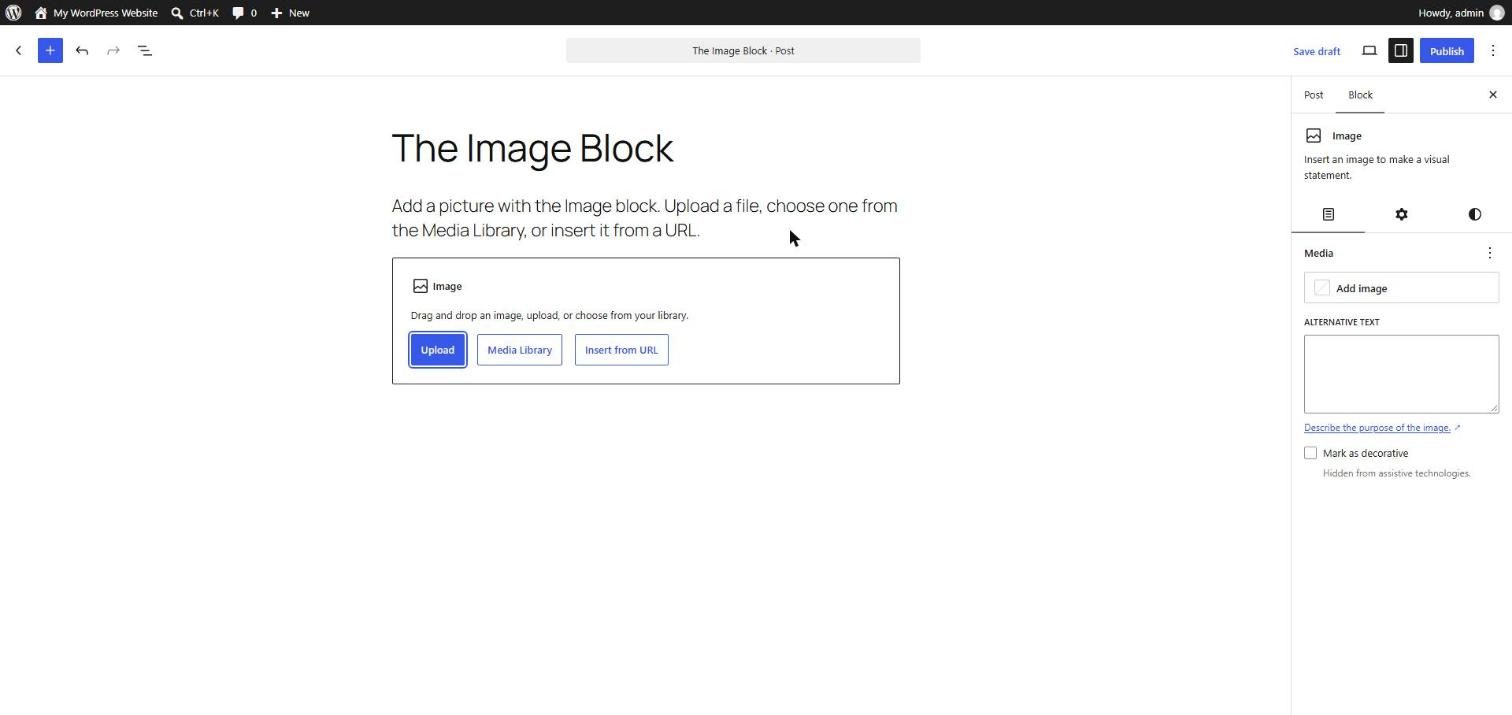
Alt Text: The Most Important Setting
Open the Block tab and find Alternative text (alt text). It describes the image for people who cannot see it: screen reader users, and anyone whose image fails to load. Search engines also read it to understand the picture.
- Describe what the image shows in one short sentence: "Blue ceramic mug of coffee on a wooden desk".
- Do not start with "image of" or "picture of". Screen readers already say it is an image.
- Mention your keyword only if it fits naturally. Never stuff keywords.
- Decorative images (a plain divider, a background pattern) have no meaning. In current versions you can switch on Mark as decorative, which saves an empty alt so screen readers skip it.
The alt text you type in the block is saved for that use of the image. The media library also has its own alt field. Check which one your version fills in so you are consistent.
Size, Alignment, and Aspect Ratio
- Image size (Block tab, Settings): Thumbnail, Medium, Large, or Full. These are different copies WordPress creates when you upload. Pick the smallest size that still looks sharp in your layout. Full is the original file and can be slow.
- Width and height: set a custom size, or leave it to your theme.
- Aspect ratio: force the image into a shape such as 16:9 or 1:1, and choose whether it covers or is contained within the box.
- Alignment (toolbar): none, left, center, right, and, if your theme allows it, Wide width and Full width. Left and right alignment let text wrap around the image.
Tip: always upload an image close to the size you will display. A 6000 pixel wide photo shown in a 800 pixel column wastes bandwidth even though WordPress scales it down on screen.
Captions and Links
- Caption: click below the image (or the Add caption button in the toolbar) and type. Captions are read by many visitors, so use them for credits or explanations.
- Link: use the Insert link button in the toolbar to link the image to a custom URL, to the media file itself, or to the attachment page. Linking to the media file can open the image in a lightbox if your theme supports it.
- If you link an image to another site, open the Advanced options and consider Open in new tab.
Image SEO and Speed Habits
- Name the file well before uploading:
red-leather-sofa.webp, notIMG_2041.jpg. - Use modern formats. WordPress supports WebP (and AVIF in recent versions). They are much smaller than PNG or JPG for the same quality.
- Compress before uploading. Aim for photos under about 150 KB when you can.
- Watch the top image. WordPress lazy-loads images below the fold, and since version 6.3 it tries to give the first large image a high loading priority. Still check your page in PageSpeed Insights.
- Do not put important text inside an image. Search engines and screen readers cannot read it reliably.
Key takeaway: good images have a clear file name, a useful alt text, the right size, and a small file.
What the Markup Looks Like
<!-- wp:image {"id":123,"sizeSlug":"large","linkDestination":"none","align":"center"} -->
<figure class="wp-block-image aligncenter size-large"><img src="/wp-content/uploads/2026/10/red-leather-sofa.webp" alt="Red leather sofa in a bright living room" class="wp-image-123"/><figcaption class="wp-element-caption">Our best-selling sofa</figcaption></figure>
<!-- /wp:image -->
You can see the file path, the alt text, and the figure caption. The numbers and paths in your own site will be different.
5 Examples to Follow Along
Example 1: Add an Image by Uploading
Type /image and press Enter. Click Upload and choose a photo. WordPress shows it in the block and saves it to the Media Library. Open Media → Library in another tab to find it.
Example 2: Write Alt Text
Select the image, open the Block tab, and type alt text such as "Laptop and notebook on a white desk". Switch to the Code editor and find alt="..." inside the <img> tag.
Example 3: Change the Size and Alignment
In the Block tab set Image size to Medium. Click the alignment button in the toolbar and choose Align left. Write a paragraph underneath and watch the text wrap around the picture.
Example 4: Add a Caption
Click the Add caption button in the toolbar and type "Photo: my own work". The Code editor shows a <figcaption> element. Captions are good for credits.
<!-- wp:image {"sizeSlug":"large","linkDestination":"none"} -->
<figure class="wp-block-image size-large"><img src="photo.webp" alt="Laptop and notebook on a white desk"/><figcaption class="wp-element-caption">Photo: my own work</figcaption></figure>
<!-- /wp:image -->
Example 5: Link an Image to Another Page
Click the Insert link button in the toolbar and paste a URL such as your contact page. Choose Open in new tab if the link leaves your site. Use the View button and click the image to test it.
Questions
Try to answer each question yourself first, then open the answer.
Question 1: What is alt text and why does it matter?
Show answer
Alt text is a short written description of an image, saved in the alt attribute. It helps screen reader users understand the image, shows when an image cannot load, and helps search engines understand what the image shows.
Example: for a photo of a team meeting, "Five people around a table reviewing a website design" is useful. "image1" or a list of keywords is not.
Question 2: When should you mark an image as decorative?
Show answer
When the image has no meaning, for example a pure decoration or a divider. Marking it decorative saves an empty alt value, so screen readers skip it instead of reading unhelpful text.
Example: a thin pattern image between sections is decorative. A product photo is not, because it carries information.
Question 3: Why is the Image size setting important?
Show answer
It decides which copy of the file WordPress uses. Larger files take longer to download, which slows your page and hurts visitors and search rankings.
Example: in a 700 pixel wide column, use Large or Medium instead of Full. If you upload a 5 MB original and use it at Full size, mobile visitors download all 5 MB.
Question 4: What is the difference between linking to the media file and to the attachment page?
Show answer
The media file link opens the image file itself (or a lightbox, if your theme has one). The attachment page link opens a WordPress page about that image. Most sites prefer the media file, or turn attachment pages off to avoid thin pages in search results.
Example: for a portfolio, link thumbnails to the media file so visitors can see the large version.
Question 5: Name three habits that make images load faster.
Show answer
Compress images before upload, use a modern format like WebP, and upload a size close to what you display. Also avoid using the Full size when a smaller one will do.
Example: convert a 2 MB PNG banner to a 120 KB WebP at 1200 pixels wide. It looks the same on screen and loads many times faster.
MCQs (Multiple Choice Questions)
MCQ 1: Where do you write the alt text for an image in the block editor?
- A) In the Block tab, Alternative text field
- B) In the URL slug
- C) In the Settings menu
- D) In the Excerpt
Show answer
A) In the Block tab, Alternative text field. It is saved in the alt attribute of the img tag.
MCQ 2: Which description is the best alt text?
- A) Image
- B) seo seo seo best images
- C) Blue mug of coffee on a wooden desk
- D) IMG_2041.jpg
Show answer
C) Blue mug of coffee on a wooden desk. Good alt text describes what the image shows, briefly and naturally.
MCQ 3: Which button swaps the picture and keeps your caption and settings?
- A) Replace
- B) Duplicate
- C) Group
- D) Lock
Show answer
A) Replace. Replace lets you choose another file inside the same block.
MCQ 4: Which format is usually smallest for photos at the same quality?
- A) BMP
- B) WebP
- C) TIFF
- D) GIF
Show answer
B) WebP. WebP is supported by WordPress and is smaller than JPG or PNG for the same quality.
MCQ 5: What does the figcaption element store?
- A) The image caption
- B) The alt text
- C) The file name
- D) The URL slug
Show answer
A) The image caption. Alt text is in the alt attribute of the image, and the caption is in figcaption.
Practice: 10 Tasks from Easy to Hard
Create a new draft post called Practice Day 5 and work through the tasks in order. You need a few photos on your computer. Rename them with clear file names before uploading.
Task 1 (Easy): Upload an image
Add an Image block and upload one photo. Find it in Media → Library.
Task 2 (Easy): Add alt text
Write alt text for your image and open the Code editor to find it in the markup.
Task 3 (Easy): Add a caption
Add a caption with a photo credit or a short explanation.
Task 4 (Easy): Replace an image
Use Replace to choose a different image and check that your caption stays.
Task 5 (Medium): Try every size
Switch the image between Thumbnail, Medium, Large, and Full. In the Code editor, notice how the size class and the file name change.
Task 6 (Medium): Wrap text around an image
Align the image left, add two long paragraphs under it, and check the wrapping with View. Then try Align right.
Task 7 (Medium): Link an image
Link the image to the media file and test it. Then link it to another page and open it in a new tab.
Task 8 (Medium-Hard): Use an aspect ratio
Set the aspect ratio to 16:9 and then 1:1. Choose Cover scaling. Which ratio fits best in your theme?
Task 9 (Hard): Audit your Media Library
Open Media → Library, list view. Find any images with a generic file name or a size over 300 KB. Replace one with a compressed WebP version and re-add alt text.
Task 10 (Hard): Build an optimized image section
Paste the snippet below, replace the placeholder file with your own image, and fix the alt text. Then run your published page through PageSpeed Insights and note the image-related suggestions.
<!-- wp:image {"sizeSlug":"large","linkDestination":"none","align":"center"} -->
<figure class="wp-block-image aligncenter size-large"><img src="REPLACE-WITH-YOUR-IMAGE.webp" alt="REPLACE WITH A CLEAR DESCRIPTION"/><figcaption class="wp-element-caption">REPLACE WITH A CAPTION</figcaption></figure>
<!-- /wp:image -->
Coming Up Next
In Day 6 you will combine many images with the Gallery block and create bold sections with the Cover block.
I'm Umar, a web developer and SEO specialist in Abu Dhabi. Get in touch.