Day 4 Tutorial - WordPress List, Quote, and Table Blocks
Part of the WordPress Block Editor in 60 Days series · All lessons
On this page
← Previous: Day 3, Paragraph and Heading Blocks
Welcome to Day 4 of the 60-Day WordPress Block Editor Tutorial Series. On Day 3 you wrote paragraphs and headings. Today you add three blocks that organize information: List, Quote, and Table. Time needed: 10 minutes reading + 30 minutes practice.
What You Will Learn Today
- How to create bulleted and numbered lists, and how to nest them
- How the List block stores each item as its own block
- How to use the Quote block with a citation, and how it differs from Pullquote
- How to build a Table with a header row, footer row, and striped rows
- When a list or table is better than plain paragraphs
Reading: Blocks That Organize Information
Walls of text tire readers. Lists, quotes, and tables break content into pieces that are easy to scan, and search engines also like clear structure. These three blocks are simple once you know their settings.
The List Block
Type - or * followed by a space at the start of a line and WordPress creates a bulleted list. Type 1. followed by a space for a numbered list. You can also use the slash command: /list.
- Enter adds a new item. Press Enter on an empty item to leave the list.
- Tab indents an item to make a nested sub-list. Shift+Tab moves it back out.
- The toolbar has buttons for unordered and ordered lists, outdent, and indent.
- In the Block tab, an ordered list also has a Start value (begin counting at 5, for example) and a Reverse list numbering switch for countdowns.
Behind the scenes, current WordPress saves each item as its own List Item block inside the List block. You will see this in the Code editor and in List View, where every item can be selected and moved.
When to Use Which List
- Bulleted: items with no order, such as features or ingredients.
- Numbered: steps that must be followed in order, such as a how-to.
- Keep items short and parallel. Start each item the same way, for example with a verb.
Lists are also popular in search results. Clear numbered steps and short bullet lists are the kind of content that can be shown in rich results and answer boxes, so write them for readers first.
The Quote Block
Use the Quote block for words said or written by someone else. Type > followed by a space to start one, or use /quote. A quote has two parts: the quoted text (one or more paragraphs) and an optional citation line at the bottom for the author or source.
- Click the citation line and type the source, for example "Matt Mullenweg".
- In the Block tab you can switch between the Default and Plain styles. Plain removes the decorative left border, and the exact look depends on your theme.
- The block can contain other blocks. Since WordPress 5.9 a quote is built from inner blocks, so you can add a second paragraph, or even a list, inside it.
Quote vs Pullquote: a Quote cites someone. A Pullquote pulls an attention-grabbing sentence out of your own article and repeats it in larger type, like a magazine. Use Quote for citations and Pullquote for design emphasis.
The Table Block
Add a Table with /table. WordPress asks for the number of columns and rows and creates the grid. Click any cell and type, and use Tab to jump to the next cell. The main tools:
- Edit table (toolbar): insert or delete rows and columns above, below, left, or right.
- Header section and Footer section (Block tab): add a top row of column titles or a bottom row of totals. The header row is saved as real
<th>cells, which helps screen readers and SEO. - Fixed width table cells: gives every column an equal width.
- Styles: Default and Stripes (alternating row colors).
- Alignment per column: change text alignment for the selected column, useful for right-aligning prices.
Tables are for data, not layout. If you only want content side by side, use the Columns block (Day 8). Keep tables small: on phones, wide tables scroll sideways, so prefer three or four columns at most.
Key takeaway: use lists for items and steps, quotes for citations, and tables for data that has rows and columns.
5 Examples to Follow Along
Example 1: Make a Bulleted List with the Keyboard
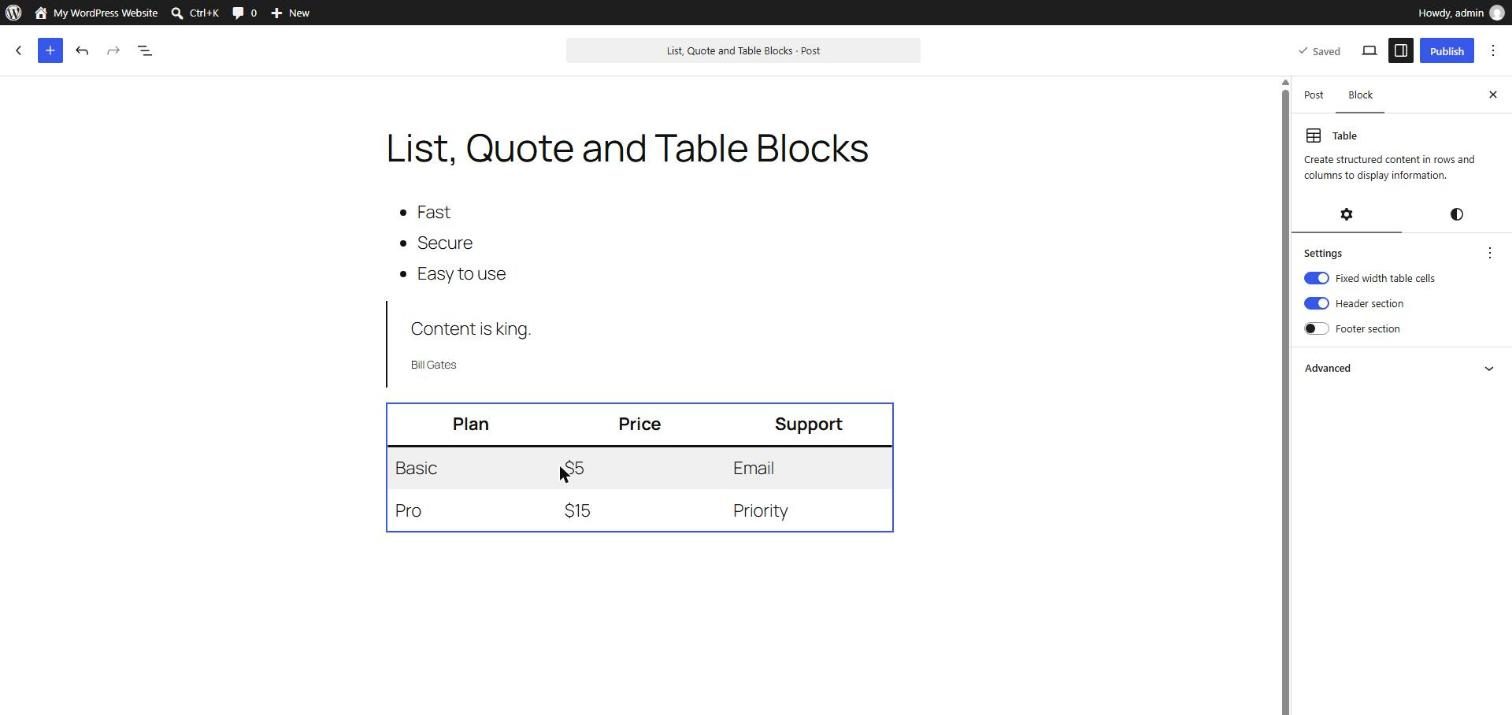
On an empty line type - Fast and press Enter, then Secure, Enter, and Easy to use. Press Enter on the empty line to leave the list. You now have a three-item List block.
Example 2: Nest a Sub-List
Create a list with the items "Fruit" and "Vegetables". Click at the end of "Fruit", press Enter, type "Apple", and press Tab to indent it. The Code editor now shows a List block inside a List Item block.
<!-- wp:list -->
<ul class="wp-block-list"><!-- wp:list-item -->
<li>Fruit<!-- wp:list -->
<ul class="wp-block-list"><!-- wp:list-item -->
<li>Apple</li>
<!-- /wp:list-item --></ul>
<!-- /wp:list --></li>
<!-- /wp:list-item -->

<!-- wp:list-item -->
<li>Vegetables</li>
<!-- /wp:list-item --></ul>
<!-- /wp:list -->
Example 3: Create a Numbered List That Starts at 5
Add a numbered list with three items. Open the Block tab and set Start value to 5. The items are now numbered 5, 6, 7. Switch on Reverse list numbering to count down instead.
Example 4: Add a Quote with a Citation
On an empty line type > Content is king. and press Enter twice to finish the text. Click the citation line below the quote and type a source name. Check the Code editor and find the <cite> tag.
<!-- wp:quote -->
<blockquote class="wp-block-quote"><!-- wp:paragraph -->
<p>Content is king.</p>
<!-- /wp:paragraph --><cite>Bill Gates</cite></blockquote>
<!-- /wp:quote -->
Example 5: Build a Comparison Table
Insert a Table with 3 columns and 3 rows. Switch on Header section, type "Plan", "Price", "Support" in the top row, and fill in two plans below. Choose the Stripes style, then use View to check how it looks on your theme.
<!-- wp:table {"className":"is-style-stripes"} -->
<figure class="wp-block-table is-style-stripes"><table class="has-fixed-layout"><thead><tr><th>Plan</th><th>Price</th><th>Support</th></tr></thead><tbody><tr><td>Basic</td><td>$5</td><td>Email</td></tr><tr><td>Pro</td><td>$15</td><td>Priority</td></tr></tbody></table></figure>
<!-- /wp:table -->
Questions
Try to answer each question yourself first, then open the answer.
Question 1: When should you use a numbered list instead of a bulleted list?
Show answer
Use a numbered (ordered) list when order matters: steps, rankings, or countdowns. Use bullets when items are equal and can be read in any order.
Example: "How to install a plugin" is numbered (1. Go to Plugins, 2. Click Add New, 3. Search, 4. Install, 5. Activate). "Features of the plugin" is bulleted.
Question 2: How do you create a nested list?
Show answer
Put the cursor in an item and press Tab to indent it under the item above. Press Shift+Tab to move it back out. You can also use the indent and outdent buttons in the toolbar.
Example: "Languages" with "HTML", "CSS", and "JavaScript" nested beneath it. Each level becomes its own List block inside a List Item block, which you can see in List View.
Question 3: What is the difference between the Quote block and the Pullquote block?
Show answer
A Quote reproduces someone else's words and can show a citation. A Pullquote repeats a striking line from your own article in a larger, decorative style.
Example: in a review, use Quote for a customer's sentence with the customer name as citation. In a long article, use Pullquote to highlight the sentence "Speed is a feature" halfway down the page.
Question 4: Why switch on the Header section in a Table?
Show answer
The header section saves the first row as <th> header cells instead of normal cells. Screen readers announce them as column titles, and search engines understand the table better.
Example: in a price table, the header cells "Plan", "Price", and "Support" tell assistive tools what each column below means.
Question 5: Why is it a bad idea to build page layouts with Tables?
Show answer
Tables are meant for data. Using them for layout is bad for accessibility, does not adapt well to phone screens, and is harder to edit.
Example: to put an image beside text, use Media & Text (Day 7) or Columns (Day 8). Use a Table only for real rows and columns such as prices, schedules, or specs.
MCQs (Multiple Choice Questions)
MCQ 1: Which key indents a list item to create a sub-list?
- A) Enter
- B) Tab
- C) Esc
- D) Ctrl+L
Show answer
B) Tab. Shift+Tab moves the item back out one level.
MCQ 2: Which block is designed to show a citation with the quoted text?
- A) Quote
- B) Verse
- C) Table
- D) Spacer
Show answer
A) Quote. The Quote block has a citation line. Verse is for poetry and code-like text.
MCQ 3: Typing 1. and a space at the start of an empty line creates:
- A) A bulleted list
- B) A numbered list
- C) A table
- D) A heading
Show answer
B) A numbered list. A hyphen or asterisk with a space makes a bulleted list.
MCQ 4: What does the Header section option do in a Table?
- A) Adds a top row of column titles saved as th cells
- B) Adds a page header
- C) Changes the theme header
- D) Makes the table full width
Show answer
A) Adds a top row of column titles saved as th cells. It improves accessibility and structure. Page headers belong to templates.
MCQ 5: Which style gives a Table alternating row colors?
- A) Plain
- B) Outline
- C) Stripes
- D) Dots
Show answer
C) Stripes. Stripes is a built-in block style for tables.
Practice: 10 Tasks from Easy to Hard
Create a new draft post called Practice Day 4 and work through the tasks in order. Where a snippet is given, open Options → Code editor, paste it, then switch back to the Visual editor.
Task 1 (Easy): Make a shopping list
Create a bulleted list of five items using the - shortcut.
Task 2 (Easy): Make a numbered recipe
Create a numbered list of four steps for making tea. Check that the numbers update when you add a step.
Task 3 (Easy): Add a quote
Create a Quote block with your favorite sentence and add the author in the citation line.
Task 4 (Easy): Insert a table
Insert a 2 by 3 table and fill every cell with any text.
Task 5 (Medium): Nest a list
Create a list with three main items and add two nested items under the second one using Tab. Check List View to see the nesting.
Task 6 (Medium): Change the numbering
Create a numbered list, set the start value to 10, then turn on reverse numbering. Describe what changed.
Task 7 (Medium): Add header and stripes
Turn on the Header section for your table, type column titles, and apply the Stripes style. Preview it with the View button.
Task 8 (Medium-Hard): Align a price column
Build a three-row price table and right-align the Price column using the toolbar. Why is right alignment better for numbers?
Task 9 (Hard): Put a list inside a quote
Paste the snippet below, then add a second quoted paragraph and change the citation. Notice how the quote block holds other blocks.
<!-- wp:quote -->
<blockquote class="wp-block-quote"><!-- wp:paragraph -->
<p>Three rules for a good page:</p>
<!-- /wp:paragraph -->

<!-- wp:list -->
<ul class="wp-block-list"><!-- wp:list-item -->
<li>Be clear</li>
<!-- /wp:list-item -->

<!-- wp:list-item -->
<li>Be short</li>
<!-- /wp:list-item -->

<!-- wp:list-item -->
<li>Be useful</li>
<!-- /wp:list-item --></ul>
<!-- /wp:list --><cite>Your Name</cite></blockquote>
<!-- /wp:quote -->
Task 10 (Hard): Write a "how-to" mini article
Write a how-to with an H2 title, an intro paragraph, a numbered list of at least five steps with a nested bulleted tip under one step, a Quote with a source, and a small comparison Table of two tools. Check the Outline tab and view it on a narrow browser window to see how the table behaves on mobile.
Coming Up Next
In Day 5 you will work with the Image block: uploading, alt text, sizes, captions, and links, plus how images affect page speed and SEO.
I'm Umar, a web developer and SEO specialist in Abu Dhabi. Get in touch.