Day 3 Tutorial - Paragraph and Heading Blocks in WordPress
Part of the WordPress Block Editor in 60 Days series · All lessons
On this page
← Previous: Day 2, Block Editor Interface Tour
Welcome to Day 3 of the 60-Day WordPress Block Editor Tutorial Series. You now know where everything lives on the editor screen. Today you start working with real content using the two blocks you will use most: Paragraph and Heading. Time needed: 10 minutes reading + 30 minutes practice.
What You Will Learn Today
- How the Paragraph block works: Enter, Shift+Enter, and the slash command
- How to format text: bold, italic, links, inline code, and highlight
- How to choose the right heading level (H2 to H6) and why one page has only one H1
- How to set font size, alignment, and drop cap from the sidebar
- How good heading structure helps readers, screen readers, and SEO
Reading: The Two Blocks Behind Almost Every Page
Open a post and look at any article you like. Most of it is paragraphs with a heading every few paragraphs. In the block editor that is exactly how it is built: a Paragraph block for each paragraph and a Heading block for each title. Learn these two well and you can write any article.
The Paragraph Block
The Paragraph block is the default block. When you click an empty line and start typing, WordPress creates a Paragraph block for you. A few habits make writing fast:
- Enter ends the current paragraph and starts a new Paragraph block.
- Shift+Enter adds a line break inside the same paragraph. Use it for addresses or poetry, not to create spacing between paragraphs.
- Backspace at the very start of a paragraph merges it into the one above.
- Type / on an empty line to open the slash command and insert any other block by name.
- Type ## followed by a space and the block turns into an H2 heading. ### and a space gives an H3, and so on.
Common mistake: pressing Enter several times to make empty space. Each empty paragraph is a real block with real markup, and it adds clutter. If you need space between sections, use a Spacer block (Day 10) or the spacing controls (Day 14).
Formatting Text
Select some text and a small toolbar appears above it. The main buttons are:
- Bold (Ctrl+B) and Italic (Ctrl+I) for emphasis.
- Link (select text, then Ctrl+K or the link button): type or paste a URL, or search your own posts and pages.
- The More dropdown (a small arrow): inline code, highlight, strikethrough, superscript, subscript, and inline image. Use inline code for short snippets such as
wp-content.
To remove formatting, select the text and click the same button again, or use Clear formatting if your version shows it in the dropdown. Use bold for real emphasis only. If everything is bold, nothing stands out.
Paragraph Settings in the Sidebar
Select a Paragraph block and open the Block tab. You will find:
- Typography: font size (presets such as Small, Medium, Large, or a custom value), line height, and the Drop cap option. A drop cap makes the first letter large, like in a magazine.
- Color: text and background color. Day 13 covers this in depth.
- Alignment: left, center, right, and justify in the block toolbar.
- Advanced: HTML anchor and Additional CSS class(es), as you saw on Day 2.
Do not over-style. Your theme already sets good defaults. Change font size or color on a single paragraph only when you have a clear reason, such as an intro line that should stand out.
The Heading Block
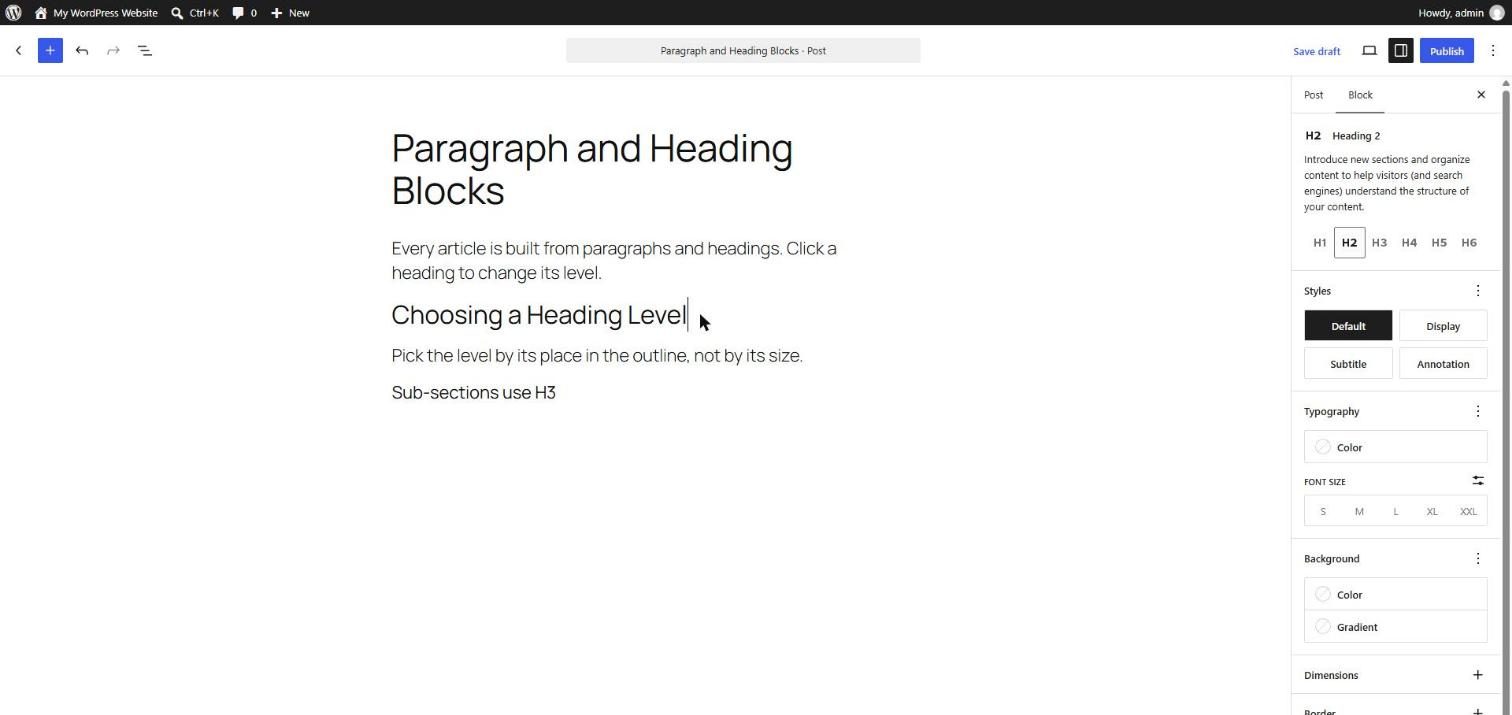
The Heading block creates an <h1> to <h6> element. You choose the level with the toolbar button (it shows H2 by default) or in the Block tab. Think of headings like the table of contents of a book:
- H1: the page title. WordPress themes normally output the post title as H1 for you, so you rarely add another H1 inside the content.
- H2: main sections of the article.
- H3: sub-sections inside an H2.
- H4 to H6: deeper levels. Most articles never need them.
The rule: never pick a heading level because of its size. Pick it because of its place in the outline, and let your theme or Global Styles control how it looks. If a heading looks too big, change the style, not the level.
Why Heading Structure Matters for SEO and Accessibility
- Screen readers let people jump from heading to heading. A clean outline makes your page usable for them.
- Search engines use headings to understand what each section is about. Put your main keyword naturally in the H2 headings that deserve it.
- Readers scan. Headings every 150 to 300 words make long articles easy to skim.
- Do not skip levels (for example H2 straight to H4) and do not use more than one H1 on a page.
Open the Outline tab in Document Overview (Day 2) after you write. If the list of headings reads like a sensible summary of your article, the structure is good.
What the Markup Looks Like
This is what WordPress saves for a heading followed by a paragraph with a drop cap and centered text. Open Options → Code editor to see your own blocks this way:
<!-- wp:heading {"level":2} -->
<h2 class="wp-block-heading">Why Blocks Are Useful</h2>
<!-- /wp:heading -->

<!-- wp:paragraph {"align":"center","dropCap":true} -->
<p class="has-text-align-center has-drop-cap">Every paragraph is its own block.</p>
<!-- /wp:paragraph -->
Key takeaway: use Paragraph for text, Heading for structure, choose heading levels by outline position, and keep formatting simple.
5 Examples to Follow Along
Example 1: Write Paragraphs Fast
Create a new draft. Click the title area, type a title, and press Enter. Type a sentence and press Enter to start a second paragraph. Press Shift+Enter in the middle of a third paragraph to add a line break without starting a new block. Open List View (Shift+Alt+O) and count your blocks: each paragraph is one block, and the line break did not create a new one.
Example 2: Create Headings with the Markdown Shortcut
On an empty line type ## Getting Started and press Enter. The line becomes an H2 Heading block. On the next line type ### Install the Plugin and press Enter to get an H3. Click each heading and check the level shown in the toolbar.
Example 3: Add Bold, Italic, and a Link
Type the sentence "Read the official WordPress documentation." Select official and press Ctrl+B. Select documentation and press Ctrl+K, paste https://wordpress.org/documentation/, and press Enter. In the Code editor you will see <strong> and <a href=...> inside the paragraph.
Example 4: Change a Paragraph into a Heading
Click a paragraph, then click the block type icon at the left of the toolbar (it shows a paragraph mark). Choose Heading. The same text is now a Heading block, and you did not retype anything. You can transform it back the same way.
Example 5: Style an Intro Paragraph
Select the first paragraph of your draft. In the Block tab open Typography and set the font size to Large, then switch on Drop cap. Check the result with the View button. Remove the drop cap again if your theme makes it look crowded.
<!-- wp:paragraph {"fontSize":"large"} -->
<p class="has-large-font-size">This intro stands out from the body text.</p>
<!-- /wp:paragraph -->
Questions
Try to answer each question yourself first, then open the answer.
Question 1: What is the difference between pressing Enter and Shift+Enter in a Paragraph block?
Show answer
Enter ends the current block and starts a new Paragraph block. Shift+Enter inserts a line break (<br>) inside the same block.
Example: for a postal address, use Shift+Enter between lines so the whole address stays one paragraph. For two separate ideas, use Enter so each one is its own block you can move or style on its own.
Question 2: Why should a post usually have only one H1?
Show answer
The H1 is the main title of the page. Themes normally print your post title as H1, so adding another H1 in the content creates a competing title for search engines and screen readers.
Example: your post is called "WordPress Heading Block Guide" (H1). Inside the content, use H2 for "Choosing a Heading Level" and "Common Mistakes", and H3 for sub-points. The outline stays clear.
Question 3: Is it acceptable to use an H4 because it looks smaller than an H2?
Show answer
No. Heading levels describe structure, not size. Skipping from H2 to H4 breaks the outline for screen readers and weakens the structure search engines see.
Example: if an H2 looks too large, keep it as H2 and change its font size in the Block tab (or in Global Styles for the whole site). The outline stays correct and the look is fixed.
Question 4: How do you turn an existing paragraph into a heading without retyping it?
Show answer
Click the paragraph and use the block type switcher at the left of the toolbar to choose Heading. This is called a transform, and WordPress keeps your text.
Example: you wrote "Pricing" as a paragraph by mistake. Transform it to a Heading and then choose H2 in the toolbar. You can also type ## at the start of an empty line to create a heading directly.
Question 5: Where do you find the drop cap and font size options for a paragraph?
Show answer
In the sidebar: select the Paragraph block, open the Block tab, and look in the Typography panel. Font size and line height are there, and the three-dot menu in the panel can show the Drop cap switch if it is hidden.
Example: set the first paragraph of an article to Large and turn on Drop cap for a magazine look, while body paragraphs keep the default size.
MCQs (Multiple Choice Questions)
MCQ 1: Which keys add a line break inside the same Paragraph block?
- A) Enter
- B) Shift+Enter
- C) Ctrl+Enter
- D) Alt+Enter
Show answer
B) Shift+Enter. Enter starts a new block, while Shift+Enter keeps the line break inside the same block.
MCQ 2: Typing ### and a space at the start of an empty line creates:
- A) An H1 heading
- B) An H2 heading
- C) An H3 heading
- D) A list
Show answer
C) An H3 heading. The number of # characters equals the heading level.
MCQ 3: Which heading level should normally be the main section heading inside a post body?
- A) H1
- B) H2
- C) H4
- D) H6
Show answer
B) H2. The theme prints the title as H1, so the body sections start at H2.
MCQ 4: Which shortcut makes selected text bold?
- A) Ctrl+B
- B) Ctrl+K
- C) Ctrl+L
- D) Ctrl+H
Show answer
A) Ctrl+B. Ctrl+K adds a link to selected text, and Ctrl+I makes it italic.
MCQ 5: Heading levels should be chosen mainly by:
- A) How big the text looks
- B) Where the heading sits in the page outline
- C) Which color the theme uses
- D) The length of the heading
Show answer
B) Where the heading sits in the page outline. Level is structure. Use styles to change how it looks.
Practice: 10 Tasks from Easy to Hard
Create a new draft post called Practice Day 3 and work through the tasks in order. Where a snippet is given, open Options → Code editor, paste it, then switch back to the Visual editor.
Task 1 (Easy): Write three paragraphs
Write three short paragraphs about your favorite hobby. Press Enter between them and check List View to confirm there are three Paragraph blocks.
Task 2 (Easy): Make text bold and italic
Make one word bold and another italic. Open the Code editor and find the <strong> and <em> tags.
Task 3 (Easy): Add a link
Select a phrase and link it to https://wordpress.org using Ctrl+K. Then remove the link again with the unlink button.
Task 4 (Easy): Create an H2 with the keyboard
On an empty line type ## My First Section and press Enter. Confirm in the toolbar that it is H2.
Task 5 (Medium): Use a line break
Write a three-line address in one paragraph using Shift+Enter. Check that List View still shows one block.
Task 6 (Medium): Transform blocks
Turn a paragraph into a Heading, then back into a Paragraph, using the block type switcher.
Task 7 (Medium): Build a clean outline
Write one H2 and two H3 headings with a paragraph under each. Open the Outline tab and check that the order is correct.
Task 8 (Medium-Hard): Style an intro paragraph
Set the first paragraph to Large and turn on the drop cap. Compare it with View before and after. Is the drop cap helpful on your theme?
Task 9 (Hard): Fix a broken outline
Paste the snippet below into the Code editor. It has a skipped heading level and a second H1. Fix both so the outline is H2, then H3, with no H1 in the content.
<!-- wp:heading {"level":1} -->
<h1 class="wp-block-heading">Welcome</h1>
<!-- /wp:heading -->

<!-- wp:paragraph -->
<p>Intro text.</p>
<!-- /wp:paragraph -->

<!-- wp:heading {"level":4} -->
<h4 class="wp-block-heading">Our Services</h4>
<!-- /wp:heading -->

<!-- wp:paragraph -->
<p>We build websites.</p>
<!-- /wp:paragraph -->
Task 10 (Hard): Write a 500-word article with perfect structure
Write a 500-word article on any topic. Use one H2 for each main idea, add H3 sub-sections where needed, bold only the key terms, add two links, and keep paragraphs under four lines. Check the Outline tab, then ask a friend to skim only the headings and tell you what the article is about.
Coming Up Next
In Day 4 you will build content that is not just paragraphs: List, Quote, and Table blocks for steps, citations, and comparisons.
I'm Umar, a web developer and SEO specialist in Abu Dhabi. Get in touch.