WordPress Block Editor Interface Tour: Day 2 Tutorial
Part of the WordPress Block Editor in 60 Days series · All lessons
On this page
← Previous: Day 1, What Is the Block Editor?
Welcome to Day 2 of the 60-Day WordPress Block Editor Tutorial Series. On Day 1 you learned that every piece of content is a block. Today you will learn where everything lives on the editor screen, so you always know where to click. Time needed: 10 minutes reading + 30 minutes practice.
What You Will Learn Today
- The five zones of the editor screen: top bar, canvas, block toolbar, settings sidebar, and Document Overview
- What the Post tab and the Block tab do in the sidebar
- How to use List View, the Outline tab, and block breadcrumbs to move around fast
- What Edit mode, Select mode, Spotlight mode, and Fullscreen mode are for
- Which settings to fill in for every post: URL slug, featured image, and excerpt
Reading: The Editor Screen in Five Zones
Open any page or post in the editor. At first the screen looks busy, but it is made of just five zones. Learn them once and the rest of this series becomes much easier. The names below match current WordPress versions (6.7 and newer). If your site runs an older version, a few labels differ, and I point those out as we go.
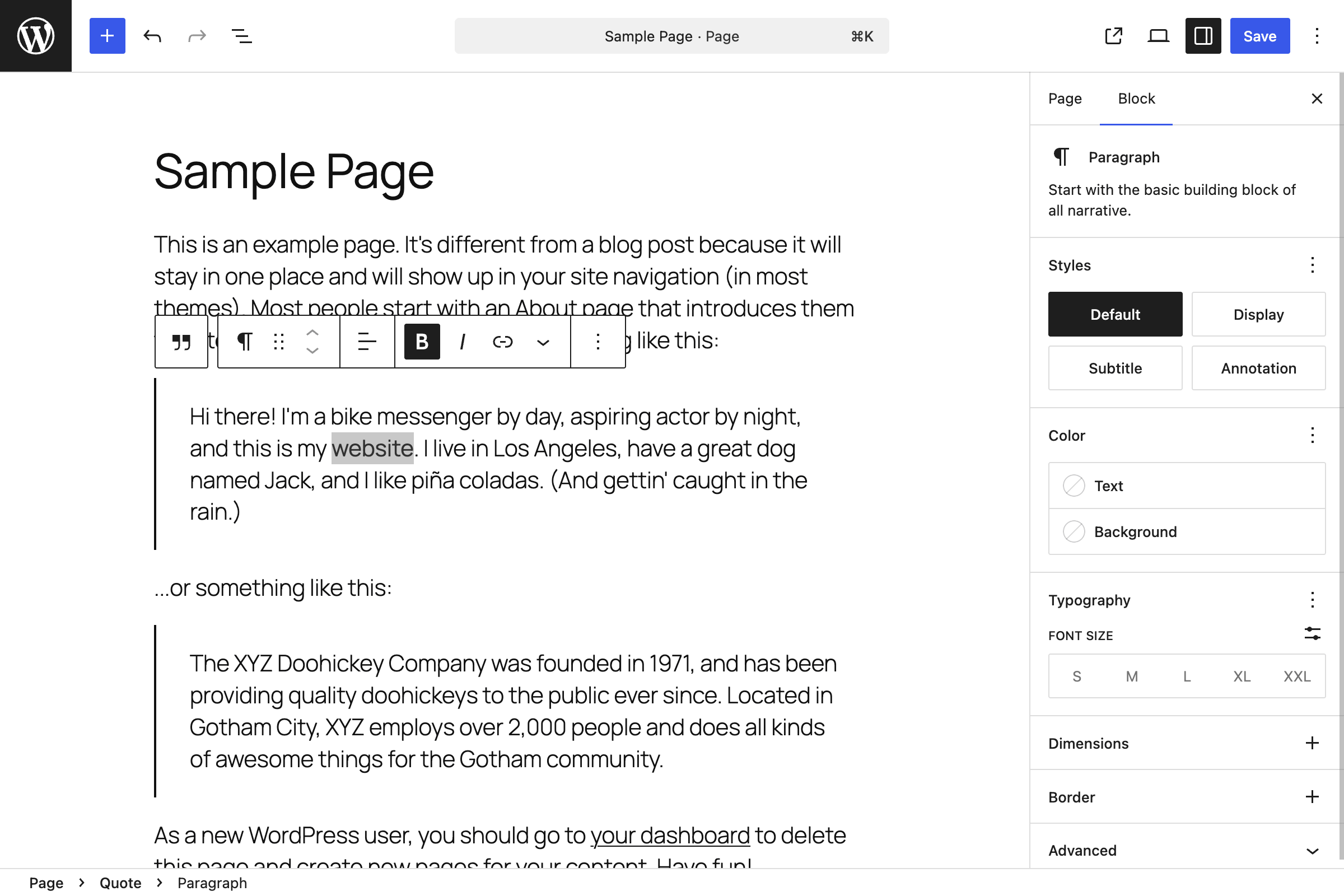

Zone 1: The Top Bar
The bar across the top holds the controls you use for the whole page:
- View Posts / View Pages (the W logo or your site icon, top left): leaves the editor and returns to the list of posts or pages.
- Block Inserter (+): opens the library of blocks, patterns, and media.
- Undo and Redo.
- Document Overview: opens a panel with two tabs, List View and Outline (explained in Zone 5).
- Command Palette (Ctrl+K, or Cmd+K on Mac): a search box for actions such as creating a new page or opening settings.
- Save draft, View (preview your changes), and Publish (it becomes Update after publishing).
- Settings: shows or hides the right sidebar.
- Options (the three-dot menu): Code editor, Spotlight mode, Fullscreen mode, keyboard shortcuts, and preferences.
Older versions: before WordPress 6.5 or so, the word counts lived behind a separate Details (ⓘ) icon, and a Tools dropdown switched between Edit and Select mode. In current versions the counts are in the Outline tab, and Select mode is toggled with the Esc key.
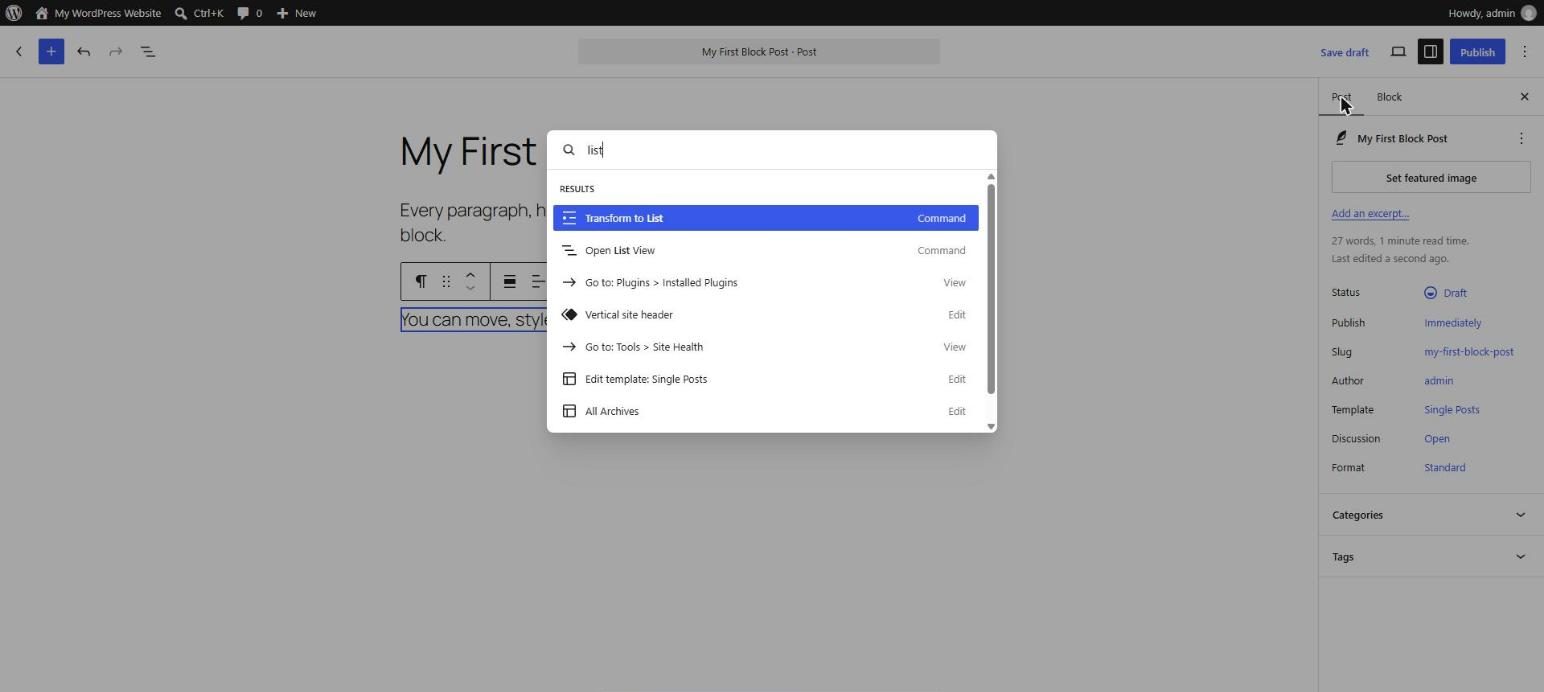
Zone 2: The Canvas
The canvas is the large center area where your content sits. It looks close to your live page, but it is not always identical, because your theme can style things slightly differently on the front end. Always click View to preview before you publish.
Zone 3: The Block Toolbar
When you select a block, a small toolbar appears just above it. Its buttons change with the block type:
- Paragraph: change block type, drag handle, move up and down, text alignment, bold, italic, link, and more text options.
- Image: replace the image, crop, alignment, and link.
At the right end of every block toolbar is a three-dot Options menu. It holds Copy, Duplicate, Insert before, Insert after, Group, Lock, Create pattern, and Remove block. You will use Duplicate and Group all the time.
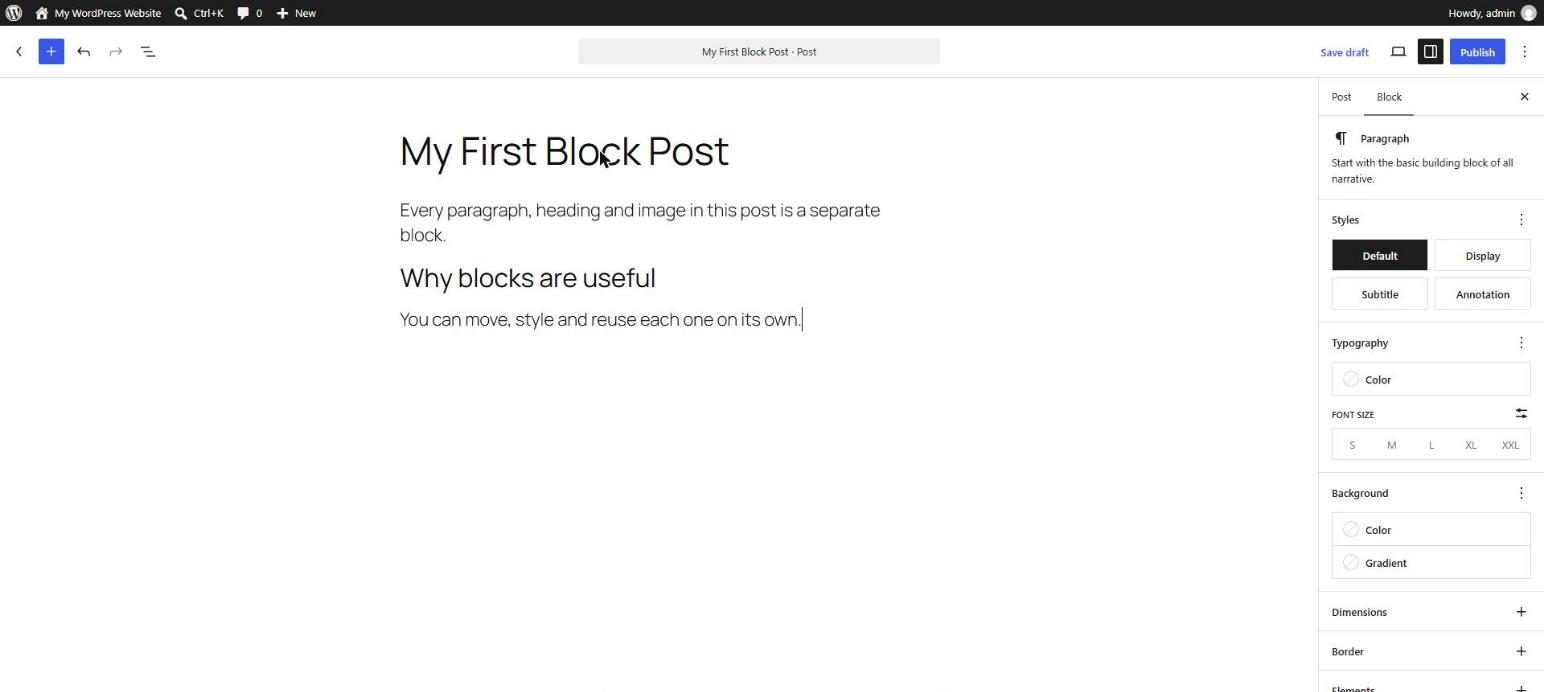
Zone 4: The Settings Sidebar
The right sidebar has two tabs:
- Post (or Page) tab: settings for the whole document. This is where you set the status and publish date, the URL slug, the featured image, categories and tags, the excerpt, discussion, and the template.
- Block tab: settings for the block you have selected. It is split into Settings and Styles sub-tabs, with controls such as typography, colors, dimensions, and borders. At the bottom is an Advanced panel with an HTML anchor and Additional CSS class(es).
A common beginner problem: you click empty space, the Block tab looks empty, and you think the settings are missing. They are not. Select a block first.
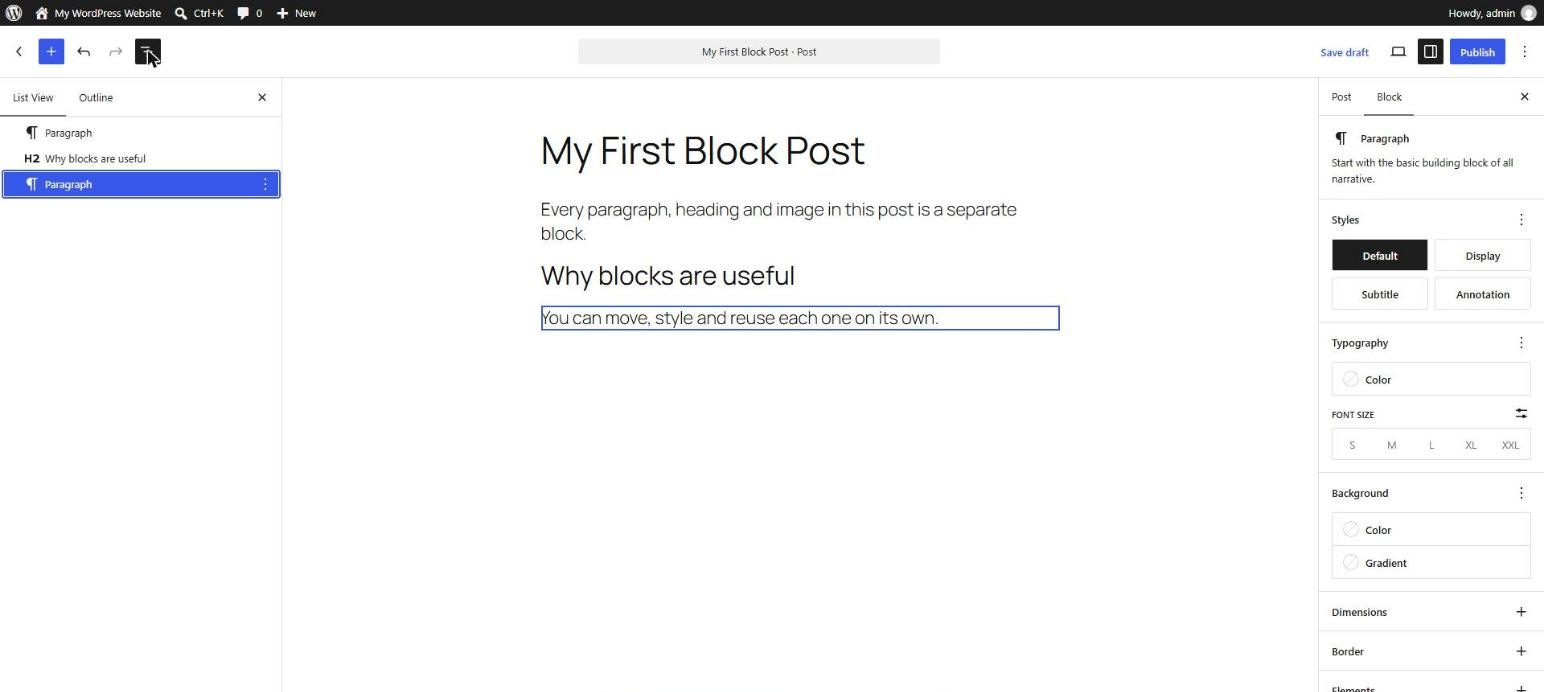
Zone 5: Document Overview (List View and Outline)
Click the Document Overview icon in the top bar. You get two tabs.
List View (shortcut Shift+Alt+O on Windows, Control+Option+O on Mac) shows every block as a nested tree. Click a block to select it, drag to reorder, and expand or collapse groups. On long pages it is much faster than scrolling the canvas. In WordPress 6.5 and newer you can also rename blocks here from the block options menu, for example calling a Group "Hero section", which keeps big pages readable.
Outline shows the word count, character count, estimated reading time, number of paragraphs and blocks, and a list of your headings. For SEO this is the quickest way to check that your headings follow a sensible order.
Modes Worth Knowing
- Edit mode is the normal mode: clicking text puts the cursor in it.
- Select mode: clicking selects the whole block instead of placing a cursor. Press Esc to enter it and Enter to go back to editing. It is perfect for moving blocks without typing into them by accident.
- Top toolbar (Options → View): pins the block toolbar to the top bar instead of floating above the block.
- Spotlight mode: greys out every block except the one you are working on.
- Fullscreen mode: hides the WordPress admin menu so you can focus.
Block Breadcrumbs
At the bottom of the editor, a breadcrumb line shows the parent chain of the selected block, for example Document › Group › Columns › Column › Paragraph. Click any item to select that parent. This is the fastest way to select the whole Columns block when you keep landing on a single Column.
Settings to Fill In for Every Post (SEO)
- URL slug: short, lowercase, with hyphens and your main keyword.
- Featured image: used on blog lists and when the post is shared.
- Excerpt: a short summary that many themes use as the preview text.
- Headings: the post title is normally your H1, so use H2 for the main sections inside the content and H3 for sub-sections. Check the order in the Outline tab.
Key takeaway: know where to look. The toolbar is for quick actions, the sidebar is for settings, List View is for structure, and breadcrumbs are for getting out of nested blocks.
5 Examples to Follow Along
Example 1: Open Document Overview
Click the Document Overview icon in the top bar, or press Shift+Alt+O. Under the List View tab, click any block in the list and the canvas scrolls to it. Switch to the Outline tab to see your word count and headings.
Example 2: Use Select Mode to Reorder
Click a block, then press Esc to enter Select mode. Now a click selects the whole block. Press Ctrl+Shift+Alt+T to move the block up, or Ctrl+Shift+Alt+Y to move it down. Press Enter to go back to editing text.
Example 3: Add a CSS Class in the Advanced Panel
Select a Paragraph, open the Block tab in the sidebar, scroll to Advanced, and type intro-text in Additional CSS class(es). In the Code editor the block now looks like this:
<!-- wp:paragraph {"className":"intro-text"} -->
<p class="intro-text">Welcome to my site.</p>
<!-- /wp:paragraph -->
Example 4: Select a Parent Block with Breadcrumbs
Build a Columns block with a Paragraph inside one column. Click the paragraph, then click Columns in the breadcrumb line at the bottom. The whole layout is now selected, and the sidebar shows settings for the Columns block, such as vertical alignment and stacking on mobile.
Example 5: Check Your Document Stats
Open Document Overview and choose the Outline tab. Note the word count, reading time, and heading list. Now add another H2 heading somewhere in the page and watch the outline update straight away.
Questions
Try to answer each question yourself first, then open the answer.
Question 1: What is the difference between the Post tab and the Block tab in the sidebar?
Show answer
The Post (or Page) tab controls the whole document: status, publish date, URL slug, featured image, categories, tags, excerpt, discussion, and template. The Block tab controls only the block you have selected: its settings, styles, and the Advanced panel.
Example: changing the page URL happens in the Post tab. Changing one heading's font size happens in the Block tab after you select that heading. If no block is selected, the Block tab looks empty, so click a block first.
Question 2: When would you use List View instead of the canvas?
Show answer
Use it on long pages, deeply nested layouts, or whenever a block is hard to click.
Example: a landing page contains Group → Columns → Column → Group → Paragraph. Clicking the right layer on the canvas is awkward, but in List View you click the exact layer, or drag a whole Columns block to a new position. You can also rename blocks such as "Hero heading" or "Pricing section" so big pages stay readable.
Question 3: What does Select mode do?
Show answer
In Edit mode a click places the cursor inside text. In Select mode a click selects the whole block, so you can move, duplicate, or delete it without typing into it by accident.
Example: to move a Gallery above a Heading, press Esc, click the Gallery, and press Ctrl+Shift+Alt+T. No text gets edited. Press Enter to return to editing.
Question 4: How do breadcrumbs help with nested blocks?
Show answer
They show the parent chain of the selected block at the bottom of the editor, and every item is clickable.
Example: with a Paragraph selected inside a Column inside Columns inside a Group, the line reads Document › Group › Columns › Column › Paragraph. Click Columns to change the layout of the whole row. This solves the common problem of not being able to select the outer block.
Question 5: Where do you set the URL slug and the featured image?
Show answer
Open the sidebar and go to the Post (or Page) tab.
- URL slug: in the Summary area, click the link next to URL and edit it. For example, change
practice-day-2-2toblock-editor-interface. - Featured image: in the Featured image panel, click Set featured image and choose or upload a picture. Add alt text in the media library.
SEO note: keep slugs short, lowercase, and hyphen-separated, with your main keyword in them.
MCQs (Multiple Choice Questions)
MCQ 1: Which shortcut opens List View on Windows?
- A) Ctrl+L
- B) Shift+Alt+O
- C) Ctrl+Shift+V
- D) Alt+F4
Show answer
B) Shift+Alt+O. It opens Document Overview with the List View tab.
MCQ 2: The Advanced panel in the Block tab contains:
- A) Publish date
- B) Categories
- C) HTML anchor and Additional CSS class(es)
- D) Revisions
Show answer
C). Publish date and categories are in the Post tab, and revisions are a separate panel.
MCQ 3: Which mode greys out every block except the one you are editing?
- A) Fullscreen mode
- B) Select mode
- C) Top toolbar
- D) Spotlight mode
Show answer
D) Spotlight mode. You find it under Options → View.
MCQ 4: Block breadcrumbs appear:
- A) In the top bar
- B) At the bottom of the editor
- C) In the media library
- D) In Settings → General
Show answer
B) At the bottom of the editor. They show the parent chain of the selected block.
MCQ 5: Where do you see the word count and the list of headings in current WordPress?
- A) Document Overview, Outline tab
- B) The Preview button
- C) Options → Code editor
- D) The URL slug field
Show answer
A) Document Overview, Outline tab. Older versions used a separate Details icon for the counts.
Practice: 10 Tasks from Easy to Hard
Create a new draft page called Practice Day 2 and work through the tasks in order. Where a snippet is given, open Options → Code editor, paste it, then switch back to the Visual editor.
Task 1 (Easy): Find the two sidebar tabs
Open the sidebar with the Settings button, then click between the Page tab and the Block tab. Select a paragraph first so the Block tab has something to show.
Task 2 (Easy): Open List View
Add three blocks, open Document Overview with Shift+Alt+O, and click each block in the list.
Task 3 (Easy): Try Fullscreen mode
Open Options → View, turn Fullscreen mode on, then turn it off again.
Task 4 (Easy): Read your document stats
Open the Outline tab and write down the word count and the number of headings.
Task 5 (Medium): Move a block in Select mode
Press Esc to enter Select mode, select a block, and move it with Ctrl+Shift+Alt+T and Ctrl+Shift+Alt+Y. Press Enter to leave Select mode.
Task 6 (Medium): Compare two focus modes
Turn on Spotlight mode and then Top toolbar. Work in each for a minute and decide which setup you prefer.
Task 7 (Medium): Rename blocks in List View
Rename three blocks to "Hero heading", "Hero text", and "Hero button". Open the Code editor and look for the name saved inside the block comment.
Task 8 (Medium-Hard): Build a layout and select every parent
Paste the snippet below into the Code editor, switch to Visual, then click the left paragraph and use only the breadcrumbs to select the Column, then Columns, then Group.
<!-- wp:group -->
<div class="wp-block-group"><!-- wp:columns -->
<div class="wp-block-columns"><!-- wp:column -->
<div class="wp-block-column"><!-- wp:heading {"level":3} -->
<h3 class="wp-block-heading">Left column</h3>
<!-- /wp:heading -->

<!-- wp:paragraph -->
<p>Text for the left column.</p>
<!-- /wp:paragraph --></div>
<!-- /wp:column -->

<!-- wp:column -->
<div class="wp-block-column"><!-- wp:heading {"level":3} -->
<h3 class="wp-block-heading">Right column</h3>
<!-- /wp:heading -->

<!-- wp:paragraph -->
<p>Text for the right column.</p>
<!-- /wp:paragraph --></div>
<!-- /wp:column --></div>
<!-- /wp:columns --></div>
<!-- /wp:group -->
Task 9 (Hard): Prepare a post for SEO
On a draft page, set a custom URL slug, a featured image, and an excerpt. Then open the Outline tab and confirm that your content uses H2 headings for sections and H3 for sub-sections, with nothing out of order.
Task 10 (Hard): Build a page without the mouse
Open the keyboard shortcuts list (Shift+Alt+H) and pick ten that you will use every day. Then build a small page with a heading, a paragraph, an image, a button, and a two-column layout using only the keyboard shortcuts and the / command. Use Ctrl+K to open the Command Palette and find actions by name.
Coming Up Next
In Day 3 you will master the Paragraph and Heading blocks: text formatting, heading levels, and how to keep your page structure clean for readers and search engines.
I'm Umar, a web developer and SEO specialist in Abu Dhabi. Get in touch.