What Is the WordPress Block Editor? Day 1 Tutorial
On this page
Welcome to Day 1 of the 60-Day WordPress Block Editor Tutorial Series. In this lesson you will learn what the Block Editor is, how WordPress stores your content as blocks, and how to add your first blocks. Time needed: 10 minutes reading + 30 minutes practice.
What You Will Learn Today
- What the Block Editor (Gutenberg) is and why WordPress uses it
- How a block is saved in the database
- The difference between a block, a pattern, and a template
- Three ways to add a block
- Common beginner mistakes to avoid
Reading: What Is the WordPress Block Editor?
Before 2018, WordPress content lived in one big editing box. If you wanted columns, buttons, or a special layout, you needed shortcodes, a page builder, or custom code. In WordPress 5.0 (December 2018) the Block Editor became the default editor. Its project name is Gutenberg, and you will hear both names used for the same thing.
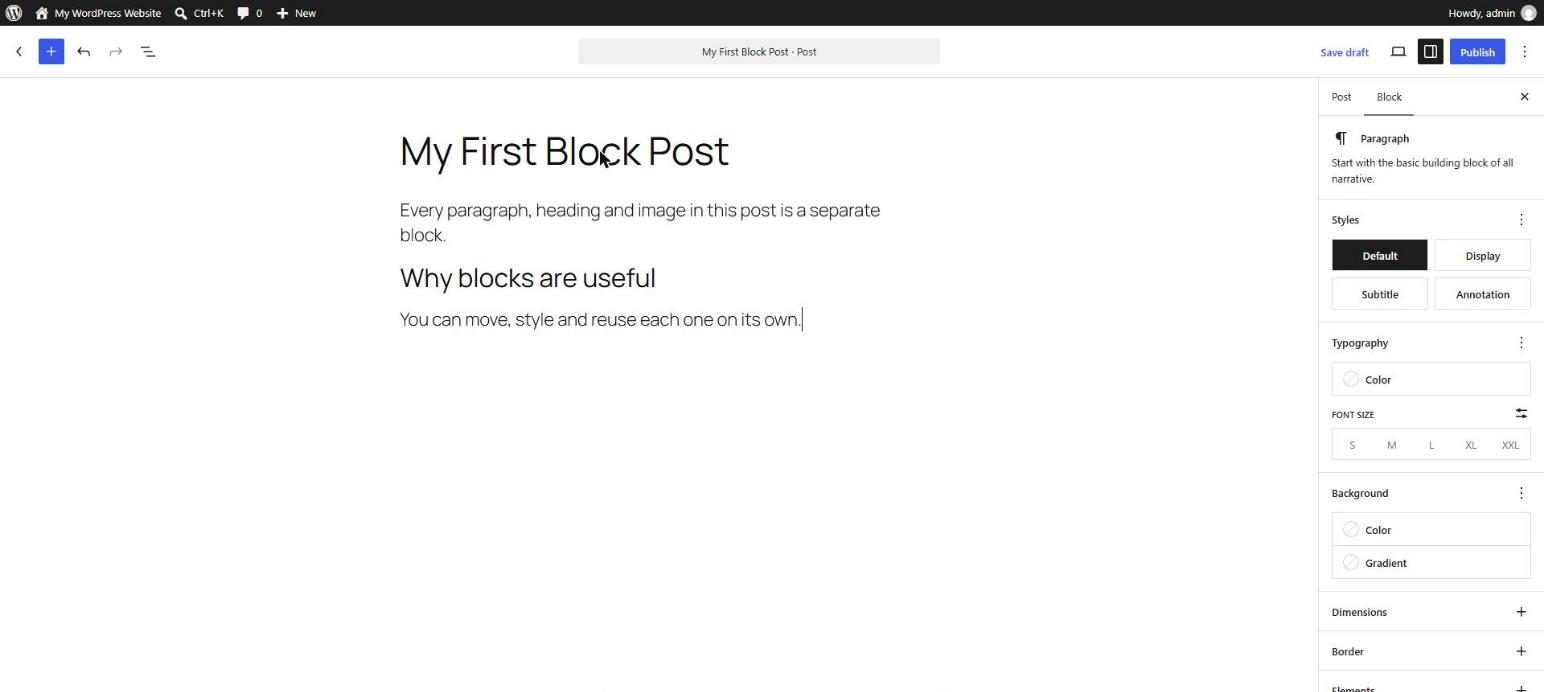
In the Block Editor, every piece of content is a block: a paragraph, a heading, an image, a button, a list, a column layout. Each block has its own toolbar, its own settings, and its own clean HTML output. You build a page by stacking and arranging blocks instead of writing one long block of text.
How WordPress Stores Blocks
WordPress saves your content in the database (the post_content column of the wp_posts table) as normal HTML wrapped in special comments. The comment tells WordPress which block it is. The HTML between the comments is what your visitors see.
<!-- wp:paragraph -->
<p>Hello world</p>
<!-- /wp:paragraph -->
This matters for developers and SEO specialists: the output is clean, readable HTML that you can inspect at any time, without the extra wrapper code many page builders add.
Block, Pattern, and Template
Three words you will use all through this series:
- Block: the smallest unit, such as one Paragraph, Image, or Button.
- Pattern: a saved arrangement of blocks you can insert and edit, such as a hero section with a heading, text, and button.
- Template: the layout of a whole page type (single post, archive, 404), edited in the Site Editor.
Easy way to remember: a block is a brick, a pattern is a pre-built wall, and a template is the floor plan of the house.
Where the Block Editor Appears
- Post and Page editor: Pages → Add New. You edit the content of one page or post.
- Site Editor: Appearance → Editor (block themes only). You edit headers, footers, and templates.
- Widgets and Navigation: these are also block-based in modern WordPress.
Three Ways to Add a Block
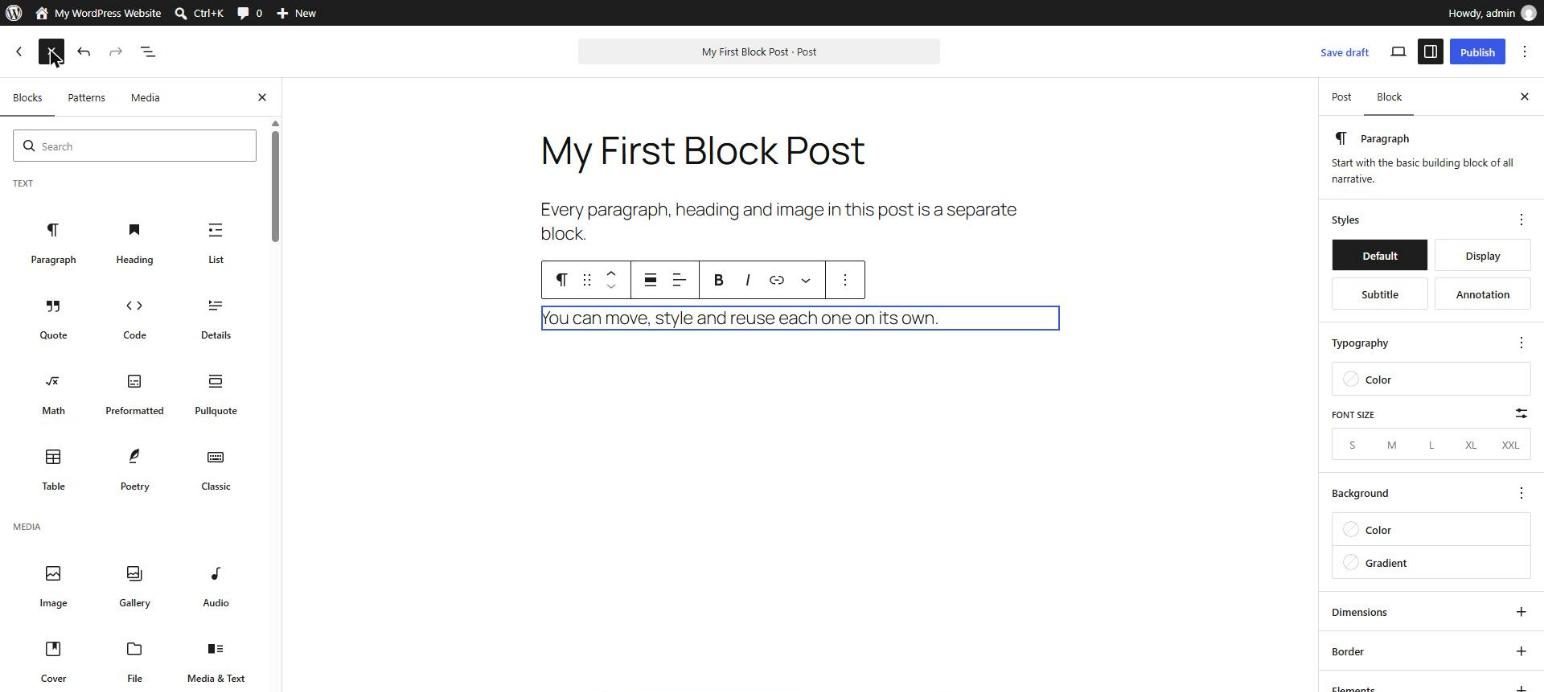
- The Block Inserter (+): click the + at the top left, search for the block, and click it.
- The slash command: on an empty line type
/and a block name, for example/image, then press Enter. - The Enter key: at the end of a paragraph, press Enter to start a new Paragraph block.
Why the Block Editor Is Good for Real Projects
- Clean markup with less bloat, which helps page speed.
- Consistent design controls for colors, spacing, and typography.
- Reusable patterns for sections you repeat.
- Safer editing: a client or marketing team member can change text and images without breaking the layout.
- Proper structure for SEO: real headings, lists, and image alt text.
What Every Block Contains
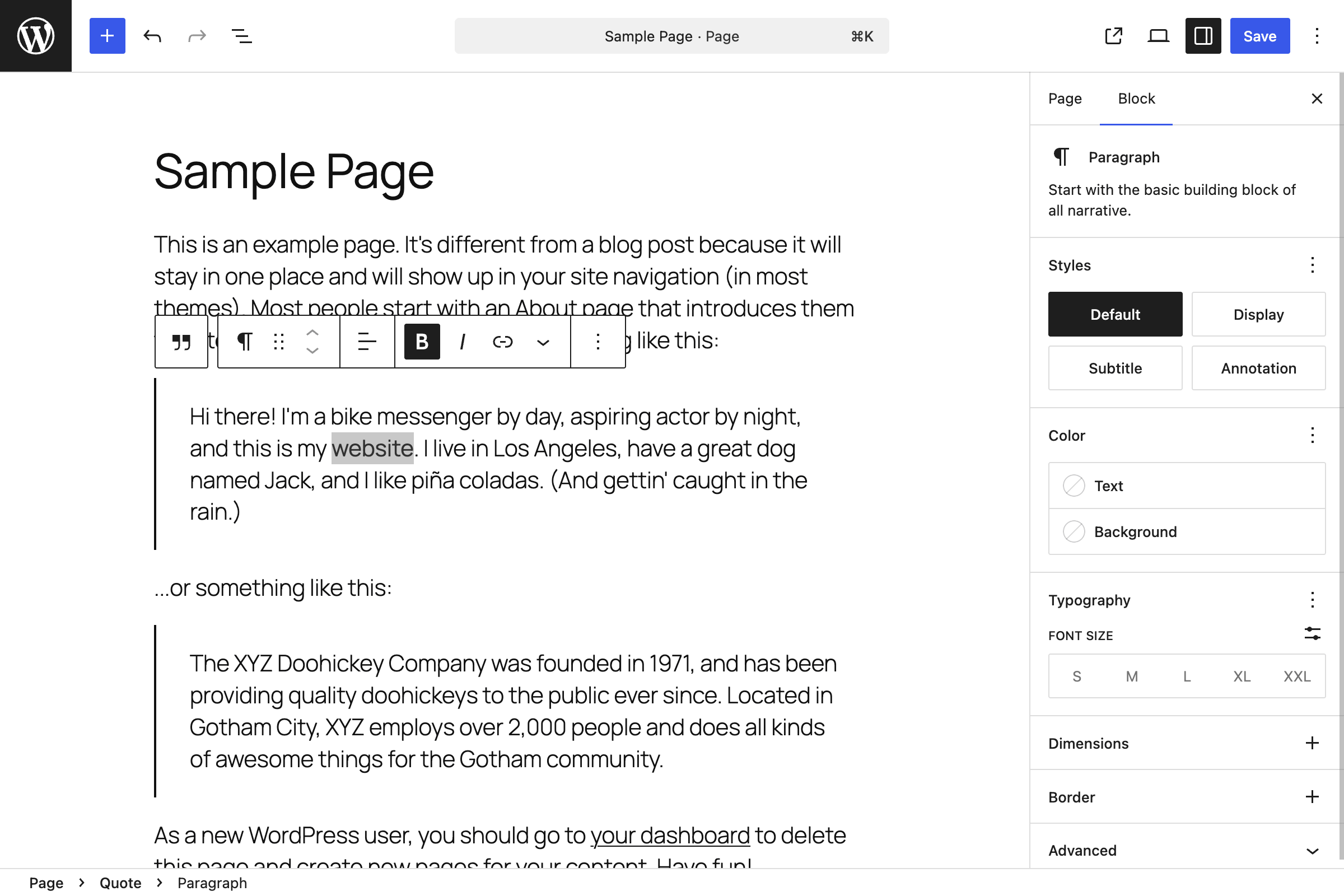
- A toolbar that floats above the block when selected.
- Sidebar settings in the right panel, under the Block tab.
- Attributes: the saved values such as text, color, or size.
- Output HTML that is shown on the front end.

Common Beginner Mistakes
- Typing everything in one Paragraph block and using line breaks instead of separate blocks.
- Choosing a heading level because it looks big, not because of the page structure. Use H2 for main sections and H3 for sub-sections, and style size separately.
- Pasting from Word or Google Docs with leftover formatting. Use Ctrl+Shift+V (paste as plain text) instead.
- Skipping image alt text, which hurts accessibility and SEO.
Key takeaway: everything in the Block Editor is a block. Learn the blocks, learn their settings, and you can build most pages without a page builder.
5 Examples to Follow Along
Example 1: Add a Paragraph by Typing
Create a new page (Pages → Add New). Click below the title, type Welcome to my site. You have just created a Paragraph block. Here is the markup it produces:
<!-- wp:paragraph -->
<p>Welcome to my site.</p>
<!-- /wp:paragraph -->
Example 2: Add a Heading with the Slash Command
On an empty line, type /heading and press Enter. Type About Us, then use the toolbar to choose H2. The result:
<!-- wp:heading -->
<h2>About Us</h2>
<!-- /wp:heading -->
Example 3: Add an Image with Alt Text
Click the + inserter, search for Image, and upload a picture. In the sidebar, fill in the Alt text box with a short, honest description of the picture. The result (your file name and ID will differ):
<!-- wp:image {"id":123,"sizeSlug":"large","linkDestination":"none"} -->
<figure><img src="https://example.com/wp-content/uploads/block-editor.jpg" alt="WordPress block editor showing a heading and a paragraph" class="wp-image-123"/></figure>
<!-- /wp:image -->
Example 4: View the Block Markup
Click the three-dot Options menu (⋮) at the top right and choose Code editor, or press Ctrl+Shift+Alt+M. You will see the raw markup of every block on the page. Choose Visual editor in the same menu to return. Look for each <!-- wp:... --> comment and match it to a block on your page.
Example 5: Move a Block
Select a block and use the up and down arrows in the block toolbar, or drag the handle on the left. In the Code editor you can see what changes: the whole block moves together with its comments. Before and after moving the heading above the paragraph:
BEFORE
<!-- wp:paragraph -->
<p>Welcome to my site.</p>
<!-- /wp:paragraph -->

<!-- wp:heading -->
<h2>About Us</h2>
<!-- /wp:heading -->

AFTER
<!-- wp:heading -->
<h2>About Us</h2>
<!-- /wp:heading -->

<!-- wp:paragraph -->
<p>Welcome to my site.</p>
<!-- /wp:paragraph -->
Questions
Try to answer each question yourself first, then open the answer.
Question 1: What is the difference between the Block Editor and Gutenberg?
Show answer
The Block Editor is the editing screen you use, made of blocks. Gutenberg is the name of the project (and plugin) where it was built. Since WordPress 5.0 it is part of core, so both names describe the same editor.
Example: "Update the Gutenberg plugin" means installing the plugin version, which gets new features before core. "Build the page in the Block Editor" simply means use the blocks screen.
Question 2: How does WordPress store a block in the database?
Show answer
As normal HTML wrapped in comment delimiters, saved in the post_content column of wp_posts. The comment names the block, and extra settings are saved as JSON inside it.
<!-- wp:heading {"level":3} -->
<h3>Our Services</h3>
<!-- /wp:heading -->
Here wp:heading is the block, {"level":3} is a saved setting, and the <h3> is what visitors see.
Question 3: What is the difference between a block, a pattern, and a template?
Show answer
- Block: one unit, for example a single Button.
- Pattern: a saved group of blocks, for example a hero section made of a Cover, Heading, Paragraph, and Button.
- Template: the layout of a whole page type, for example the Single Post template that decides where the title, featured image, and content appear.
Question 4: Name three ways to add a new block.
Show answer
- Click the + inserter and search the block name.
- Type
/plus the block name on an empty line, for example/quote. - Press Enter at the end of a paragraph to create a new Paragraph block.
You can also drag a block from the inserter to an exact spot on the page.
Question 5: Why is separating content into blocks better than one big paragraph?
Show answer
- Structure and SEO: headings, lists, and images get the correct HTML tags.
- Control: every block has its own color, spacing, and alignment settings.
- Reuse: blocks can be moved, duplicated, or saved as patterns.
- Cleaner output: no manual line-break hacks.
Example: a services list typed as one paragraph gives no list markup. The List block outputs <ul><li>…</li></ul>, which is better for accessibility and search engines.
MCQs (Multiple Choice Questions)
MCQ 1: Which WordPress version made the Block Editor the default editor?
- A) 4.0
- B) 5.0
- C) 6.0
- D) 3.5
Show answer
B) 5.0. The Block Editor shipped in WordPress 5.0 in December 2018.
MCQ 2: Which character opens quick block search on an empty line?
- A) #
- B) @
- C) /
- D) \
Show answer
C) /. For example, type /image and press Enter.
MCQ 3: A saved arrangement of blocks, like a hero section, is called a:
- A) Template
- B) Pattern
- C) Widget
- D) Shortcode
Show answer
B) Pattern. A template defines a whole page type; a pattern is a reusable group of blocks.
MCQ 4: Which of these is NOT a way to add a block?
- A) The + inserter
- B) The / slash command
- C) Pressing Enter after a paragraph
- D) Editing wp-config.php
Show answer
D) Editing wp-config.php. That file holds site configuration, not content blocks.
MCQ 5: Blocks are stored in the database as:
- A) HTML wrapped in special comments
- B) Separate JSON files
- C) Serialized PHP only
- D) Images
Show answer
A) HTML wrapped in special comments. The comment names the block; the HTML is the output.
Practice: 10 Tasks from Easy to Hard
Create a new draft page called Practice Day 1 and work through the tasks in order. Code snippets are provided where useful: open ⋮ → Code editor, paste the snippet, then switch back to the Visual editor.
Task 1 (Easy): Your first paragraph
Add one Paragraph block with any sentence.
Task 2 (Easy): Add a heading
Use the /heading command to add an H2 above your paragraph.
Task 3 (Easy): Paste a snippet and see the blocks
Paste this into the Code editor, then switch to the Visual editor. You should see one heading and two paragraphs.
<!-- wp:heading -->
<h2>My First Section</h2>
<!-- /wp:heading -->

<!-- wp:paragraph -->
<p>This is the first paragraph.</p>
<!-- /wp:paragraph -->

<!-- wp:paragraph -->
<p>This is the second paragraph.</p>
<!-- /wp:paragraph -->
Task 4 (Easy): Insert an image with alt text
Add an Image block, upload any picture, and write alt text that describes it in one short sentence.
Task 5 (Medium): Reorder blocks two ways
Move a block using the toolbar arrows, then move another using drag and drop. Open the Code editor and confirm the order of the comments changed.
Task 6 (Medium): Read the markup
Look at the snippet below. Which HTML tag does the block output, and what is the block name?
<!-- wp:heading -->
<h2>Contact</h2>
<!-- /wp:heading -->
Show answer
The block name is heading (from wp:heading) and the tag is <h2>.
Task 7 (Medium): Paste as plain text
Copy a few formatted lines from a Word or Google Doc. Paste once normally and once with Ctrl+Shift+V. Compare the results and note which one has hidden formatting.
Task 8 (Medium-Hard): Build a mini About page
Using blocks, build this structure: an H2 "About Us", an intro paragraph, an H2 "Services", a list of three services, an H2 "Contact", and one Button. When finished, compare your Code editor view with this reference:
<!-- wp:heading -->
<h2>About Us</h2>
<!-- /wp:heading -->

<!-- wp:paragraph -->
<p>We build fast, clean websites for small businesses.</p>
<!-- /wp:paragraph -->

<!-- wp:heading -->
<h2>Services</h2>
<!-- /wp:heading -->

<!-- wp:list -->
<ul><!-- wp:list-item -->
<li>WordPress development</li>
<!-- /wp:list-item -->

<!-- wp:list-item -->
<li>Technical SEO</li>
<!-- /wp:list-item -->

<!-- wp:list-item -->
<li>Online store setup</li>
<!-- /wp:list-item --></ul>
<!-- /wp:list -->

<!-- wp:heading -->
<h2>Contact</h2>
<!-- /wp:heading -->

<!-- wp:buttons -->
<div><!-- wp:button -->
<div><a>Contact Us</a></div>
<!-- /wp:button --></div>
<!-- /wp:buttons -->
Task 9 (Hard): Fix the broken block
Paste this snippet in the Code editor and switch to Visual. WordPress will warn that the block has unexpected content. Your job is to fix the comment so the block is valid again, without changing the visible text.
<!-- wp:heading -->
<h3>Our Services</h3>
<!-- /wp:heading -->
Show answer
A heading comment with no attributes means H2, but the HTML uses H3. Tell WordPress the level in the comment:
<!-- wp:heading {"level":3} -->
<h3>Our Services</h3>
<!-- /wp:heading -->
Task 10 (Hard): Match the editor to the front end
Publish your mini About page. On the live page press Ctrl+U to view the source, then match every visible element to its block in the editor. Write down which CSS classes each block produced, for example wp-block-heading, wp-block-list, and wp-block-button__link. This habit will help a lot when you start styling blocks later in the series.
Coming Up Next
In Day 2 you will take a full tour of the editor interface: the top bar, block toolbar, settings sidebar, and List View.
I'm Umar, a web developer and SEO specialist in Abu Dhabi. Get in touch.